PH
PHGEN-PRO Xiaomi Tool Free Download With Login 2026
Many Xiaomi phones get stuck after reset or software update. This happens a lot. A phone may ask for old Mi account. Sometimes FRP lock appears. In some cases the phone does not boot at all.
GEN-PRO Xiaomi tool is used to fix these problems. It is not for normal users. It is mostly used by phone repair people. The tool works with Xiaomi phones using computer and USB cable.
Why People Use This Tool
Xiaomi has strong security. After reset, the phone may not open without old account. Customers come to repair shops with this issue every day.
With this tool, the technician can connect the phone and remove the lock. It saves time. It also avoids changing parts. That is why this tool is popular.
How the Tool Looks When Open
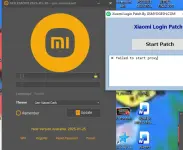
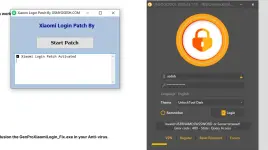
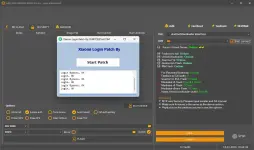
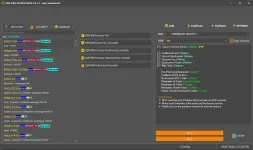
When you open the tool, you see Xiaomi models on the left side. You must choose the correct model. Wrong model can create more problems.
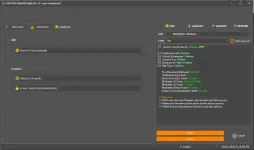
In the middle, you see options like remove FRP, remove Mi cloud, erase data, and erase EFS. These are used based on the phone problem.
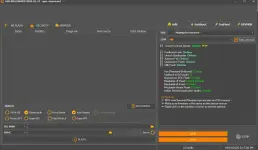
On the right side, you see phone status. It shows if the phone is connected. It also shows if the server is online.
Repair people always check this side first.
Connecting the Phone
The phone can be connected in different ways. Sometimes it connects in fastboot mode. Sometimes in ADB. Dead phones are connected in EDL mode.
Once connected, the tool shows green status. This means it is ready. If status is red or offline, do not start any work.
Removing FRP Lock
If the phone asks for Google account after reset, FRP lock is active. In this case, the technician connects the phone and uses the remove FRP option.
The process takes a few minutes. After finish, the phone restarts and FRP is gone.
Removing Mi Account Lock
Mi account lock is common in Xiaomi phones. Customer forgets the account. Phone becomes useless.
Using this tool, the technician selects the correct model and chooses remove Mi cloud option. If server is online, the process works smoothly.
Fastboot and EDL Use
Fastboot mode is used when phone is stuck on logo or cannot open system. The tool can reboot phone to EDL or unlock bootloader if allowed.
EDL mode is used when phone is dead or bricked. This method is risky. Only experienced people use it.
Real Repair Situation
A customer brings a Xiaomi phone. Phone shows Mi account lock. Customer has no ID. Phone is useless.
Technician connects phone to PC. Opens GEN-PRO tool. Checks model. Checks server status. Removes Mi account.
Phone restarts. Problem solved. Customer happy.
This is daily work in repair shops.
Supprted Models
Series Supported Models
Xiaomi 11 Series 11, 11 Lite, 11 Lite 5G NE, 11T, 11T Pro, 11 Ultra
Xiaomi 12 Series 12, 12 Lite, 12 Pro, 12X, 12S, 12S Pro, 12S Ultra, 12T, 12T Pro
Xiaomi 13 Series 13, 13 Lite, 13 Pro, 13 Ultra, 13T, 13T Pro
Xiaomi 14 Series 14, 14 Pro, 14 Ultra
Xiaomi Mix Series Mix 4, Mix Fold, Mix Fold 2, Mix Fold 3
Xiaomi Civi Series Civi, Civi 1S, Civi 2, Civi 3
Series Supported Models
Redmi Note 8 Note 8, Note 8 Pro
Redmi Note 9 Note 9, 9S, 9 Pro, 9 Pro Max
Redmi Note 10 Note 10, 10S, 10 Pro, 10 Pro Max
Redmi Note 11 Note 11, 11S, 11 Pro, 11 Pro Plus
Redmi Note 12 Note 12, 12 5G, 12 Pro, 12 Pro Plus
Redmi Note 13 Note 13, 13 Pro, 13 Pro Plus
Series Supported Models
Redmi 8 Series Redmi 8, 8A
Redmi 9 Series Redmi 9, 9A, 9C, 9T
Redmi 10 Series Redmi 10, 10A, 10C
Redmi 11 Series Redmi 11 Prime
Redmi 12 Series Redmi 12, 12C
Redmi 13 Series Redmi 13, 13C
Series Supported Models
POCO F Series F1, F2 Pro, F3, F4, F4 GT, F5, F5 Pro
POCO X Series X2, X3, X3 Pro, X4, X4 Pro, X5, X5 Pro
POCO M Series M2, M3, M4, M5
POCO C Series C3, C31, C33, C51, C55
Device Type Supported Models
Mi Pad Mi Pad 5, Pad 5 Pro, Pad 6, Pad 6 Pro
Redmi Pad Redmi Pad, Redmi Pad SE
Mi A Series Mi A2, Mi A3
Android One Supported Xiaomi Android One devices
Chipset Support
Qualcomm Yes (EDL, Fastboot)
MediaTek Yes (MTK Flash)
EDL 9008 Supported
Fastboot Supported
ADB Supported
GEN-PRO Xiaomi Tool – Features List
Xiaomi model auto detect
Qualcomm device support
MediaTek device support
Fastboot mode support
ADB mode support
EDL 9008 support
Remove FRP lock
Remove Mi account
Disable Mi Cloud
Enable Mi Cloud
Erase userdata
Erase FRP
Erase EFS
Qualcomm EDL flashing
MediaTek flashing
Fastboot to EDL (auth)
Instant bootloader unlock (auth)
Xiaomi server online support
Auto reboot option
Manual reboot option
Model based functions
Custom file flashing
Secure auth support
Credit based operations
Free operations (model based)
Live device status check
First Update The Gen-Pro Xiaomi Tool to Latest Version.
Steps - Xiaomi Login ρá†ch By GSMYOGESH.COM
Run ρá†ch
Double‑click GenProXiaomiLogin.exe
Click Start ρá†ch.
Wait for log to show Activated.
Open Xiaomi Tool
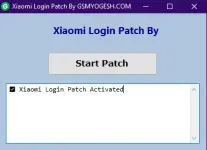
Launch your Xiaomi Unlock Tool.
The ρá†ch will auto server login attempt in background.
Check Login
Input Any User And Password Then Click Log In
Tool shows login successful.
ρá†ch window log confirms Login… OK.
Keep ρá†ch Open
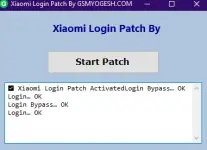
Leave ρá†ch running while using the tool.
Close When Done
Exit the ρá†ch window after finishing.
 That’s it: Start ρá†ch → Open tool → Login works → Close when done.
Good Things About This Tool
It supports many Xiaomi models.
It works online.
It saves time.
It avoids hardware repair.
It is useful for shop work.
Things to Be Careful About
Always select correct model.
Do not erase EFS without reason.
Internet must be stable.
Follow your country rules.
Mistakes can damage phone data.
Note: Turn Off Or Much Better To Put On Exclusion the GenProXiaomiLogin_Fix.exe in your Anti-virus.
Link 1:
Download
Link 2:
Download
Many Xiaomi phones get stuck after reset or software update. This happens a lot. A phone may ask for old Mi account. Sometimes FRP lock appears. In some cases the phone does not boot at all.
GEN-PRO Xiaomi tool is used to fix these problems. It is not for normal users. It is mostly used by phone repair people. The tool works with Xiaomi phones using computer and USB cable.
Why People Use This Tool
Xiaomi has strong security. After reset, the phone may not open without old account. Customers come to repair shops with this issue every day.
With this tool, the technician can connect the phone and remove the lock. It saves time. It also avoids changing parts. That is why this tool is popular.
How the Tool Looks When Open
When you open the tool, you see Xiaomi models on the left side. You must choose the correct model. Wrong model can create more problems.
In the middle, you see options like remove FRP, remove Mi cloud, erase data, and erase EFS. These are used based on the phone problem.
On the right side, you see phone status. It shows if the phone is connected. It also shows if the server is online.
Repair people always check this side first.
Connecting the Phone
The phone can be connected in different ways. Sometimes it connects in fastboot mode. Sometimes in ADB. Dead phones are connected in EDL mode.
Once connected, the tool shows green status. This means it is ready. If status is red or offline, do not start any work.
Removing FRP Lock
If the phone asks for Google account after reset, FRP lock is active. In this case, the technician connects the phone and uses the remove FRP option.
The process takes a few minutes. After finish, the phone restarts and FRP is gone.
Removing Mi Account Lock
Mi account lock is common in Xiaomi phones. Customer forgets the account. Phone becomes useless.
Using this tool, the technician selects the correct model and chooses remove Mi cloud option. If server is online, the process works smoothly.
Fastboot and EDL Use
Fastboot mode is used when phone is stuck on logo or cannot open system. The tool can reboot phone to EDL or unlock bootloader if allowed.
EDL mode is used when phone is dead or bricked. This method is risky. Only experienced people use it.
Real Repair Situation
A customer brings a Xiaomi phone. Phone shows Mi account lock. Customer has no ID. Phone is useless.
Technician connects phone to PC. Opens GEN-PRO tool. Checks model. Checks server status. Removes Mi account.
Phone restarts. Problem solved. Customer happy.
This is daily work in repair shops.
Supprted Models
Series Supported Models
Xiaomi 11 Series 11, 11 Lite, 11 Lite 5G NE, 11T, 11T Pro, 11 Ultra
Xiaomi 12 Series 12, 12 Lite, 12 Pro, 12X, 12S, 12S Pro, 12S Ultra, 12T, 12T Pro
Xiaomi 13 Series 13, 13 Lite, 13 Pro, 13 Ultra, 13T, 13T Pro
Xiaomi 14 Series 14, 14 Pro, 14 Ultra
Xiaomi Mix Series Mix 4, Mix Fold, Mix Fold 2, Mix Fold 3
Xiaomi Civi Series Civi, Civi 1S, Civi 2, Civi 3
Series Supported Models
Redmi Note 8 Note 8, Note 8 Pro
Redmi Note 9 Note 9, 9S, 9 Pro, 9 Pro Max
Redmi Note 10 Note 10, 10S, 10 Pro, 10 Pro Max
Redmi Note 11 Note 11, 11S, 11 Pro, 11 Pro Plus
Redmi Note 12 Note 12, 12 5G, 12 Pro, 12 Pro Plus
Redmi Note 13 Note 13, 13 Pro, 13 Pro Plus
Series Supported Models
Redmi 8 Series Redmi 8, 8A
Redmi 9 Series Redmi 9, 9A, 9C, 9T
Redmi 10 Series Redmi 10, 10A, 10C
Redmi 11 Series Redmi 11 Prime
Redmi 12 Series Redmi 12, 12C
Redmi 13 Series Redmi 13, 13C
Series Supported Models
POCO F Series F1, F2 Pro, F3, F4, F4 GT, F5, F5 Pro
POCO X Series X2, X3, X3 Pro, X4, X4 Pro, X5, X5 Pro
POCO M Series M2, M3, M4, M5
POCO C Series C3, C31, C33, C51, C55
Device Type Supported Models
Mi Pad Mi Pad 5, Pad 5 Pro, Pad 6, Pad 6 Pro
Redmi Pad Redmi Pad, Redmi Pad SE
Mi A Series Mi A2, Mi A3
Android One Supported Xiaomi Android One devices
Chipset Support
Qualcomm Yes (EDL, Fastboot)
MediaTek Yes (MTK Flash)
EDL 9008 Supported
Fastboot Supported
ADB Supported
GEN-PRO Xiaomi Tool – Features List
Xiaomi model auto detect
Qualcomm device support
MediaTek device support
Fastboot mode support
ADB mode support
EDL 9008 support
Remove FRP lock
Remove Mi account
Disable Mi Cloud
Enable Mi Cloud
Erase userdata
Erase FRP
Erase EFS
Qualcomm EDL flashing
MediaTek flashing
Fastboot to EDL (auth)
Instant bootloader unlock (auth)
Xiaomi server online support
Auto reboot option
Manual reboot option
Model based functions
Custom file flashing
Secure auth support
Credit based operations
Free operations (model based)
Live device status check
First Update The Gen-Pro Xiaomi Tool to Latest Version.
Steps - Xiaomi Login ρá†ch By GSMYOGESH.COM
Run ρá†ch
Double‑click GenProXiaomiLogin.exe
Click Start ρá†ch.
Wait for log to show Activated.
Open Xiaomi Tool
Launch your Xiaomi Unlock Tool.
The ρá†ch will auto server login attempt in background.
Check Login
Input Any User And Password Then Click Log In
Tool shows login successful.
ρá†ch window log confirms Login… OK.
Keep ρá†ch Open
Leave ρá†ch running while using the tool.
Close When Done
Exit the ρá†ch window after finishing.
That’s it: Start ρá†ch → Open tool → Login works → Close when done.Good Things About This Tool
It supports many Xiaomi models.
It works online.
It saves time.
It avoids hardware repair.
It is useful for shop work.
Things to Be Careful About
Always select correct model.
Do not erase EFS without reason.
Internet must be stable.
Follow your country rules.
Mistakes can damage phone data.
Note: Turn Off Or Much Better To Put On Exclusion the GenProXiaomiLogin_Fix.exe in your Anti-virus.
Link 1:
Download
Link 2:
Download


 pakiupdate po boss salamat in advance