 PH
PHFor PC Users only, need to have chrome browser installed first. See Steps below:
Step 1:
Firstly, you’ll need to install chrome browser. So, if you don’t have chrome installed, download it right away.
Download link: You do not have permission to view the full content of this post. Log in or register now.
Step 2:
After the installation of Chrome, you need to add an extension called EditThisCookie extension to chrome.
Link for EditThisCookie:
You do not have permission to view the full content of this post. Log in or register now.
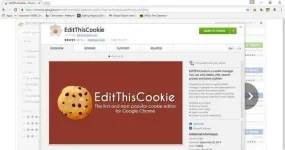
Step 3:
After adding this extension, now copy the code down below! Different codes will be available depending on website or application.
Cookie Codes:
NOTE 1: Post here if working for you or not.
NOTE 2: Don't try to mess with the account by changing passwords!!!
NOTE 3: For Netflix, do not add your own PROFILE, just use whatever is available, otherwise the code may no longer work soon!
Now open the website where you want to go, example, You do not have permission to view the full content of this post. Log in or register now., let the website load first, don't log-in or do anything yet.
Now it's time to import the CODE you got above, make sure to use the CODE from the correct link to the correct website. Example netflix code for netflix website, spotify code for spotify website, etc...
Step 4:
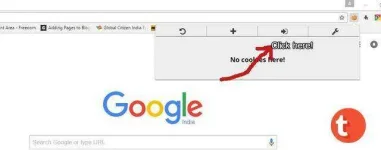
After copying the above code, now we need to click in the import tab and paste the code. First click the Cookie icon, then click the import button (Refer to image below)
Step 5:
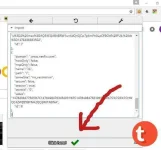
After importing, click on the green check. Now we have successfully added the code! (Refer image below).
Step 6:
After following all the above procedure. you must now go back where you initially open the website (our example is You do not have permission to view the full content of this post. Log in or register now.), now reload the website You do not have permission to view the full content of this post. Log in or register now. (or whatever website you plan to use the code, just remember again, use the code for the corresponding website, otherwise it will not work)
Step 7:
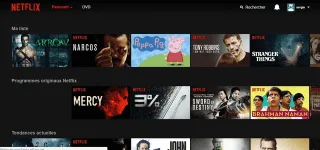
If the code is working, then you should see your netflix has been logged in automatically. If you cannot log-in automatically after applying the code, then the code has already expired. Wait for another update for new codes.
Note for Spotify:
After succesful log-in look for the Web Player link at the bottom of page to start Spotify Web player (see image below)

Step 1:
Firstly, you’ll need to install chrome browser. So, if you don’t have chrome installed, download it right away.
Download link: You do not have permission to view the full content of this post. Log in or register now.
Step 2:
After the installation of Chrome, you need to add an extension called EditThisCookie extension to chrome.
Link for EditThisCookie:
You do not have permission to view the full content of this post. Log in or register now.
Step 3:
After adding this extension, now copy the code down below! Different codes will be available depending on website or application.
Cookie Codes:
Spoiler contents are visible only to Established Members.
NOTE 1: Post here if working for you or not.
NOTE 2: Don't try to mess with the account by changing passwords!!!
NOTE 3: For Netflix, do not add your own PROFILE, just use whatever is available, otherwise the code may no longer work soon!
Now open the website where you want to go, example, You do not have permission to view the full content of this post. Log in or register now., let the website load first, don't log-in or do anything yet.
Now it's time to import the CODE you got above, make sure to use the CODE from the correct link to the correct website. Example netflix code for netflix website, spotify code for spotify website, etc...
Step 4:
After copying the above code, now we need to click in the import tab and paste the code. First click the Cookie icon, then click the import button (Refer to image below)
Step 5:
After importing, click on the green check. Now we have successfully added the code! (Refer image below).
Step 6:
After following all the above procedure. you must now go back where you initially open the website (our example is You do not have permission to view the full content of this post. Log in or register now.), now reload the website You do not have permission to view the full content of this post. Log in or register now. (or whatever website you plan to use the code, just remember again, use the code for the corresponding website, otherwise it will not work)
Step 7:
If the code is working, then you should see your netflix has been logged in automatically. If you cannot log-in automatically after applying the code, then the code has already expired. Wait for another update for new codes.
Note for Spotify:
After succesful log-in look for the Web Player link at the bottom of page to start Spotify Web player (see image below)