PH
PHPHC - Raijin-X
꧁𓊈𒆜° ꒓ꆂꁹ-ꏝꂑ꒒ °𒆜𓊉꧂
How to use Netflix Premium Cookies?.
Here is a detailed guide on using the Netflix Premium Cookies. :
:- Install “You do not have permission to view the full content of this post. Log in or register now.” from the Chrome web store on your browser extension section.
- Open the Netflix homepage and “delete all” cookies using the cookie editor.
- Copy the Netflix Premium Cookies from below
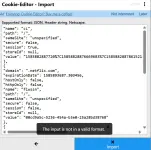
- Now go to the Netflix Premium homepage again, open the cookie editor, click on import, paste the copied cookies, click on import again, and refresh the page.
Netflix Premium Cookies: [Re-Updated][2026]

You do not have permission to view the full content of this post. Log in or register now.
=======================
[Note:]
Please Don't Log-Out After You Used The Cookies!., Just Close Your Browser! ...

======================
- Working Cookies:
You do not have permission to view the full content of this post. Log in or register now.
&
You do not have permission to view the full content of this post. Log in or register now.
======================
=/=/=/=/=
[Updated Link:] [For TV & Android Extension Supported Browsers]
First Download Kiwi Browser => You do not have permission to view the full content of this post. Log in or register now. & Bomo Browser => You do not have permission to view the full content of this post. Log in or register now. Or Firefox Nightly & Firefox Devs => You do not have permission to view the full content of this post. Log in or register now.
Spoiler contents are visible only to Established Members.
Spoiler contents are visible only to Established Members.
Spoiler contents are visible only to Established Members.
Spoiler contents are visible only to Established Members.
Spoiler contents are visible only to Established Members.
Spoiler contents are visible only to Established Members.
Spoiler contents are visible only to Established Members.
[Note:]
- Install Modified “You do not have permission to view the full content of this post. Log in or register now.” from this Cloud Storage on your browser for All Permissions Extensions.
Just Look The Guide On YT For Easy Understanding!., Try Here:=>
To put extensions on Kiwi Browser, install the Kiwi app, tap the three dots menu, go to "Extensions," and select "from store" to open the Chrome Web Store where you can search and add extensions just like on a desktop, clicking "Add to Chrome" and then "OK" to confirm. Or Through Here:=>
To install an external (manually downloaded) extension file in Kiwi Browser, you need to enable Developer mode and load the unpacked extension files.
Prerequisites
- Ensure you have the latest version of Kiwi Browser installed from the Play Store.
- The extension file should be downloaded to your phone, ideally as a .zip file which you will need to unzip into a folder of its contents first.
Step-by-Step Instructions
- Open Kiwi Browser on your Android device.
- Access the Extensions menu by tapping the three-dot menu icon in the top right corner and selecting Extensions.
- Enable Developer mode.
- In the address bar, type chrome://extensions/ and hit Enter.
- On the extensions page that appears, look for a toggle or checkbox to enable Developer mode (the exact location might vary slightly based on the version, but it's usually in the top corner).
- Load the extension file.
- After enabling Developer mode, a new button like "Load unpacked" or a similar option will appear. Tap it.
- Your device's file manager will open. Navigate to the folder where you unzipped the extension's contents (not the .zip file itself).
- Select the folder containing the extension's manifest file and other assets.
- The extension should now be installed and listed on the extensions page. You can manage or remove it from this same page.
- Access and use the extension by tapping the three-dot menu again and scrolling down; the newly installed extension should appear in the list.


======
 Check More!., " Click Here " =>
You do not have permission to view the full content of this post. Log in or register now.
=====
Enjoy And Happy Hunting! ...

 may pang netflixTV u