 PH
PHChristianzgaming
Elite
CREATED BY ME!!!
CELLPHONE AND MICROSOFT EDGE TESTED!
PA FEEDBACK NALANG IF WORKING SENYO AND WHAT TO NEED TO IMPROVE JUST COMMENTS HEHE.
Netflix Session Manager - Complete Function Guide
Overview
Netflix Session Manager is a Chrome extension that allows you to backup, restore, and manage Netflix session cookies. This enables you to quickly switch between different Netflix accounts or save your login sessions for later use.
Table of Contents
- [Backup Sessions](backup-sessions)
- [Installation & Setup](installation--setup)
- [Main Functions](main-functions)
- [Restore Sessions](restore-sessions)
- [Add Custom Cookies](add-custom-cookies)
- [Sign Out](sign-out)
- [Debug Cookies](debug-cookies)
- [Advanced Usage](advanced-usage)
- [Troubleshooting](troubleshooting)
- [Technical Details](technical-details)
Installation & Setup
Prerequisites
Installation Steps
- Google Chrome browser
- Access to Netflix (you should be able to log in normally)
1. Download the extension files
2. Open Chrome and go tochrome://extensions/
3. Enable "Developer mode" (toggle in top right)
4. Click "Load unpacked" and select the extension folder
5. The Netflix Session Manager icon should appear in your extensions toolbar
Main Functions
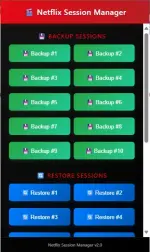
Backup Sessions
Purpose: Save your current Netflix login session to one of 10 available slots.
How to Use:
1. Log in to Netflix in your browser first
2. Click the Netflix Session Manager extension icon
3. In the "
4. Wait for the success message showing your session has been saved
What Gets Backed Up:
Success Indicators:
- All Netflix cookies from your current session
- NetflixId cookie (your account identifier)
- SecureNetflixId cookie (security token)
- Session timestamps
- All authentication data
Session backed up to Slot 1!
NetflixId: BQFmAAEBEGd7...
SecureNetflixId: v%3D2%26mac%3D...
Tutorial Example:
markdown
Scenario: You want to save your main Netflix account session
1. Open Netflix and make sure you're logged in
2. Click the extension icon
3. Click "
4. You'll see a green success message with your cookie details
5. Your session is now saved to Slot 1!
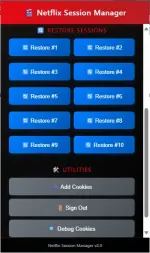
Restore Sessions
Purpose: Load a previously saved Netflix session from any of the 10 backup slots.
How to Use:
1. Click the Netflix Session Manager extension icon
2. In the "
3. Wait for the success message
4. Refresh your Netflix tab to see the restored session
What Happens:
Success Indicators:
- All current Netflix cookies are cleared
- Saved cookies from the selected slot are restored
- Your browser will be logged into the account that was saved in that slot
- Cookie data is automatically copied to your clipboard
Tutorial Example:
markdown
Scenario: Switch from your personal account to a family member's account
1. Previously backed up your personal account to Slot 1
2. Previously backed up family account to Slot 2
3. Currently logged into personal account
4. Click extension icon → "
5. Refresh Netflix tab
6. You're now logged into the family account!
Add Custom Cookies
Purpose: Manually add Netflix session cookies from external sources or other browsers.
How to Use:
1. Click the Netflix Session Manager extension icon
2. Click "
3. A modal window will open with a text area
4. Paste your cookie data in the specified format
5. Click "Parse & Add"
Supported Cookie Formats:
NetflixId=abc123;SecureNetflixId=xyz789
SecureNetflixId=def456;NetflixId=uvw012
NetflixId=ghi789;SecureNetflixId=rst345
Multiple Cookies:
You can add multiple cookie pairs, one per line:
NetflixId=account1_id;SecureNetflixId=account1_secure
NetflixId=account2_id;SecureNetflixId=account2_secure
NetflixId=account3_id;SecureNetflixId=account3_secure
Tutorial Example:
markdown
Scenario: You have Netflix cookies from another browser/device
1. Copy the NetflixId and SecureNetflixId values from your other browser
2. Click extension icon → "
3. Paste in format: NetflixId=your_id_here;SecureNetflixId=your_secure_id_here
4. Click "
5. Refresh Netflix to use the new session
Sign Out
Purpose: Completely sign out of Netflix by clearing all session cookies.
How to Use:
1. Click the Netflix Session Manager extension icon
2. Click the "
3. Wait for confirmation message
4. Refresh Netflix tab to see you're logged out
What Gets Cleared:
Success Indicators:
- All Netflix cookies (.netflix.com domain)
- All session authentication data
- All login tokens
Tutorial Example:
markdown
Scenario: You want to completely log out of Netflix
1. Click extension icon
2. Click "
3. Refresh Netflix tab
4. You'll see the Netflix login page
Purpose: View all current Netflix cookies for troubleshooting purposes.
How to Use:
1. Click the Netflix Session Manager extension icon
2. Click "
3. Check the browser console (F12 → Console tab) to see detailed cookie information
4. The extension popup will show a count of found cookies
What You'll See:
Success Indicators:
- Complete list of all Netflix cookies
- Cookie names, values, domains, and expiration dates
- Useful for troubleshooting login issues
Tutorial Example:
markdown
Scenario: Netflix isn't working properly, you want to check your cookies
1. Click extension icon
2. Click "
3. Press F12 to open browser console
4. Look for "All Netflix cookies:" in the console
5. Review the cookie data to identify issues
Advanced Usage
Managing Multiple Accounts
markdown
Best Practice Setup:
- Slot 1: Personal account
- Slot 2: Family/shared account
- Slot 3: Work account
- Slots 4-10: Additional accounts or temporary sessions
Cookie Data Format
When cookies are restored, they're automatically copied to clipboard in this format:
CookieSlot1 = NetflixId=BQFmAAEBEGd7...;SecureNetflixId=v%3D2%26mac%3D... | CREATED BY = @Chanzkiepogi
Backup Strategy
markdown
Recommended Workflow:
1. Log into Account A → Backup to Slot 1
2. Log into Account B → Backup to Slot 2
3. Use Restore 1 or Restore 2 to switch between accounts
4. Use Sign Out when you want to log into a completely new account
Troubleshooting
Common Issues & Solutions
"No Netflix cookies found"
Problem: Extension can't find your Netflix session
Solution:
1. Make sure you're logged into Netflix first
2. Visit netflix.com and complete the login process
3. Try the backup function again
"No backup found in slot X"
Problem: Trying to restore from an empty slot
Solution:
1. First backup a session to that slot
2. Then try restoring from it
"Request timeout"
Problem: Extension isn't responding
Solution:
1. Close and reopen the extension popup
2. Refresh the Netflix tab
3. Try the operation again
Cookies not working after restore
Problem: Restored session doesn't work
Solution:
1. Make sure to refresh the Netflix tab after restoring
2. Clear browser cache if issues persist
3. Try signing out completely and restoring again
Technical Details
Permissions Required
Storage Locations
cookies: Read and modify Netflix cookiesstorage: Save backup data locallyscripting: Interact with Netflix pageshost_permissions: Access to *.netflix.com
Cookie Domains Handled
- Backups are stored in Chrome's local storage
- Format:
netflix_cookies_backup_1throughnetflix_cookies_backup_10- Timestamps stored as:
backup_timestamp_1throughbackup_timestamp_10
Security Notes
.netflix.com(primary domain)www.netflix.comnetflix.com
- All data is stored locally in your browser
- No data is sent to external servers
- Cookies are handled with appropriate security flags
- Extension only works on Netflix domains
Version Information
- Current Version: 2.0
- Manifest Version: 3
- Compatible with: Chrome Extensions Manifest V3
Support & Credits
Created by: @Chanzkiepogi / @Christianzgaming
Extension Name: Netflix Session Switcher
Description: Backup and restore Netflix session cookies
LINK:
You do not have permission to view the full content of this post. Log in or register now.

 ok pa yung cookies, pinasabit na ginalaw pa
  ayun na trigger ang owner
  , sing out