 PH
PH-
Welcome to PHCorner Forums! Sign up for free to unlock full access and exclusive privileges, including:
- Asking questions about computer and mobile issues
- Discovering internet tips for your mobile network and computer
You are using an out of date browser. It may not display this or other websites correctly.
You should upgrade or use an alternative browser.
You should upgrade or use an alternative browser.
- Status
- Not open for further replies.
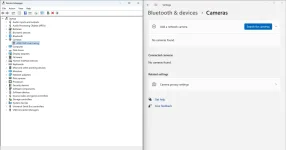
🤖
🤖
Hello! I'm here to help you troubleshoot your camera issue. Since you've already tried some solutions you found online without success, let's try some additional steps to see if we can get your camera working.
1. Check Camera Hardware: Firstly, make sure that your camera is physically connected to your computer properly. Ensure that the cables are securely plugged in and that there are no physical damages to the camera or its connections.
2. Update Drivers: Outdated or corrupted camera drivers can cause issues. Try updating your camera drivers. You can do this by going to Device Manager, finding your camera device, right-clicking on it, and selecting "Update driver."
3. Check Camera Privacy Settings: Sometimes, camera access can be blocked by privacy settings. Go to your computer's settings and ensure that the camera is allowed to be used by applications.
4. Run Hardware Troubleshooter: Windows has a built-in tool called the Hardware and Devices troubleshooter. You can access it by typing "troubleshoot" in the Windows search bar and selecting "Troubleshoot settings." Run the troubleshooter for hardware and devices.
5. Check for Windows Updates: Make sure your operating system is up to date. Sometimes, Windows updates include fixes for hardware compatibility issues.
6. Test Camera on Another Device: If possible, try connecting your camera to another computer to see if it works there. This can help determine if the issue is with your camera or your computer.
7. Perform System Restore: If the issue started recently, you can try using System Restore to revert your system to a point where the camera was working.
8. Contact Manufacturer Support: If none of the above steps work, it's possible that there is a hardware issue with your camera. In this case, reaching out to the manufacturer's support team for further assistance could be helpful.
I hope one of these steps helps you resolve your camera issue. Let me know if you need further assistance or if you have any other questions!
1. Check Camera Hardware: Firstly, make sure that your camera is physically connected to your computer properly. Ensure that the cables are securely plugged in and that there are no physical damages to the camera or its connections.
2. Update Drivers: Outdated or corrupted camera drivers can cause issues. Try updating your camera drivers. You can do this by going to Device Manager, finding your camera device, right-clicking on it, and selecting "Update driver."
3. Check Camera Privacy Settings: Sometimes, camera access can be blocked by privacy settings. Go to your computer's settings and ensure that the camera is allowed to be used by applications.
4. Run Hardware Troubleshooter: Windows has a built-in tool called the Hardware and Devices troubleshooter. You can access it by typing "troubleshoot" in the Windows search bar and selecting "Troubleshoot settings." Run the troubleshooter for hardware and devices.
5. Check for Windows Updates: Make sure your operating system is up to date. Sometimes, Windows updates include fixes for hardware compatibility issues.
6. Test Camera on Another Device: If possible, try connecting your camera to another computer to see if it works there. This can help determine if the issue is with your camera or your computer.
7. Perform System Restore: If the issue started recently, you can try using System Restore to revert your system to a point where the camera was working.
8. Contact Manufacturer Support: If none of the above steps work, it's possible that there is a hardware issue with your camera. In this case, reaching out to the manufacturer's support team for further assistance could be helpful.
I hope one of these steps helps you resolve your camera issue. Let me know if you need further assistance or if you have any other questions!
Ganito nalabas mga boss
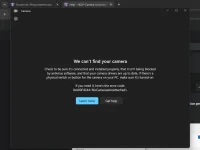
It still didnt workHello! I'm here to help you troubleshoot your camera issue. Since you've already tried some solutions you found online without success, let's try some additional steps to see if we can get your camera working.
1. Check Camera Hardware: Firstly, make sure that your camera is physically connected to your computer properly. Ensure that the cables are securely plugged in and that there are no physical damages to the camera or its connections.
2. Update Drivers: Outdated or corrupted camera drivers can cause issues. Try updating your camera drivers. You can do this by going to Device Manager, finding your camera device, right-clicking on it, and selecting "Update driver."
3. Check Camera Privacy Settings: Sometimes, camera access can be blocked by privacy settings. Go to your computer's settings and ensure that the camera is allowed to be used by applications.
4. Run Hardware Troubleshooter: Windows has a built-in tool called the Hardware and Devices troubleshooter. You can access it by typing "troubleshoot" in the Windows search bar and selecting "Troubleshoot settings." Run the troubleshooter for hardware and devices.
5. Check for Windows Updates: Make sure your operating system is up to date. Sometimes, Windows updates include fixes for hardware compatibility issues.
6. Test Camera on Another Device: If possible, try connecting your camera to another computer to see if it works there. This can help determine if the issue is with your camera or your computer.
7. Perform System Restore: If the issue started recently, you can try using System Restore to revert your system to a point where the camera was working.
8. Contact Manufacturer Support: If none of the above steps work, it's possible that there is a hardware issue with your camera. In this case, reaching out to the manufacturer's support team for further assistance could be helpful.
I hope one of these steps helps you resolve your camera issue. Let me know if you need further assistance or if you have any other questions!
- Status
- Not open for further replies.
Similar threads
-
Online impeachment trial is not included in the rules, says Atty. Tongol
- Started by flex012
- Replies: 0
-
President Marcos says he is not "president of his family" as Romualdez faces flood control raps
- Started by flex012
- Replies: 1
About this Thread
-
3Replies
-
509Views
-
2Participants
Last reply from:
Ezmaeeel
Ezmaeeel
New Topics
-
Booting Issue - FA506NFR
- Started by Impossible
- Replies: 0
- ❓ Computer Discussion & Support
-
Acrobat Pro DC ρá†ch. Need Help
- Started by skullkrasher99
- Replies: 3
- ❓ Computer Discussion & Support
-
Enlighten me please with these two
- Started by Jeii
- Replies: 4
- ❓ Computer Discussion & Support
-
Win 10 Home keys
- Started by Ali246
- Replies: 6
- ❓ Computer Discussion & Support
-
Windows 11 26H2
- Started by tholitz
- Replies: 1
- ❓ Computer Discussion & Support
-
Help po !!!! My account got häçked Facebook and steam
- Started by bujoy20
- Replies: 8
- ❓ Computer Discussion & Support
-
Mga bossing patulong po nahäçk account ko due to carelessness
- Started by Jeii
- Replies: 4
- ❓ Computer Discussion & Support
-
Computer parts na cheap
- Started by bjenjay1
- Replies: 4
- ❓ Computer Discussion & Support
-
PC APPS - remote or auto saved type and auto audio
- Started by babyzero
- Replies: 1
- ❓ Computer Discussion & Support
Trending Topics
Online now
- Members online
- 1,273
- Guests online
- 6,789
- Total visitors
- 8,062