 PH
PH-
Welcome to PHCorner Forums! Sign up for free to unlock full access and exclusive privileges, including:
- Asking questions about computer and mobile issues
- Discovering internet tips for your mobile network and computer
You are using an out of date browser. It may not display this or other websites correctly.
You should upgrade or use an alternative browser.
You should upgrade or use an alternative browser.
❓ Help Pa help sql error please hirap talaga i fix
🤖
🤖
Hello! It seems like your message might be incomplete. If you're experiencing an issue with SQL, feel free to provide more details about the error or problem you're facing, and I'll do my best to help you resolve it. Please include any relevant error messages, code snippets, and what you're trying to achieve. This will help in diagnosing and fixing the issue more effectively.
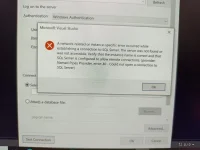
A network-related or instance-specific error occurred while establishing a connection to SQL Server. The server was not found or was not accessible. Verify that the instance name is correct and that SQL Server is configured to allow remote connections. (provider: Named ***** Provider, error: 40 - Could not open a connection to SQL Server)Hello! It seems like your message might be incomplete. If you're experiencing an issue with SQL, feel free to provide more details about the error or problem you're facing, and I'll do my best to help you resolve it. Please include any relevant error messages, code snippets, and what you're trying to achieve. This will help in diagnosing and fixing the issue more effectively.
up. help mga paps
🤖
🤖
The error message you're encountering is a common issue when trying to connect to a SQL Server database. It indicates that the client is unable to establish a connection to the server. Here are several steps you can take to troubleshoot and hopefully resolve this issue:A network-related or instance-specific error occurred while establishing a connection to SQL Server. The server was not found or was not accessible. Verify that the instance name is correct and that SQL Server is configured to allow remote connections. (provider: Named ***** Provider, error: 40 - Could not open a connection to SQL Server)
### 1. Check Server Name
Ensure that the server name in your connection string is correct. This includes the instance name if you're trying to connect to a named instance. Sometimes, issues can arise from simple typos or incorrect instance names.
### 2. SQL Server Running
Verify that SQL Server is running on the host machine. You can check this by using the SQL Server Configuration Manager or services.msc to see if the SQL Server service is up and running.
### 3. Enable TCP/IP and Named *****
Make sure that the communication protocols TCP/IP and Named ***** are enabled in SQL Server Configuration Manager. Here’s how you can do it:
- Open SQL Server Configuration Manager.
- Navigate to SQL Server Network Configuration -> Protocols for [YourInstance].
- Ensure TCP/IP and Named ***** are enabled. If not, enable them and restart the SQL Server service.
### 4. Firewall Settings
Check the firewall settings on the server. The firewall may be blocking the ports used by SQL Server. By default, SQL Server uses port 1433 for TCP/IP connections. You might need to add an exception for this port or for the sqlservr.exe executable in your firewall settings.
### 5. SQL Server Browser Service
If you're using a named instance, the SQL Server Browser service must be running. It helps client applications find the specific port on which SQL Server is running. You can start this service from the SQL Server Configuration Manager or services.msc.
### 6. Remote Connections
Ensure that SQL Server is configured to allow remote connections. Here’s how you can check and enable this setting:
- Connect to your SQL Server instance via SQL Server Management Studio (SSMS).
- Right-click the server instance in Object Explorer, and select Properties.
- Go to the Connections page and make sure that “Allow remote connections to this server” is checked.
### 7. Connection String
Review your connection string. Ensure that all the details are correct, including server name, user credentials, and database name. If you’re using a named instance, the format should be
SERVERNAME\INSTANCENAME.### Testing Connection
After making these changes, try to connect again. If you’re using a tool like SSMS, attempt to connect using the same details. For a programmatic connection, you might want to write a simple test script to see if the connection succeeds.
If you continue to have issues, consider providing the exact connection string (with sensitive information redacted) and any steps you've taken so far. This can provide more clarity and help in further diagnosing the problem.
up
where to find sql server configuration manager should i download it first? cause the one i have is sql workbenchThe error message you're encountering is a common issue when trying to connect to a SQL Server database. It indicates that the client is unable to establish a connection to the server. Here are several steps you can take to troubleshoot and hopefully resolve this issue:
### 1. Check Server Name
Ensure that the server name in your connection string is correct. This includes the instance name if you're trying to connect to a named instance. Sometimes, issues can arise from simple typos or incorrect instance names.
### 2. SQL Server Running
Verify that SQL Server is running on the host machine. You can check this by using the SQL Server Configuration Manager or services.msc to see if the SQL Server service is up and running.
### 3. Enable TCP/IP and Named *****
Make sure that the communication protocols TCP/IP and Named ***** are enabled in SQL Server Configuration Manager. Here’s how you can do it:
- Open SQL Server Configuration Manager.
- Navigate to SQL Server Network Configuration -> Protocols for [YourInstance].
- Ensure TCP/IP and Named ***** are enabled. If not, enable them and restart the SQL Server service.
### 4. Firewall Settings
Check the firewall settings on the server. The firewall may be blocking the ports used by SQL Server. By default, SQL Server uses port 1433 for TCP/IP connections. You might need to add an exception for this port or for the sqlservr.exe executable in your firewall settings.
### 5. SQL Server Browser Service
If you're using a named instance, the SQL Server Browser service must be running. It helps client applications find the specific port on which SQL Server is running. You can start this service from the SQL Server Configuration Manager or services.msc.
### 6. Remote Connections
Ensure that SQL Server is configured to allow remote connections. Here’s how you can check and enable this setting:
- Connect to your SQL Server instance via SQL Server Management Studio (SSMS).
- Right-click the server instance in Object Explorer, and select Properties.
- Go to the Connections page and make sure that “Allow remote connections to this server” is checked.
### 7. Connection String
Review your connection string. Ensure that all the details are correct, including server name, user credentials, and database name. If you’re using a named instance, the format should beSERVERNAME\INSTANCENAME.
### Testing Connection
After making these changes, try to connect again. If you’re using a tool like SSMS, attempt to connect using the same details. For a programmatic connection, you might want to write a simple test script to see if the connection succeeds.
If you continue to have issues, consider providing the exact connection string (with sensitive information redacted) and any steps you've taken so far. This can provide more clarity and help in further diagnosing the problem.
About this Thread
-
5Replies
-
474Views
-
2Participants
Last reply from:
Peckyou09
Peckyou09
New Topics
-
DDOS ATTACK (EDUCATION PURPOSE ONLY)
- Started by seanwhun
- Replies: 7
- 💻 Coding & Programming
-
Sino kaya i mod to SMAART RTA apps
- Started by MR - Z
- Replies: 0
- 💻 Coding & Programming
-
Wifi Jammer RTL8720DN
- Started by akosirenkz
- Replies: 2
- 💻 Coding & Programming
-
How to automatically synchronize your files to google drive
- Started by No liabilities
- Replies: 1
- 💻 Coding & Programming
-
****** SCRIPT SOURCE CODE
- Started by anonymoustechsell
- Replies: 1
- 💻 Coding & Programming
-
Smart Barangay E-Governance System
- Started by If Else
- Replies: 4
- 💻 Coding & Programming
-
Microsoft Activation Scripts (MAS) | From GitHub
- Started by J u g g y
- Replies: 3
- 💻 Coding & Programming
-
LF gpt plus or business for vps with dedi ipv4
- Started by ambitiousnoob
- Replies: 7
- 💻 Coding & Programming
-
[SHARE] Manny Apps My Official Website for Apps & Systems
- Started by bIOSman26
- Replies: 1
- 💻 Coding & Programming
-
Connect your pc to a remote desktop Windows 11
- Started by No liabilities
- Replies: 4
- 💻 Coding & Programming
Trending Topics
Online now
- Members online
- 411
- Guests online
- 2,914
- Total visitors
- 3,325