PH
PHTwingklingWatermelon
Established
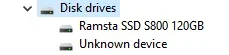
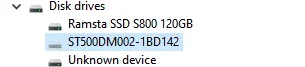
ASAP po sana kase bigla nalang po nawala ung ram ko eh may roon namn po siyang ram naka salpak namn po at nilgay ko na din po sa slot 2 ganun paden ayaw paden eh
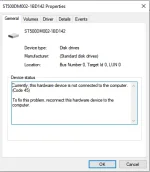
una po may lumalabas po na "A device which does not exist was specified" kapag pinipindot kopo ung Local Disk (F po ata un nalimutan ko na ano name tas bigla nalang po siyan nawala nuong tinary ko ito
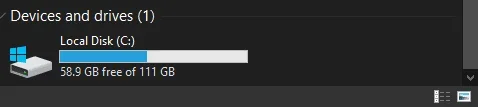 files ko h
una po may lumalabas po na "A device which does not exist was specified" kapag pinipindot kopo ung Local Disk (F
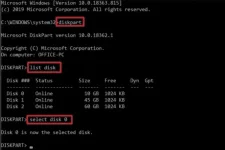
po ata un nalimutan ko na ano name tas bigla nalang po siyan nawala nuong tinary ko ito- STEP 1. Open up a command window, also make sure that you run it with administrator privileges
- STEP 2. Now Launch Diskaprt Utility using the below command
- STEP 3. To see all the disks execute the below command
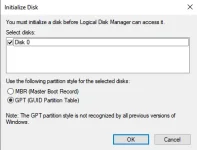
- STEP 4. Once you know which disk has to be partitioned, simply execute the below command
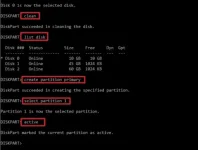
- STEP 5. Now completely clean it by the below command
- STEP 6. Now execute the below command just to make sure that the disk is still selected
- STEP 7. Make the partition Primary by following the below command
- STEP 8. Now select the newly created primary partition
- STEP 9. Activate the partition
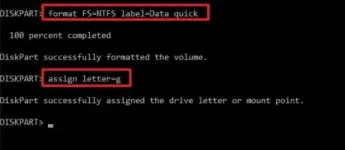
- STEP 10. Using the below command we will format it with NTFS and assign a label to the partition
- STEP 11. Assign a letter to the partition
- STEP 12. Finally, exit the disk part
- STEP 13. Hopefully, your issue has been resolved
4. Replace the Hard Disk
If any of the above methods fail to work then this device cannot start. (code 10) a device which does not exist was specified. windows 10 issues are very critical either contact customer care or you have to replace the hard disk with a new one. There arent any other methods that can help You do not have permission to view the full content of this post. Log in or register now.. files ko h