🔒 Closed Pahelp Ayaw Ma Off Airplane mode Ng Laptop ko

Status
Not open for further replies.

kyutkopromise

Established
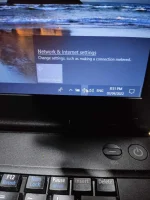
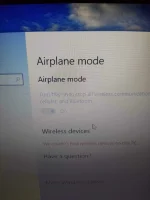
Pahelp nmn mga lods, kakabili ko lng nito kahapon.
Kahapon ok pa namn nakaka konek Ako sa Wifi. TAs accidentally ko napindot now Yung Airplane mode. Ang problem Ayaw na Ma OFF Yung airplane mode .help plss
IMG_20220402_205216.webp
 
Solution
From DELL support page

Resolving Not Being Able to Turn Off Airplane Mode​

Summary: When you have turned all the wireless connections off (Wi-Fi, Bluetooth or Mobile Broadband), as when traveling on an airplane (called Airplane Mode), and you are not able to turn You do not have permission to view the full content of this post. Log in or register now.


Symptoms​


Activating Airplane Mode (
SLN306990_en_US__1iC_Windows_10_airplane_mode_BD_v1
) disables all the wireless connections on your computer (Wi-Fi, Bluetooth, or Mobile Broadband). If you are unable to turn Airplane Mode off and reconnect to wireless networks, follow the steps in this article to help resolve this issue.

NOTE: Bookmark this article as restarts of the computer may...
From DELL support page

Resolving Not Being Able to Turn Off Airplane Mode​

Summary: When you have turned all the wireless connections off (Wi-Fi, Bluetooth or Mobile Broadband), as when traveling on an airplane (called Airplane Mode), and you are not able to turn You do not have permission to view the full content of this post. Log in or register now.


Symptoms​


Activating Airplane Mode (
SLN306990_en_US__1iC_Windows_10_airplane_mode_BD_v1
) disables all the wireless connections on your computer (Wi-Fi, Bluetooth, or Mobile Broadband). If you are unable to turn Airplane Mode off and reconnect to wireless networks, follow the steps in this article to help resolve this issue.

NOTE: Bookmark this article as restarts of the computer may be needed to resolve the issue.
If you have not done so already, perform Steps 1 and 2, otherwise go to Step 3.
  1. Touch or click the network icon
    31iC_Windows_10_airplane_mode_BD_v1
    , either in the taskbar or in the hidden icons area.

  2. Touch or click the panel that is labeled Airplane mode. The panel should turn from blue to gray.
    NOTE: When the panel does not turn from blue to gray, it may mean that your computer has a physical wireless switch as well. Press and hold the
    Fn_Key_BD_v1
    key, and then press the key that has the
    Single_Wireless_Key_BD_v1
    symbol on it. When your computer does not have a wireless key
    Single_Wireless_Key_BD_v1
    , your computer does not have a physical wireless switch.

  3. Press and hold the Windows key (
    42iC_Windows_Key_BD_v4
    ), and then press the r key.

  4. In the Run box, type devmgmt.msc, and then press Enter.
    NOTE: If the User Account Control window appears, touch or click Yes.

  5. Touch or click the arrow to the left of Human Interface Devices.

  6. Touch and hold or right-click Airplane Mode Switch Collection, and then select Disable.
    NOTE: When Airplane Mode Switch Collection is not listed, download the latest version from the You do not have permission to view the full content of this post. Log in or register now. site (the driver is in the Network category). For more information, see Dell Knowledge Base article You do not have permission to view the full content of this post. Log in or register now.

  7. Touch and hold or right-click Airplane Mode Switch Collection, and then select Enable.

  8. Touch or click the arrow to the left of Network adapters.

  9. Touch and hold or right-click your wireless network adapter (the description should include the word wireless), and then select Properties.

  10. Touch or click the Select Power Management tab, and clear the box next to Allow the computer to turn off this device to save power.

  11. Touch or click OKto save the changes.

  12. Save any data, close any open programs and restart the computer and check if Airplane Mode can be turned off.
    NOTES:
    • Turning off Airplane Mode does not automatically turn on Wi-Fi. When the Wi-Fi panel is still gray, touch or click the Wi-Fi panel (the panel should change from gray to blue as shown in Figure 1).
    • When Airplane mode still cannot be turned off after restarting the computer, go to You do not have permission to view the full content of this post. Log in or register now..
      SLN306990_en_US__6iC_Windows_10_Wifi_Should_Look_Like_BD_v2

      Figure 1: Wireless Icons Example Settings

  13. Run the Network Troubleshooter.
    1. In the search box type, troubleshoot

    2. Touch or click Troubleshooting (Control panel).

    3. Touch or click Network and Internet.

    4. Touch or click Network Adapter.

    5. Touch or click Next and follow the prompts.

  14. Ensure that the BIOS is updated to the latest version. For more information, see Dell Knowledge base article You do not have permission to view the full content of this post. Log in or register now.

  15. Ensure that the most current wireless drivers are installed. For more information, see You do not have permission to view the full content of this post. Log in or register now. section.
    NOTE:When the affected device has no Wireless connectivity, to download a driver or BIOS, you must do one of the following to get the driver on the affected device:
    • Connect the affected device to your router using a network cable (when that is an option).
    • Use another device that does have Internet connectivity to download the driver and use a USB Flash drive to transfer the driver to the affected device.
    • When neither of these options are available, perform the following steps (this process may remove your wireless profile, when it does, you must re-create the wireless profile that connects the computer to your wireless network. For more information, see the "I want to connect my computer or tablet to my existing wireless network" section of Dell Knowledge Base article You do not have permission to view the full content of this post. Log in or register now..
      1. Press and hold the Windows key (
        42iC_Windows_Key_BD_v4
        ), and then press the r key.

      2. In the Run box, type devmgmt.msc, and then press Enter (the User Account window may appear, if so, touch or click YES).

      3. Touch or click the arrow to the left of Network adapters.

      4. Touch and hold or right-click your wireless network adapter (the description should include the word wireless), and then select Uninstall
        NOTE:
        Do not check the box next to Delete the driver software for this device).

      5. Touch or click OK.

      6. Save any data, close any open programs, and restart the computer (during the booting process the driver for the wireless adapter will be automatically installed).

NOTE: When the following steps do not resolve the issue, the Operating System on your computer has some sort of corruption. To explore the options on how to resolve any corruption, and when to use them, see the Dell Knowledge Base article You do not have permission to view the full content of this post. Log in or register now..
 
Solution
From DELL support page

Resolving Not Being Able to Turn Off Airplane Mode​

Summary: When you have turned all the wireless connections off (Wi-Fi, Bluetooth or Mobile Broadband), as when traveling on an airplane (called Airplane Mode), and you are not able to turn You do not have permission to view the full content of this post. Log in or register now.


Symptoms​


Activating Airplane Mode (
SLN306990_en_US__1iC_Windows_10_airplane_mode_BD_v1
) disables all the wireless connections on your computer (Wi-Fi, Bluetooth, or Mobile Broadband). If you are unable to turn Airplane Mode off and reconnect to wireless networks, follow the steps in this article to help resolve this issue.

NOTE: Bookmark this article as restarts of the computer may be needed to resolve the issue.
If you have not done so already, perform Steps 1 and 2, otherwise go to Step 3.
  1. Touch or click the network icon
    31iC_Windows_10_airplane_mode_BD_v1
    , either in the taskbar or in the hidden icons area.

  2. Touch or click the panel that is labeled Airplane mode. The panel should turn from blue to gray.
    NOTE: When the panel does not turn from blue to gray, it may mean that your computer has a physical wireless switch as well. Press and hold the
    Fn_Key_BD_v1
    key, and then press the key that has the
    Single_Wireless_Key_BD_v1
    symbol on it. When your computer does not have a wireless key
    Single_Wireless_Key_BD_v1
    , your computer does not have a physical wireless switch.

  3. Press and hold the Windows key (
    42iC_Windows_Key_BD_v4
    ), and then press the r key.

  4. In the Run box, type devmgmt.msc, and then press Enter.
    NOTE: If the User Account Control window appears, touch or click Yes.

  5. Touch or click the arrow to the left of Human Interface Devices.

  6. Touch and hold or right-click Airplane Mode Switch Collection, and then select Disable.
    NOTE: When Airplane Mode Switch Collection is not listed, download the latest version from the You do not have permission to view the full content of this post. Log in or register now. site (the driver is in the Network category). For more information, see Dell Knowledge Base article You do not have permission to view the full content of this post. Log in or register now.

  7. Touch and hold or right-click Airplane Mode Switch Collection, and then select Enable.

  8. Touch or click the arrow to the left of Network adapters.

  9. Touch and hold or right-click your wireless network adapter (the description should include the word wireless), and then select Properties.

  10. Touch or click the Select Power Management tab, and clear the box next to Allow the computer to turn off this device to save power.

  11. Touch or click OKto save the changes.

  12. Save any data, close any open programs and restart the computer and check if Airplane Mode can be turned off.
    NOTES:
    • Turning off Airplane Mode does not automatically turn on Wi-Fi. When the Wi-Fi panel is still gray, touch or click the Wi-Fi panel (the panel should change from gray to blue as shown in Figure 1).
    • When Airplane mode still cannot be turned off after restarting the computer, go to You do not have permission to view the full content of this post. Log in or register now..
      SLN306990_en_US__6iC_Windows_10_Wifi_Should_Look_Like_BD_v2

      Figure 1: Wireless Icons Example Settings

  13. Run the Network Troubleshooter.
    1. In the search box type, troubleshoot

    2. Touch or click Troubleshooting (Control panel).

    3. Touch or click Network and Internet.

    4. Touch or click Network Adapter.

    5. Touch or click Next and follow the prompts.

  14. Ensure that the BIOS is updated to the latest version. For more information, see Dell Knowledge base article You do not have permission to view the full content of this post. Log in or register now.

  15. Ensure that the most current wireless drivers are installed. For more information, see You do not have permission to view the full content of this post. Log in or register now. section.
    NOTE:When the affected device has no Wireless connectivity, to download a driver or BIOS, you must do one of the following to get the driver on the affected device:
    • Connect the affected device to your router using a network cable (when that is an option).
    • Use another device that does have Internet connectivity to download the driver and use a USB Flash drive to transfer the driver to the affected device.
    • When neither of these options are available, perform the following steps (this process may remove your wireless profile, when it does, you must re-create the wireless profile that connects the computer to your wireless network. For more information, see the "I want to connect my computer or tablet to my existing wireless network" section of Dell Knowledge Base article You do not have permission to view the full content of this post. Log in or register now..
      1. Press and hold the Windows key (
        42iC_Windows_Key_BD_v4
        ), and then press the r key.

      2. In the Run box, type devmgmt.msc, and then press Enter (the User Account window may appear, if so, touch or click YES).

      3. Touch or click the arrow to the left of Network adapters.

      4. Touch and hold or right-click your wireless network adapter (the description should include the word wireless), and then select Uninstall
        NOTE:
        Do not check the box next to Delete the driver software for this device).

      5. Touch or click OK.

      6. Save any data, close any open programs, and restart the computer (during the booting process the driver for the wireless adapter will be automatically installed).

NOTE: When the following steps do not resolve the issue, the Operating System on your computer has some sort of corruption. To explore the options on how to resolve any corruption, and when to use them, see the Dell Knowledge Base article You do not have permission to view the full content of this post. Log in or register now..
Salamat Po dto, Try ko lahat lods Yan. Update Ako if naayos na. Tysm po
 
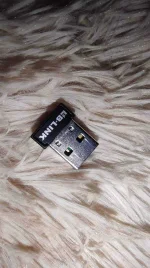
Update mga lods : Naayus napo . May nakasaksak kasi sa laptop na USB WIFI S sa likod, Tinanggal balik ko sya para bumalik ang wifi connection. (Nag ask Ako sa binilhan ko. ) Maraming salamat mga lods. God bless po
received_271105865217364.webp
 
Status
Not open for further replies.

About this Thread

  • 9
    Replies
  • 1K
    Views
  • 4
    Participants
Last reply from:
arsenal1205

Trending Topics

Online now

Members online
989
Guests online
1,099
Total visitors
2,088

Forum statistics

Threads
2,276,172
Posts
28,968,039
Members
1,231,153
Latest member
taengdaga
Back
Top