 PH
PHleonardo_1994
Honorary Poster
This goes over debloating and slimming down Windows 10 so you get maximum performance from your PC.
GitHub Project for Debloating Windows
The project I use has been developed for many years now and is extremely good. Here is the source github project I use:
You do not have permission to view the full content of this post. Log in or register now.
Alternative GitHub Project - Version 2004 Compatible
This is a new project that was brought to my attention, but has quickly made a name for itself. It works very well and is typically more up to date than the above project.
You do not have permission to view the full content of this post. Log in or register now.
Instructions for Usage:
Download latest Version for your Windows (Type -> winver in run command to get your Version)
You do not have permission to view the full content of this post. Log in or register now.
Run the following command to launch the script and start the debloat process from PowerShell

Debloat Options
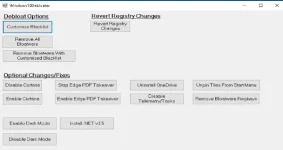
Here is a screenshot of the GUI for the debloater:
Whitelist / Blacklist
I recommend everyone use this option and remove programs based on the selections under these lists.
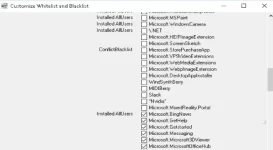
Legend for the Options:
Revert Registry Options
This simply reverts any changes from the options below, like stopping edge from opening PDF files, or OneDrive removal. I never click this option.
Optimal Way to Use this Tool
I recommend running this tool under the following conditions:
Source and Credits to this person:
You do not have permission to view the full content of this post. Log in or register now.
GitHub Project for Debloating Windows
The project I use has been developed for many years now and is extremely good. Here is the source github project I use:
You do not have permission to view the full content of this post. Log in or register now.
Alternative GitHub Project - Version 2004 Compatible
This is a new project that was brought to my attention, but has quickly made a name for itself. It works very well and is typically more up to date than the above project.
You do not have permission to view the full content of this post. Log in or register now.
Instructions for Usage:
Download latest Version for your Windows (Type -> winver in run command to get your Version)
You do not have permission to view the full content of this post. Log in or register now.
- Unzip the release of your version into it’s own folder
- Run the Start ####.cmd file
- Follow the Prompts to unbloat your system
Run the following command to launch the script and start the debloat process from PowerShell
Code:
iex ((New-Object System.Net.WebClient).DownloadString('https://git.io/debloat'))Debloat Options
Here is a screenshot of the GUI for the debloater:
Whitelist / Blacklist
I recommend everyone use this option and remove programs based on the selections under these lists.
Legend for the Options:
- Uncheck = Will NOT Remove
- Checked = Will REMOVE
Revert Registry Options
This simply reverts any changes from the options below, like stopping edge from opening PDF files, or OneDrive removal. I never click this option.
Optimal Way to Use this Tool
I recommend running this tool under the following conditions:
- Before User Profile is Created
- Empty Desktop and Downloads (Past versions has deleted files from Desktop and Downloads)
- After installing New Feature Updates
- Pick Whitelist/Blacklist programs
- Remove Bloatware With Customized Blacklist
- Disable Cortana
- Stop Edge PDF Takeover
- Uninstall OneDrive
- Unpin all Start Menu Icons
- Disable Telemetry/Tasks
- Remove Bloatware RegKeys
Source and Credits to this person:
You do not have permission to view the full content of this post. Log in or register now.
