 PH
PHAre you ready to walk on the wild side? You do not have permission to view the full content of this post.
Log in or register now., and even though it’s still not going to be released until sometime in summer 2015, Microsoft’s giving IT Pros and PC enthusiasts an early taste of what’s to come with the Windows 10 Preview.
After releasing initial Windows 10 Technical Preview on October 1, 2014, Microsoft released a fast and furious flow of You do not have permission to view the full content of this post. Log in or register now. and You do not have permission to view the full content of this post. Log in or register now.. New builds released this year have added cornerstone Windows 10 features like Microsoft's You do not have permission to view the full content of this post. Log in or register now., the You do not have permission to view the full content of this post. Log in or register now., and an Xbox app with the ability to record PC gameplay footage.
But this isn’t like Windows 8’s Consumer Preview, which was released as a simple ISO image. The Windows 10 Technical Preview is being released via a new “Windows Insider” program that asks for user feedback and even provides private forums for discussing trouble spots with Microsoft engineers. Lots of things have already changed and many more are sure to change going forward, from features to basic elements of the operating system.
All that said, are you still curious? Can’t resist the lure of the bleeding edge? Just want to run away from Windows 8? (Don't worry, you'll wind up You do not have permission to view the full content of this post. Log in or register now..) Here’s how to install the Windows 10 Technical Preview right now.
Wait!
Actually, you won’t be installing the Technical Preview for a few minutes yet. Didn’t you hear the part about this being a very early pre-release build? That means You do not have permission to view the full content of this post. Log in or register now.
Don’t take my word for it: Here’s part of the terms of service you agree to when you sign up for Windows Insider (emphasis Microsoft’s):
“The Program Services include experimental and early prerelease software. This means that you may experience occasional crashes and in rare cases data loss. To recover, you may have to reinstall your applications, the operating system, or re-flash your device. Using the Program Services on some devices may impact your warranty (check with your device provider). By participating, you agree to frequently backup your data.”
In case that didn’t make it clear enough, back up your data before you start. Dump your pictures in Dropbox, drag your documents to an external hard drive, whatever works! Just make sure your data is safe and secure in case something bad happens when you’re installing the Windows 10 Tech Preview. (PCWorld’s You do not have permission to view the full content of this post. Log in or register now. and You do not have permission to view the full content of this post. Log in or register now.can help if you’re stumped.)
Windows 10 Technical Preview requirements
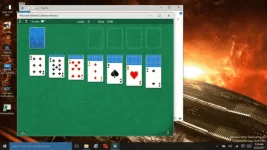
Yes, even Solitaire is back in Windows 10. (Windows 8.1 cast it into the Windows Store and made it an optional download.)
Before we get too involved, it’s worth noting that the Windows 10 Technical Preview is limited to PC and Windows tablets with x86 processors—there’s no version for Windows RT tablets and their ARM processors available, as You do not have permission to view the full content of this post. Log in or register now.. (Sorry, Surface RT owners.) If you’re unsure which version of Windows your tablet is running, right-click on the “This PC” icon in File Explorer and select Properties. Your Windows edition information will be at the top of the window that appears.
Here are Windows 10’s You do not have permission to view the full content of this post. Log in or register now., which are just as modest as Windows 8.1’s.
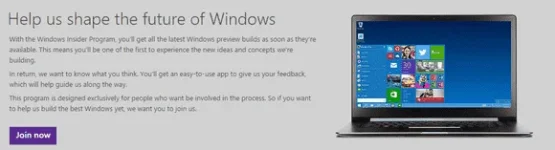
Still here? Now head over to preview.windows.com and click the Get Started button. After registering for Windows Insider, you’ll be prompted to You do not have permission to view the full content of this post. Log in or register now.. Download the appropriate Technical Preview build for your machine—the “This PC” or “My Computer” Properties window can also tell you if you have a 32-bit or 64-bit processor under the “System type” field.
Jot down the product key for the Technical Preview, too, though I didn't need to use it to install the Technical Preview. Couldn't hurt to have it handy though.
NKJFK-GPHP7-G8C3J-P6JXR-HQRJR
Installing the Windows 10 Technical Preview
With all that done, it’s time to get the Tech Preview on your PC! But since it’s a very early pre-release build of the operating system, you probably don’t want to overwrite your PC’s operating system with Windows 10—especially since doing so renders Windows Media Player incapable of playing DVDs and removes Windows Media Center entirely from upgraded Windows 8.1 Pro installations. (You do not have permission to view the full content of this post. Log in or register now..)
If you have a superfluous computer lying around, sure, feel free to install the preview on that. (My colleague Mark Hachman did, You do not have permission to view the full content of this post. Log in or register now.—but only aftercreating a recovery drive.) But most people will want to install the Windows 10 Technical Preview either in a virtual machine, or dual-boot the OS from its own hard drive partition.
In a virtual machine
Installing it on a virtual machine is the easiest option. You do not have permission to view the full content of this post. Log in or register now., Oracle’s You do not have permission to view the full content of this post. Log in or register now., and you’ll be ready to rock. Download the Windows 10 Preview and configure it in VirtualBox using mostly the same steps outlined in PCWorld’s guide toYou do not have permission to view the full content of this post. Log in or register now.. (When you're initially setting up the Windows 10 VM, select "Windows 8.1" as the operating system type.)
If your attempt to install the Windows 10 VM isn't successful, try tweaking these settings. Once you’ve completed the initial Windows 10 set up, open the VM's Settings > System. In the Motherboard tab, ensure the box next to “Enable EFI (Special OSes only)” is checked, as well as the “Enable PAE/NX” box under the Processor tab.
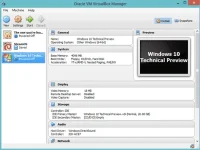
Setting up the Windows 10 Technical Preview in VirtualBox.
It's worth noting that I encountered troubles installing the 64-bit version Windows 10 on VirtualBox—the installation hung right after the "Press any key to boot" screen, stuck forever on the Windows logo against a black background. Several others have beenYou do not have permission to view the full content of this post. Log in or register now., however, and I was able to install the 32-bit version of Windows 10's Technical Preview in VirtualBox successfully. (I also successfully installed the 64-bit version to a hard drive partition, and another 64-bit instance overwriting Windows 8.1 on a laptop.)
Dual boot Windows 10 in a hard drive partition
Running operating systems in virtual machines also sacrifices some performance, especially if you don’t have extra CPU cores or much RAM to dedicate to the task. If you want to experience the Windows 10 Technical Preview natively, you can create a new partition on your hard drive and install the preview there. (It’s best if you’re able to do this on a secondary PC, just to be safe.)
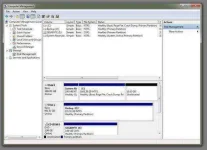
Creating hard drive partitions in Windows.
PCWorld’s guide to You do not have permission to view the full content of this post. Log in or register now. can walk you through the process—the same basic steps apply to the Windows 10 Technical Preview, and Windows 8 handles hard drive partitioning the same way Windows 7 did. Note that Windows 8 includes native tools for burning a bootable ISO to a DVD, however—simply right-click on the Windows 10 ISO file and select Burn disc image.
The You do not have permission to view the full content of this post. Log in or register now. can help you make a bootable USB drive with the Windows 10 ISO despite its name. One tip we have though for those installing from USB onto a desktop: use the native Intel USB ports. Some motherboards use discrete USB 3.0 controllers that Windows 10 may not recognize during the install causing it to bomb out. If it does fail mysteriously, consider trying a different USB 3.0 port with your best bet being USB 2.0 ports.
Living on the edge
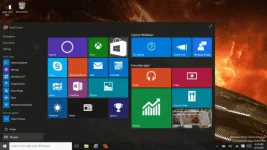
Windows 10's Start menu.
There you have it. Enjoy the sweet, sweet desktop improvements and let Microsoft’s team know if you hit any rough spots. You'll find a feedback tool baked right into the Windows 10 Technical Preview. That’s why you joined the Windows Insider program after all. Right?
Wondering where to start? Check out PCWorld's guide to You do not have permission to view the full content of this post. Log in or register now. and You do not have permission to view the full content of this post. Log in or register now. to get your feet wet.
And once you're set up with Windows 10, you can opt into its 'Fast ring' to get new builds, well, faster. Open PC Settings > Update and recovery > Preview builds in Windows 10 and click the Check Now button. In our experience you'll need to be fully up-to-date with system patches before the new preview will successfully install.
After releasing initial Windows 10 Technical Preview on October 1, 2014, Microsoft released a fast and furious flow of You do not have permission to view the full content of this post. Log in or register now. and You do not have permission to view the full content of this post. Log in or register now.. New builds released this year have added cornerstone Windows 10 features like Microsoft's You do not have permission to view the full content of this post. Log in or register now., the You do not have permission to view the full content of this post. Log in or register now., and an Xbox app with the ability to record PC gameplay footage.
But this isn’t like Windows 8’s Consumer Preview, which was released as a simple ISO image. The Windows 10 Technical Preview is being released via a new “Windows Insider” program that asks for user feedback and even provides private forums for discussing trouble spots with Microsoft engineers. Lots of things have already changed and many more are sure to change going forward, from features to basic elements of the operating system.
All that said, are you still curious? Can’t resist the lure of the bleeding edge? Just want to run away from Windows 8? (Don't worry, you'll wind up You do not have permission to view the full content of this post. Log in or register now..) Here’s how to install the Windows 10 Technical Preview right now.
Wait!
Actually, you won’t be installing the Technical Preview for a few minutes yet. Didn’t you hear the part about this being a very early pre-release build? That means You do not have permission to view the full content of this post. Log in or register now.
Don’t take my word for it: Here’s part of the terms of service you agree to when you sign up for Windows Insider (emphasis Microsoft’s):
“The Program Services include experimental and early prerelease software. This means that you may experience occasional crashes and in rare cases data loss. To recover, you may have to reinstall your applications, the operating system, or re-flash your device. Using the Program Services on some devices may impact your warranty (check with your device provider). By participating, you agree to frequently backup your data.”
In case that didn’t make it clear enough, back up your data before you start. Dump your pictures in Dropbox, drag your documents to an external hard drive, whatever works! Just make sure your data is safe and secure in case something bad happens when you’re installing the Windows 10 Tech Preview. (PCWorld’s You do not have permission to view the full content of this post. Log in or register now. and You do not have permission to view the full content of this post. Log in or register now.can help if you’re stumped.)
Windows 10 Technical Preview requirements
Yes, even Solitaire is back in Windows 10. (Windows 8.1 cast it into the Windows Store and made it an optional download.)
Before we get too involved, it’s worth noting that the Windows 10 Technical Preview is limited to PC and Windows tablets with x86 processors—there’s no version for Windows RT tablets and their ARM processors available, as You do not have permission to view the full content of this post. Log in or register now.. (Sorry, Surface RT owners.) If you’re unsure which version of Windows your tablet is running, right-click on the “This PC” icon in File Explorer and select Properties. Your Windows edition information will be at the top of the window that appears.
Here are Windows 10’s You do not have permission to view the full content of this post. Log in or register now., which are just as modest as Windows 8.1’s.
- Processor : 1GHz or faster with support for PAE, NX, and SSE2
- RAM : 1GB (32-bit) or 2GB (64-bit)
- Hard disk space : 16GB
- Graphics card : Microsoft DirectX 9 graphics device with WDDM driver
Still here? Now head over to preview.windows.com and click the Get Started button. After registering for Windows Insider, you’ll be prompted to You do not have permission to view the full content of this post. Log in or register now.. Download the appropriate Technical Preview build for your machine—the “This PC” or “My Computer” Properties window can also tell you if you have a 32-bit or 64-bit processor under the “System type” field.
Jot down the product key for the Technical Preview, too, though I didn't need to use it to install the Technical Preview. Couldn't hurt to have it handy though.
NKJFK-GPHP7-G8C3J-P6JXR-HQRJR
Installing the Windows 10 Technical Preview
With all that done, it’s time to get the Tech Preview on your PC! But since it’s a very early pre-release build of the operating system, you probably don’t want to overwrite your PC’s operating system with Windows 10—especially since doing so renders Windows Media Player incapable of playing DVDs and removes Windows Media Center entirely from upgraded Windows 8.1 Pro installations. (You do not have permission to view the full content of this post. Log in or register now..)
If you have a superfluous computer lying around, sure, feel free to install the preview on that. (My colleague Mark Hachman did, You do not have permission to view the full content of this post. Log in or register now.—but only aftercreating a recovery drive.) But most people will want to install the Windows 10 Technical Preview either in a virtual machine, or dual-boot the OS from its own hard drive partition.
In a virtual machine
Installing it on a virtual machine is the easiest option. You do not have permission to view the full content of this post. Log in or register now., Oracle’s You do not have permission to view the full content of this post. Log in or register now., and you’ll be ready to rock. Download the Windows 10 Preview and configure it in VirtualBox using mostly the same steps outlined in PCWorld’s guide toYou do not have permission to view the full content of this post. Log in or register now.. (When you're initially setting up the Windows 10 VM, select "Windows 8.1" as the operating system type.)
If your attempt to install the Windows 10 VM isn't successful, try tweaking these settings. Once you’ve completed the initial Windows 10 set up, open the VM's Settings > System. In the Motherboard tab, ensure the box next to “Enable EFI (Special OSes only)” is checked, as well as the “Enable PAE/NX” box under the Processor tab.
Setting up the Windows 10 Technical Preview in VirtualBox.
It's worth noting that I encountered troubles installing the 64-bit version Windows 10 on VirtualBox—the installation hung right after the "Press any key to boot" screen, stuck forever on the Windows logo against a black background. Several others have beenYou do not have permission to view the full content of this post. Log in or register now., however, and I was able to install the 32-bit version of Windows 10's Technical Preview in VirtualBox successfully. (I also successfully installed the 64-bit version to a hard drive partition, and another 64-bit instance overwriting Windows 8.1 on a laptop.)
Dual boot Windows 10 in a hard drive partition
Running operating systems in virtual machines also sacrifices some performance, especially if you don’t have extra CPU cores or much RAM to dedicate to the task. If you want to experience the Windows 10 Technical Preview natively, you can create a new partition on your hard drive and install the preview there. (It’s best if you’re able to do this on a secondary PC, just to be safe.)
Creating hard drive partitions in Windows.
PCWorld’s guide to You do not have permission to view the full content of this post. Log in or register now. can walk you through the process—the same basic steps apply to the Windows 10 Technical Preview, and Windows 8 handles hard drive partitioning the same way Windows 7 did. Note that Windows 8 includes native tools for burning a bootable ISO to a DVD, however—simply right-click on the Windows 10 ISO file and select Burn disc image.
The You do not have permission to view the full content of this post. Log in or register now. can help you make a bootable USB drive with the Windows 10 ISO despite its name. One tip we have though for those installing from USB onto a desktop: use the native Intel USB ports. Some motherboards use discrete USB 3.0 controllers that Windows 10 may not recognize during the install causing it to bomb out. If it does fail mysteriously, consider trying a different USB 3.0 port with your best bet being USB 2.0 ports.
Living on the edge
Windows 10's Start menu.
There you have it. Enjoy the sweet, sweet desktop improvements and let Microsoft’s team know if you hit any rough spots. You'll find a feedback tool baked right into the Windows 10 Technical Preview. That’s why you joined the Windows Insider program after all. Right?
Wondering where to start? Check out PCWorld's guide to You do not have permission to view the full content of this post. Log in or register now. and You do not have permission to view the full content of this post. Log in or register now. to get your feet wet.
And once you're set up with Windows 10, you can opt into its 'Fast ring' to get new builds, well, faster. Open PC Settings > Update and recovery > Preview builds in Windows 10 and click the Check Now button. In our experience you'll need to be fully up-to-date with system patches before the new preview will successfully install.

