Modifying the Registry
There are several methods we can modify the registry, modifying the registry brings together all our previous knowledge.
WARNING
You should NOT attempt to modify your registry if you are not completely certain. You can render your machine unusable.
Please use a virtual machine if you want to attempt any modifications.
From Microsoft themselves:
This section, method, or task contains steps that tell you how to modify the registry. However, serious problems might occur if you modify the registry incorrectly. Therefore, make sure that you follow these steps carefully. For added protection, back up the registry before you modify it. Then, you can restore the registry if a problem occurs. For more information about how to back up and restore the registry, click the following article number to view the article in the Microsoft Knowledge Base:
You do not have permission to view the full content of this post.
Log in or register now.How to back up and restore the registry in Windows
MANUALLY IN REGEDIT
I do not encourage this.
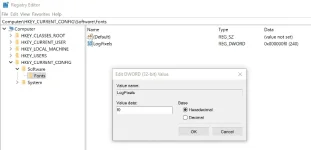
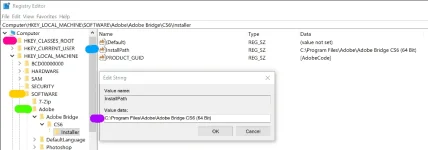
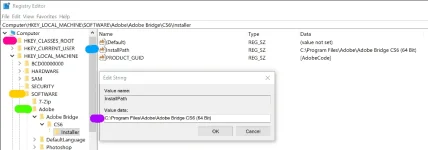
Of course, you can go into the registry itself and make modifications. Modify values, delete things, add things, you name it and this is probably the most simple (yet most dangerous) way to do this.
- Click start
- Type regedit
- Click yes on the UAC window
- Go through the registry and make modifications like you would to any file.
SCRIPTS: .reg FILES
Creating a .reg File
Creating .reg files is simple.
- Open Notepad
- Type the desired script.
- Click File
- Save
- Name the file; RegistryFix.reg
- Under file type, select all types.
- Click save.
Executing a .reg File
- Navigate to the .reg file.
- Double click it.
- Click yes in the UAC window.
- Click yes when prompted by regedit.
- Allow the file to run.
Syntax of .Reg Files
A .reg file has the following syntax:
RegistryEditorVersion
Blank line
[
RegistryPath1]
"
DataItemName1"="
DataType1 ataValue1
"
"
DataItemName2"="
DataType2ataValue2"
Blank line
[
RegistryPath2]
"
DataItemName3"="
DataType3ataValue3"
where:
RegistryEditorVersion is either "Windows Registry Editor Version 5.00" for Windows 2000, Windows XP, and Windows Server 2003, or "REGEDIT4" for Windows 98 and Windows NT 4.0. The "REGEDIT4" header also works on Windows 2000-based, Windows XP-based, and Windows Server 2003-based computers.
Blank line is a blank line. This identifies the start of a new registry path. Each key or subkey is a new registry path. If you have several keys in your .reg file, blank lines can help you to examine and to troubleshoot the contents.
RegistryPathx is the path of the subkey that holds the first value you are importing. Enclose the path in square brackets, and separate each level of the hierarchy by a backslash. For example: [HKEY_LOCAL_ MACHINE\SOFTWARE\Policies\Microsoft\Windows\System]
A .reg file can contain several registry paths. If the bottom of the hierarchy in the path statement does not exist in the registry, a new subkey is created. The contents of the registry files are sent to the registry in the order you enter them. Therefore, if you want to create a new subkey with another subkey below it, you must enter the lines in the correct order.
DataItemNamex is the name of the data item that you want to import. If a data item in your file does not exist in the registry, the .reg file adds it (with the value of the data item). If a data item does exist, the value in your .reg file overwrites the existing value. Quotation marks enclose the name of the data item. An equal sign (=) immediately follows the name of the data item.
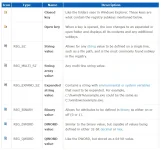
DataTypex is the data type for the registry value and immediately follows the equal sign. For all the data types other than REG_SZ (a string value), a colon immediately follows the data type. If the data type is REG_SZ , do not include the data type value or colon. In this case, Regedit.exe assumes REG_SZ for the data type.
More info about registry data types:
You do not have permission to view the full content of this post.
Log in or register now.
DataValuex immediately follows the colon (or the equal sign with REG_SZ) and must be in the appropriate format (for example, string or hexadecimal). Use hexadecimal format for binary data items.
NOTE: You can enter several data item lines for the same registry path. The registry file should contain a blank line at the bottom of the file.
Creating a .reg File
Lets take a step back to the basics, we'll worry about the correct syntax, spacing, punctuation etc later. Let's just look at how to make a .reg file.
- Open Notepad.
- Click File > Save
- Save the file to the Desktop.
- In the File Name field enter FILENAME.reg
- In the Save as Type option select 'All Files'.
- Hit save.
Done! There should be a .reg file named FILENAME with the .reg icon.
Formatting a .reg File
When it comes to writing .reg files, there are a couple of rules we must follow.
- RULE 1: the file should always start with the following line:
Windows Registry Editor Version 5.00
- RULE 2: we must separate 'commands' relating to different keys/subkeys by a single line. This means:
- RULE 3: NEVER modify a registry that hasn't been backed up!
When it comes to the general format of a .reg file, it follows a registry backup as I described earlier.
[REGISTRYHIVE\KEY\SUBKEY\SUBSUBKEY]
"VALUE"="Some Data Here"
Depending what we want to do, will determine how we structure the above lines. The specific syntax will be determined whether we want to do any of the following:
- Delete a Key/Subkey
- Delete a Value
- Add a value with specific data.
- Add a key/subkey
- Modify the DATA of a Value.
Lets work through each one. I'm going to use a single example through each of these exported from my own registry.
Lets work with this:
[HKEY_LOCAL_MACHINE\SOFTWARE\Google\Chrome]
"ExampleString"="C:\\ProgramFiles\\Google\\Chrome\\Example.exe"
Delete a Key/Subkey
Hopefully by now you can identify the key/subkey (and hive, value and data for that matter!) in this line. If not give it a go. I'll put the answer below.
HIVE: HKEY_LOCAL_MACHINE
KEY: SOFTWARE
SUBKEY: Google
VALUE: ExampleString
DATA: C:\\ProgramFiles\\Google\\Chrome\\Example.exe
The syntax for deleting a key/subkey is pretty simple, just add a minus (-) symbol before the path you want to delete.
Let's delete the Chrome subkey:
Code:
[-HKEY_LOCAL_MACHINE\SOFTWARE\Google\Chrome]
Now, lets delete the Google subkey:
Code:
[-HKEY_LOCAL_MACHINE\SOFTWARE\Google]
NOTE: removing the google subkey will remove all subkeys below it! (I don't know if I have to say this, but I will). Just like if you deleted the Program Files folder all the folders below would get deleted!
Simple, right?
So, if we wanted to make a .reg file to remove the Google subkey, the whole file would read:
Code:
Windows Registry Editor Version 5.00

[-HKEY_LOCAL_MACHINE\SOFTWARE\Google]
We would then:
- Click File > Save
- Rename the file to FILENAME.reg
- Change the 'Save as Type' to 'All Files'
- Ensure you save the file on your Desktop.
- Click Save.
We can then go to the saved file, double click it to execute it (clicking yes to the prompts). Lets move on.
Delete a Value
Remember the structure of our export and where the values are in it? Let me remind you:
[REGISTRYHIVE\KEY\SUBKEY\SUBSUBKEY]
"VALUE"="Some Data Here"
This means our format in our .reg file has to be a little different (yet still simple). To delete a value we add a minus (-) after the = sign that immediately follows the " from the value ("VALUE"=).
Here's our example:
[HKEY_LOCAL_MACHINE\SOFTWARE\Google\Chrome]
"ExampleString"="C:\\ProgramFiles\\Google\\Chrome\\Example.exe"
Lets remove the value "ExampleString" from the Chrome subkey.
Code:
[HKEY_LOCAL_MACHINE\SOFTWARE\Google\Chrome]
"ExampleString"=-
So, if we wanted to make a .reg file to remove the ExampleString value, the whole file would read:
Code:
Windows Registry Editor Version 5.00

[HKEY_LOCAL_MACHINE\SOFTWARE\Google\Chrome]
"ExampleString"=-
Add a value with specific data.
This one may be a bit trickier, but I can't see a reason why you might do this. When you restore from a backup, this is what you are inadvertently doing. To do this, you must know the correct data that is assigned to that value. To create this script, we just mirror our export from the registry. When we have specific values listed, the .reg file will create the key/subkey if it does not exist already.
Code:
[HKEY_LOCAL_MACHINE\SOFTWARE\Google\Chrome]
"ExampleString"="C:\\ProgramFiles\\Google\\Chrome\\Example.exe"
So, if we wanted to make a .reg file to add the ExampleString value, the whole file would read:
Code:
Windows Registry Editor Version 5.00

[HKEY_LOCAL_MACHINE\SOFTWARE\Google\Chrome]
"ExampleString"="C:\\ProgramFiles\\Google\\Chrome\\Example.exe"
Add a Key/Subkey
I can't see why you would do this alone for any good reason, if you are creating keys/subkeys you more than likely should have values within them.
Modify the DATA of a Value
This is the more fun/thinking part, I'm going to show you to modify the data of a value. This method is often what malware will use to disable certain features (particularly security features) on a users system. How we modify the data particularly relates to the type of data that is stored in the value.
- Is it a string?
- Is it a binary value?
- Is it a DWORD value? etc
Regardless, the structure of your script is essentially the same. Let's take our example again...

Lets change the strong associated with ExampleString to the directory C:\Windows\Example.exe - the trick to this function is to be sure to remember the "" and a double \ (\\) where usually you would put 1.
Another example, this time of a DWORD (Hexidecimal Base). I just quickly exported this from a random part of my registry:
In a DWORD you get a string of numbers: 00000000 or 00000001 or 00040000 etc. Each number represents a different state for the value. Simply (and what most commonly I'm involved in) 1 = enabled, 0 = disabled.
So in this entry:
[HKEY_LOCAL_MACHINE\SOFTWARE\Policies\Microsoft\Windows\safer\codeidentifiers]
"authenticodeenabled"=dword:00000000
The value authenticodeenabled is disabled (I know this by dword:00000000)
If authenticodeenabled was enabled it would be dword:00000001
This is applicable particularly when malware has disabled the ability to access regedit. In this example below, disable registry tools is enabled.
HKCU\Software\Microsoft\Windows\CurrentVersion\Policies\System
"DisableRegistryTools"=1
We, however, are able to construct a .reg file to disable "DisableRegistryTools". It is as follows:

You can also find entries like this for:
- Task manager
- Command Prompt
- Config
- System Restore
- The list continues...
This will cover most modifications you might ever want to do in the registry using a .reg file.
COMMAND PROMPT (CMD) [.bat (BATCH) Files]
For those new to the game, batch files are just scripted command prompt commands that you can double click and execute (like .reg files kinda - but more versatile). I'm going to go over the commands you will type into command prompt, I will then show you how to adapt these to a simple .bat file.
Reference:
You do not have permission to view the full content of this post.
Log in or register now.
How to Open Command Prompt
To open command prompt:
- Click Start
- Search Command Prompt
- Right Click and click Run as Administrator
Commands
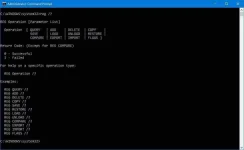
In command prompt (CMD) you can you can type reg /? to bring up a list of available commands.
These include:
- REG Query
- REG Add
- REG Delete
- REG Copy
- REG Save
- REG Load
- REG Unload
- REG Restore
- REG Compare
- REG Export
- REG Import
- REG Flags
CMD Syntax
- ADD: REG ADD KeyName [{/v ValueName | /ve}] [/t Type] [/f]
- Delete: REG DELETE KeyName [{/v ValueName | /ve | /va}] [/f]
Command Description
- KeyName: Defines the path to the subkey or entry. Valid registry key shortcuts include HKLM, HKCU, HKCR, HKU, and HKCC. If you're trying to edit the registry on a remote computer, you can only use these shortcuts: HKLM and HKU.
- /v ValueName: Specifies the name for the registry key to be added or deleted.
- /ve: Defines if you're adding or deleting an entry that has a null value.
- /t Type: Specifies the type of registry entries. Here's the list of valid types:
- REG_SZ
- REG_MULTI_SZ
- REG_DWORD_BIG_ENDIAN
- REG_DWORD
- REG_BINARY
- REG_DWORD_LITTLE_ENDIAN
- REG_LINK
- REG_FULL_RESOURCE_DESCRIPTOR
- REG_EXPAND_SZ
- /f: Adds or deletes registry content without prompting for confirmation.
- /s Separator: Defines the character you use to separate multiple instances of data when the REG_MULTI_SZ data type is specified and you need to add more than one entry. The default separator is \0 if it is not specified.
- /d Data: Specifies the data for the new entry in the registry.
REG ADD
To add a subkey named MySubkey under HKEY_LOCAL_MACHINE\Software, use the following example:
REG ADD HKLM\Software\MySubkey
To add a new DWORD (32-bit) value entry named AppInfo with the value of 1, use the following example:
REG ADD HKLM\Software\MySubkey /v AppInfo /t REG_DWORD /d 1
To add a new Binary Value entry named Data with data of fe340ead, use the following example:
REG ADD HKLM\Software\MySubkey /v Data /t REG_BINARY /d fe340ead
To add a registry entry with multiple values to MySubkey with a value name of MRU of type REG_MULTI_SZ and data of fax\0mail\2\1, use the following example:
REG ADD HKLM\Software\MySubkey /v MRU /t REG_MULTI_SZ /d fax\0mail\2\1
REG DELETE
To delete the subkey named MySubkey, use the following example:
REG DELETE HKLM\Software\MySubkey /f
To delete the registry entry named AppInfo within the MySubkey subkey, use the following example:
REG DELETE HKLM\Software\MySubkey /v AppInfo /f
To delete all the registry entries from the MySubkey subkey, use the following example:
REG DELETE HKLM\Software\MySubkey /va
REG COPY
Syntax:
REG COPY KeyName1 KeyName2 [/s] [/f]
- KeyName1: Defines the path to the subkey you want to copy. Valid registry key shortcuts include HKLM, HKCU, HKCR, HKU, and HKCC. If you're trying to copy the registry on a remote computer, you can only use these shortcuts: HKLM and HKU.
- KeyName2: Defines the path to the subkey destination. Valid registry key shortcuts include HKLM, HKCU, HKCR, HKU, and HKCC. If you're trying to copy the registry on a remote computer, you can only use these shortcuts: HKLM and HKU.
- /s: Copies all subkeys and entries of a particular subkey.
- /f: Executes the copy command without prompting for confirmation.
To copy all subkeys and values under the key MySubkey1 to the key MySubkey2, use the following example:
REG COPY HKLM\Software\MySubkey1 HKLM\Software\MySubkey2 /s
Create .bat (batch) File
We need to create a batch file to run some commands.
- Open Notepad.
- Copy/Paste the following code into Notepad:
echo offCODE
- Click Save
- Name the file Fix.bat
- Under Save as Type select All Files
- Save the batch file to your desktop
- Navigate to the file and Rick Click then Run as Administrator
- Allow it to run.
Code:
[b][color=#33ffff]Create .bat (batch) File[/color][/b]
We need to create a batch file to run some commands.
[list]
[*]Open Notepad.
[*]Copy/Paste the following code into Notepad:

[quote]@echo off

CODE[/quote]


[*]Click Save
[*]Name the file Fix[b][color=#ff3366].bat[/color][/b]
[*]Under Save as Type select All Files
[*]Save the batch file to your desktop, it will look like this:

[ATTACH]1258482[/ATTACH]


[*]Navigate to the file and Rick Click then Run as Administrator
[*]Allow it to run.
[/list]
Conclusion
Hopefully you found this guide somewhat helpful. I'm hoping that this may serve as a reference to those who are interested in the Windows system, malware and security. I've linked a bunch of websites that were the inspiration for this thread. Please leave all comments, suggestions nad possible improvments as a reply rather than PMing me so the community can benefit! And please tell me:
- Was this thread helpful?
- Was it easy to follow?
- What would you like to hear from me next?
All the best
 References
Registry Value Types:
You do not have permission to view the full content of this post.
Log in or register now.
Computer Hope Registry Talk:
You do not have permission to view the full content of this post.
Log in or register now.
Inspiration for this thread:
You do not have permission to view the full content of this post.
Log in or register now.
Starting Point:
You do not have permission to view the full content of this post.
Log in or register now.
Microsoft Library on the Registry:
You do not have permission to view the full content of this post.
Log in or register now.
CMD:
You do not have permission to view the full content of this post.
Log in or register now.
 PH
PH