 PH
PH
Bifrost AI Gateway: Beginner Installation and Usage Guide
A practical introduction to installing, configuring, and using You do not have permission to view the full content of this post. Log in or register now. as a local AI gateway.
What is Bifrost?
Bifrost is an AI gateway that provides one OpenAI-compatible API for multiple model providers. Instead of integrating every application directly with OpenAI, Anthropic, Google, AWS Bedrock, or another provider, an application can send requests to Bifrost.
Bifrost also provides a web interface for provider configuration, request monitoring, and analytics.
What you will need
- Docker or Node.js with npx
- An API key from at least one supported AI provider
- A terminal
- A web browser
This guide uses localhost:8080. If Bifrost runs on another server, replace You do not have permission to view the full content of this post. Log in or register now. with that server's address.
1. Install and start Bifrost
There are two simple installation methods. Choose one.
Option A: Run with NPX
This method is convenient for a quick local test:
Bash:
npx -y @maximhq/bifrostKeep this terminal open while you use Bifrost. The gateway listens on port 8080 by default.
Option B: Run with Docker
Bash:
docker run --name bifrost \\
  --publish 8080:8080 \\
  maximhq/bifrost
To run it in the background instead:
Bash:
docker run -d --name bifrost \\
  --restart unless-stopped \\
  --publish 8080:8080 \\
  maximhq/bifrost
Check that the container is running:
Bash:
docker ps --filter name=bifrostView its logs if needed:
Bash:
docker logs -f bifrostStop and remove the container:
Bash:
docker stop bifrost
docker rm bifrost
Data note: The basic Docker command is suitable for a first test. Before using Bifrost for important or production workloads, review the official persistence, configuration, authentication, and deployment documentation.
2. Open the Bifrost web interface
Open this URL in your browser:
Code:
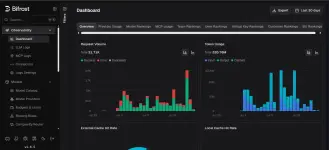
http://localhost:8080You should see the Bifrost web interface.
Bifrost dashboard
3. Configure an AI provider
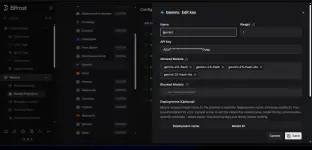
The exact fields depend on the provider, but the general process is:
- Open Models -> Model Provider
- Select a provider, such as OpenAI, Anthropic, Google, AWS Bedrock, Groq, Mistral, or Ollama.
- Enter the provider API key or credentials.
- Save the configuration.
- Note the model identifier that Bifrost displays or expects.
For the examples below, the model name is:
Code:
gemini/gemini-2.5-flashUse the model identifier that is actually available in your Bifrost configuration. Do not assume that every provider exposes the same model names.
Keep API keys private
- Do not commit API keys to Git.
- Do not include API keys in screenshots.
- Prefer Bifrost's supported secret or environment-variable configuration for deployments.
- If a key is exposed, revoke it and create a replacement.
4. Make your first API request
Bifrost exposes an OpenAI-compatible chat-completions endpoint.
Bash:
curl http://localhost:8080/v1/chat/completions \
  -H "Content-Type: application/json" \
  -d '{"model":"gemini/gemini-2.5-flash","messages":[{"role":"user","content":"Say hello in one sentence."}]}'
  }'
A successful response should be JSON containing the model response, commonly under a structure similar to choices[0].message.content.
Troubleshooting the first request
If the request fails:
- Confirm that Bifrost is still running.
- Confirm that the model identifier is correct.
- Confirm that the provider account has access and available quota.
- Check the Bifrost logs.
For a basic connectivity check:
Bash:
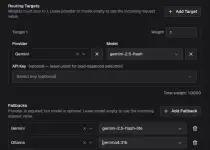
curl -i http://localhost:80805. Configure routing
- Go to Models -> Routing Rule -> Click New Rule
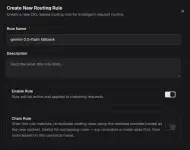
- Add Rules( you can use keywords exact model name, you can skip this and directly add Target Provider/model)
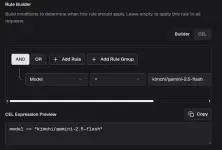
- Add Target and Fallback, Then Save
6. Use Bifrost from an application
Claude Code
Bash:
#Temporary
#Linux/Mac
export ANTHROPIC_BASE_URL=http://localhost:8080
export ANTHROPIC_API_KEY=your-api-key

#Windows/Powershell
$env:ANTHROPIC_BASE_URL="http://localhost:8080"
$env:ANTHROPIC_API_KEY="your-api-key"

#Permanent
#Linux/Mac
echo 'export ANTHROPIC_BASE_URL=http://localhost:8080/v1' >> ~/.bashrc
echo 'export ANTHROPIC_API_KEY=your-api-key' >> ~/.bashrc
source ~/.bashrcCodex
Bash:
#Temporary
#Linux/Mac
export OPENAI_BASE_URL=http://localhost:8080
export OPENAI_API_KEY=your-api-key

#Windows/Powershell
$env:OPENAI_BASE_URL="http://localhost:8080"
$env:OPENAI_API_KEY="your-api-key"

#Permanent
#Linux/Mac
echo 'export OPENAI_BASE_URL=http://localhost:8080/v1' >> ~/.bashrc
echo 'export OPENAI_API_KEY=your-api-key' >> ~/.bashrc
source ~/.bashrc
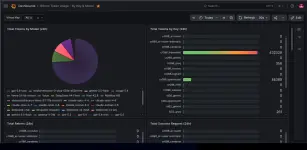
7. Monitor Bifrost with Grafana
Bifrost documents native observability features, including Prometheus metrics, distributed tracing, logging, and analytics. Grafana is commonly used to visualize Prometheus metrics.
A typical monitoring flow is:
Code:
Bifrost -> Prometheus -> GrafanaThe exact metric endpoint, metric names, dashboard JSON, and deployment configuration depend on the Bifrost version and the observability configuration you choose. Check the current You do not have permission to view the full content of this post. Log in or register now. before configuring Prometheus or Grafana.
At a high level:
- Enable or configure Bifrost metrics according to the official documentation.
- Configure Prometheus to scrape the Bifrost metrics endpoint.
- Add Prometheus as a Grafana data source.
- Import or create panels for request count, latency, errors, token usage, and provider/model distribution.
- Send a test request through Bifrost and confirm that the dashboard changes.
Grafana Bifrost dashboard
8. Useful Docker commands
Bash:
# Show running containers
docker ps

# Follow Bifrost logs
docker logs -f bifrost

# Restart Bifrost
docker restart bifrost

# Stop Bifrost
docker stop bifrost

# Start an existing stopped container
docker start bifrost
8. Common problems
The browser cannot connect to
Check that the process or container is running and that port 8080 is published:
Bash:
docker ps --filter name=bifrost
curl -i http://localhost:8080
If another service already uses port 8080, map a different host port:
Bash:
docker run --name bifrost -p 8081:8080 maximhq/bifrostThen open:
Code:
http://localhost:8081The API request returns an authentication or provider error
Check the provider configuration, API key, account quota, and selected model. Bifrost cannot complete a provider request if the upstream provider rejects the credentials or model.
The model is not found
Use the model identifier shown by your Bifrost configuration. Provider model names are not interchangeable.
Bifrost works locally but not from another machine
localhost refers to the machine where Bifrost is running. For remote access, expose Bifrost through a properly secured network endpoint, configure authentication, and use HTTPS where appropriate. Do not expose an unauthenticated AI gateway directly to the public internet.
9. Next steps
After the basic test works, review the official documentation for:
- You do not have permission to view the full content of this post. Log in or register now.
- You do not have permission to view the full content of this post. Log in or register now.
- You do not have permission to view the full content of this post. Log in or register now.
- You do not have permission to view the full content of this post. Log in or register now.
- You do not have permission to view the full content of this post. Log in or register now.
- You do not have permission to view the full content of this post. Log in or register now.
Quick reference
- Start with NPX: npx -y @maximhq/bifrost
- Start with Docker: docker run -p 8080:8080 maximhq/bifrost
- Open the UI: You do not have permission to view the full content of this post. Log in or register now.
- Chat completions endpoint: POST You do not have permission to view the full content of this post. Log in or register now.
- View Docker logs: docker logs -f bifrost
- Stop Docker container: docker stop bifrost