 PH
PHBy default, when you type a word, sentence and paragraph even it has a wrong spelling and grammar, still it does not display red curved-underline.
So how to enable the spell check and to display error-underline as you type?
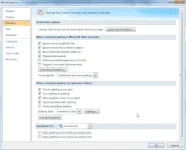
Microsoft Word Proofing Setting
If you want grammar only to check, choose grammar only. But for quite valid reason, I would suggest set it to Grammar and Style.
Additional details: (uncheck the following)
So how to enable the spell check and to display error-underline as you type?
Microsoft Office
packed with powerful feature including spell and grammar check. Though
spelling and grammar
checking it is not 100% accurate but it has the ability to learn. You can add some
spelling words
in the Word's database.
To be simple and straighforward, setting up to enable spell check is very easy.
HOW TO: Enable Spell Check on Microsoft Word
1. Open your Microsoft Word
(I used version 2007 here)
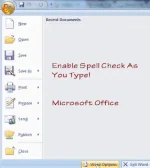
2. Click the
Office
logo found at the top-left of the interface.
3. Find
Word Options
, it shows below the pop-up window.
Microsoft Word Proofing Setting
4. In Word Options configuration, in the left pane, choose Proofing.
5. Here, you must check the following:
- Check Spelling as you type
- Use contextual spelling
- Mark grammar errors as you type
- Check grammar with spelling
If you want grammar only to check, choose grammar only. But for quite valid reason, I would suggest set it to Grammar and Style.
Additional details: (uncheck the following)
- Hide spelling errors in the document only
- Hide grammar errors in the document only
dpuf