PH
PH--ShiniGaMi--
Fanatic

W E L C O M E P H C F O L K S !
This guide will help you to maximize your Android device and enable the Admin rights as well. I've seen this guide in Google and I am sharing this to you guys.
Android is what we use and love on daily basis. Android has been universally loved by its user base because it doesn't require excessive amounts of modification in order to get styles or themes running, unlike with iOS where it requires a jailbroken device that is capable of running code that the software does not support. With that being noted, Google or Android has been very nice and lenient to what software just works off the device that doesn't need root. While there is some more in-depth theming processes that do require but for a person who doesn't need root, I'm pretty sure they'll be happy for what they can customize and such.
What is ROOT?

You may have heard of the term 'root' or 'rooting' since you have owned your Android smartphone. You may ask yourself some questions like
- What is root?
- How do I go about rooting my device?
- What can I achieve if I root my device?
How would you go about rooting your Android device? It's pretty simple. You basically need the following information about your device:
- The version of Android that you're running.
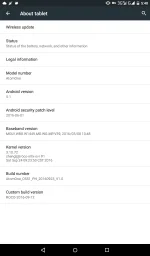
- The model of your phone. (An example would be my phone [SGH-i747])

A Recovery is a lightweight run-time environment separate from the Android operating system. The sole purpose of recovery is to do the following:
- Apply software updates
- To run another external tool/software from the Micro SD card
- Erase the user data if he or she wants to flash another ROM in a clean manner. (The opposite of this is called 'Dirty Flash' which is just clearing the dalvik cache and then flashing it over the older firmware.)
If you want to go a bit more technical into what the recovery actually is; the operating system for the recovery is stored in the disk partition. Again which is separate from the Android partition which contains your kernel and system. The kernel that the recovery runs is not even Android related. If the Android kernel is broke, you are still able to access the recovery because it is on its own code. Plus it is separate from the system as we previously stated.
It is possible that your bootloader gets corrupt and it will not be possible to boot into the recovery. Once your recovery is broke, you'll need to do some hardware tweaking which is commonly known as a JTAG. (For certain devices the process of using a JTAG is different. You may want to research about your device on the internet before attempting to solder your device.)
Going forward, you have a few recoveries available for you to use. But you'll need to look if your device supports that recovery, along with if the ROM supports that recovery. To be safe you should just use either You do not have permission to view the full content of this post. Log in or register now. or You do not have permission to view the full content of this post. Log in or register now.. But you do have a few alternative options:
- You do not have permission to view the full content of this post. Log in or register now.
- You do not have permission to view the full content of this post. Log in or register now.
Note: You must have a custom recovery.You will also need a custom ROM that is built specifically for your device.
Note: Some phones do not have SD card capabilities. It's recommended to use a SD card but if your phone doesn't have a slot, please keep backups on your PC. - Internal storage will work fine though if you do not have a SD card. Just forewarn yourself that you need to have backups in a safe location.
ROM Flashing
- Obtain a ROM of your choice, many can be found from other android development site.
- Once you have downloaded the ROM File, mount your phones SD card and and copy over the .zip file.
- Power off the device and then boot up to recovery, it is different per device. If you are unsure how to boot up to your Android device's recovery menu then look it up in the forums or other tutorials on your device.
- In your phone's custom recovery bootloader, locate the menu options which allow you to wipe the phone. Whenever changing roms it is a good idea to make a Nandroid or BART backup first, then wipe Data/Factory and Dalvik-Cache before flashing the new rom.
- Once your phone has been wiped go back up to the root of the menu and select 'Flash Zip from SD Card' the text may be different per Recovery.
- Locate the ROM .Zip file you wish to flash.
- Confirm the flash by following the on-screen instructions (ie: pressing the trackball, pressing the call button, etc.)
- If no errors arise during the flashing process then the ROM flash was successful, Reboot the device.
RUU Flashing
- Connect your Android device to your computer. Most ROM Upgrade Utilities (RUUs) are .exe files which will only run in Microsoft Windows natively or in Linux/Mac OS X via Wine
- Download the RUU for your device, some can be found here at PCD Phones
- Run the RUU with your phone plugged in to your computer via its USB cable.
- Follow the RUU's instructions for flashing.
- Unless errors arise your device is now flashed.
App Installs/ROM Feature Installs via Flashing
Some ROMs have added features that are available to flash.
- To Flash the App/Rom Feature you must first download the .zip file.
- Mount your devices SD card and copy the .zip file over.
- Boot up to your devices custom recovery.
- Wipe your Dalvik-Cache in the Wipe Menu. And then go back to the recovery's main menu.
- This step may vary per device, there should be an option that says "Flash .zip from SD Card", select it.
- Select the .zip file you wish to flash.
- Confirm flashing of .zip file.
- Wait for the file to flash; and if successful, reboot.
Another way to ROOT your phone by using these methods below:
KingRoot
KingRoot is root for people who just want to have root access to their devices, and not necessarily wanting to flash anything extra. It works on almost all devices from Android version 2.x or above. Working of KingRoot is based on system exploit. The most suitable root strategy will be deployed from cloud to your device according to the ROM information on the device. The best part of using this root method is that it does not trip KNOX and have the ability to close Sony_RIC perfectly.
CF-Auto-Root
Created by XDA Senior Recognized Developer You do not have permission to view the full content of this post. Log in or register now., You do not have permission to view the full content of this post. Log in or register now. is a root for “rooting beginners” and those who want to keep as close to stock as possible. CF-Root is meant to be used in combination with stock Samsung firmwares as well as Nexus devices, and be the quickest and easiest way for your first root. In essence, it does nothing but install and enable You do not have permission to view the full content of this post. Log in or register now. on your system, so apps can gain root access.
Pa like naman if nakatulong

Cheers!