 PH
PHSo apparently Available lang ang Tuto na to sa mga HP laptops (?) Di aku sure pero sure po aku na working po sa HP laptop na mayroon ako. 
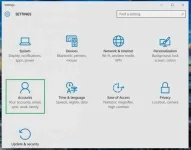
1. Go to Settings > Accounts.
2. Scroll to Windows Hello and click Set Up in the Fingerprint section.
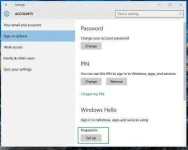
Note: If you don't have a PIN, you'll need to create one to set up the fingerprint reader.
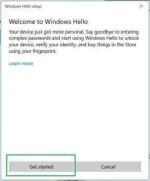
3. Click Get Started.
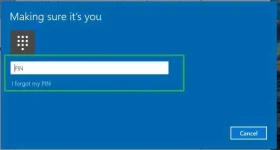
4. Enter your PIN.
5. Scan your finger on the fingerprint reader.
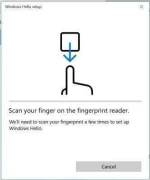
Note: You will have to do this multiple times to give the scanner a good picture of your prints.
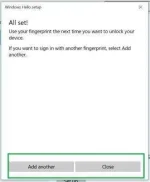
6. Click Add Another if you want to repeat the process with another finger, or close the program.
Here's a video kung pano po.
Method 2
kung ayaw gumana yung una.
1. Go to Settings > Accounts.
2. Scroll to Windows Hello and click Set Up in the Fingerprint section.
Note: If you don't have a PIN, you'll need to create one to set up the fingerprint reader.
3. Click Get Started.
4. Enter your PIN.
5. Scan your finger on the fingerprint reader.
Note: You will have to do this multiple times to give the scanner a good picture of your prints.
6. Click Add Another if you want to repeat the process with another finger, or close the program.
Here's a video kung pano po.
Method 2
kung ayaw gumana yung una.