 PH
PHSo ano nga ba ang ibig sabihin ko dito? First hindi po ito yung kagaya ng AIO na installer ng windows 7 na mayroong 32 bit at 64 bit kagaya nito.
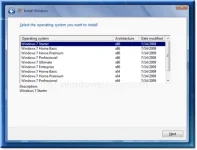
Maganda sana kung ganyan ang gagawin natin yung halos 100+ na version ng Windows ay nanjan na lahat. kaso mahirap gumawa ng ganoon lalao na kung beginner palang tayo.
Since mahirap nga ang proseso para makamit natin ang ganyang program gumawa na lang tayo ng ibang paraan kung saan tayo madadalian at madaling maintindihan.
Mabibigay ako ng preview ng gagawin natin:
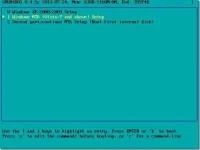
Kung makikita niyo gagamit tayo ng grub bootloadder.
gamit yan jan tayo mamimili ng gusto nating i-boot na windows.
Let's Start the Tutorial:
Objective:
1. Dapat makapag-boot kayo sa USB na may installer ng Windows o ano pa mang OS mapa-linux manyan basta bootable.
2. Dapat Makagawa kayo ng isang USB bootable drive na andun na lahat ng Windows or any OS or tools.
3. Dapat mapapalike kayo. hehe
Materials:
Windows Installers:
Windows 7: You do not have permission to view the full content of this post. Log in or register now.
Oops! eto na lang: You do not have permission to view the full content of this post. Log in or register now.
WinSetupFromUSB(You do not have permission to view the full content of this post. Log in or register now.)
16 Gb flashdrive (mas mataas pa. mas maganda rin kung 3.0 na ang gamitin)
Understanding
Procedures:
1. Download and buy all the materials needed.
2.After downloading the WinsetupfromUSB.rar extract the rar file.
you will see two installer one for 32 bit and another is for 64 bit: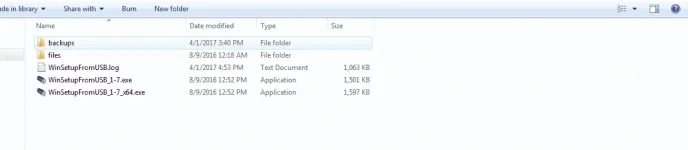
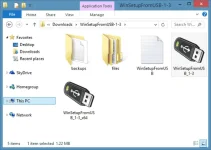
3. Once WinSetupFromUSB is launched and running, select your USB pen drive under USB disk selection and format tools section (see picture) and select Auto format it with FBinst option. Also select FAT32 as file system instead of NTFS if you want your multi-boot USB to be compatible with both BIOS and U/EFI.
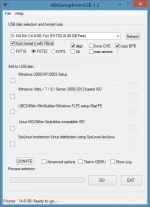
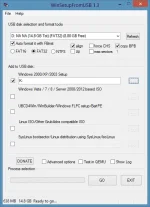
4. Skip this step if you don’t want to add Windows XP files to the USB. Select the check box under Windows 2000/XP/2003 Setup and then click the browse button to browse to the i386 folder in your Windows XP DVD or ISO file. Note that if you have the ISO file, you need to mount the ISO file using a third-party software or using the built-in You do not have permission to view the full content of this post. Log in or register now..
.
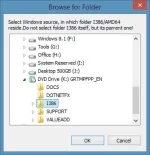
5. Next, select the check box under Windows Vista/7/8/Server 2008/2012 based ISO, click on the browse button and browse to location where you have saved your Windows 7 ISO file. Select the ISO file and click Open button
.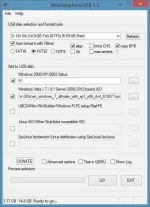
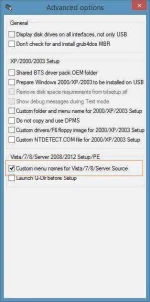
6. Now that you have chosen to add Windows XP and Windows 7 to the USB drive and make it bootable, check the Advanced options box to open Advanced Options dialog, select the option titled Custom menu names for Vista/7/8/Server Source. This will enable you add your own custom names to your Windows 7 and Windows 8 setups in the boot menu.
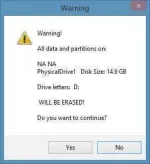
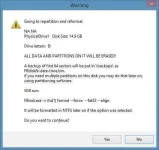
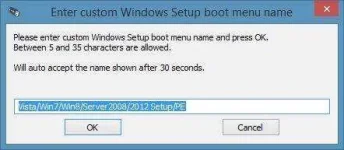
7. Finally, click GO button. Click on the Yes button when you see the Warning messages. If you have selected Custom menu names for Vista/7/8, you’ll see a small dialog box asking you to enter custom name for Windows setup. Enter a name and click OK button to allow WinSetupFromUSB begin its job.
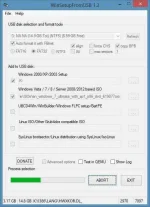
NOTE: We’ll add Windows 8/8.1 to the USB in the next step
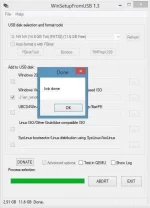
8. Once done, you’ll see Job done message on the screen. Don’t close WinSetupFromUSB yet as we have yet to add Windows 10 or 8 installation files to the USB. And if you don’t want to add Windows 8/10 files, you can stop the procedure here and close the application.

9. In order to add Windows 8/10 installation files, select the option titled Windows Vista/7/8/Server 2008/2012 based ISO and then select your Windows 8/10 ISO file (make sure that the same USB drive is selected).
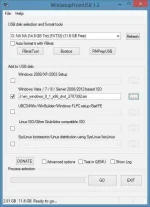
10. Enable the option titled Advanced Options and then select Custom menu names for Vista/7/8/Server source.
11. Finally, click the GO button. Click Yes button when you see warning dialogue boxes and enter a name for the setup when you’re asked to do so. That’s it! Your bootable USB containing Windows XP, Windows 7 and Windows 8/10 should be ready in a couple of minutes. Good luck!
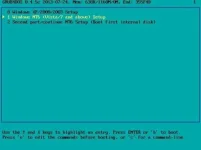
12. Once done, you can connect the USB drive to your PC or any other PC on which you want to install Windows XP, Windows 7 or Windows 8/8.1, and then boot from the USB. You’ll see the following screen, where you need to select the Windows setup that you would like to start.
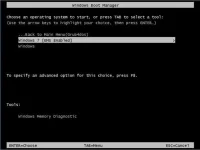
Natapos na din. So pwede na kayong magboot gamit ang usb.
goodluck!!
Don't forget to hit like. Tested ko na po yan ngayon. sinamahan ko pa yan ng Hirens boot disk. para kumpleto package.
credits: You do not have permission to view the full content of this post. Log in or register now.
Maganda sana kung ganyan ang gagawin natin yung halos 100+ na version ng Windows ay nanjan na lahat. kaso mahirap gumawa ng ganoon lalao na kung beginner palang tayo.
Since mahirap nga ang proseso para makamit natin ang ganyang program gumawa na lang tayo ng ibang paraan kung saan tayo madadalian at madaling maintindihan.
Mabibigay ako ng preview ng gagawin natin:
Kung makikita niyo gagamit tayo ng grub bootloadder.
gamit yan jan tayo mamimili ng gusto nating i-boot na windows.
Let's Start the Tutorial:
Objective:
1. Dapat makapag-boot kayo sa USB na may installer ng Windows o ano pa mang OS mapa-linux manyan basta bootable.
2. Dapat Makagawa kayo ng isang USB bootable drive na andun na lahat ng Windows or any OS or tools.
3. Dapat mapapalike kayo. hehe
Materials:
Windows Installers:
Windows 7: You do not have permission to view the full content of this post. Log in or register now.
Oops! eto na lang: You do not have permission to view the full content of this post. Log in or register now.
WinSetupFromUSB(You do not have permission to view the full content of this post. Log in or register now.)
16 Gb flashdrive (mas mataas pa. mas maganda rin kung 3.0 na ang gamitin)
Understanding
Procedures:
1. Download and buy all the materials needed.
2.After downloading the WinsetupfromUSB.rar extract the rar file.
you will see two installer one for 32 bit and another is for 64 bit:
3. Once WinSetupFromUSB is launched and running, select your USB pen drive under USB disk selection and format tools section (see picture) and select Auto format it with FBinst option. Also select FAT32 as file system instead of NTFS if you want your multi-boot USB to be compatible with both BIOS and U/EFI.
4. Skip this step if you don’t want to add Windows XP files to the USB. Select the check box under Windows 2000/XP/2003 Setup and then click the browse button to browse to the i386 folder in your Windows XP DVD or ISO file. Note that if you have the ISO file, you need to mount the ISO file using a third-party software or using the built-in You do not have permission to view the full content of this post. Log in or register now..
.
5. Next, select the check box under Windows Vista/7/8/Server 2008/2012 based ISO, click on the browse button and browse to location where you have saved your Windows 7 ISO file. Select the ISO file and click Open button
.
6. Now that you have chosen to add Windows XP and Windows 7 to the USB drive and make it bootable, check the Advanced options box to open Advanced Options dialog, select the option titled Custom menu names for Vista/7/8/Server Source. This will enable you add your own custom names to your Windows 7 and Windows 8 setups in the boot menu.
7. Finally, click GO button. Click on the Yes button when you see the Warning messages. If you have selected Custom menu names for Vista/7/8, you’ll see a small dialog box asking you to enter custom name for Windows setup. Enter a name and click OK button to allow WinSetupFromUSB begin its job.
NOTE: We’ll add Windows 8/8.1 to the USB in the next step
8. Once done, you’ll see Job done message on the screen. Don’t close WinSetupFromUSB yet as we have yet to add Windows 10 or 8 installation files to the USB. And if you don’t want to add Windows 8/10 files, you can stop the procedure here and close the application.
9. In order to add Windows 8/10 installation files, select the option titled Windows Vista/7/8/Server 2008/2012 based ISO and then select your Windows 8/10 ISO file (make sure that the same USB drive is selected).
10. Enable the option titled Advanced Options and then select Custom menu names for Vista/7/8/Server source.
11. Finally, click the GO button. Click Yes button when you see warning dialogue boxes and enter a name for the setup when you’re asked to do so. That’s it! Your bootable USB containing Windows XP, Windows 7 and Windows 8/10 should be ready in a couple of minutes. Good luck!
12. Once done, you can connect the USB drive to your PC or any other PC on which you want to install Windows XP, Windows 7 or Windows 8/8.1, and then boot from the USB. You’ll see the following screen, where you need to select the Windows setup that you would like to start.
Natapos na din. So pwede na kayong magboot gamit ang usb.
goodluck!!
Don't forget to hit like. Tested ko na po yan ngayon. sinamahan ko pa yan ng Hirens boot disk. para kumpleto package.
credits: You do not have permission to view the full content of this post. Log in or register now.