 PH
PHIf the default password on the sticker or the universal defaults aren't working, it means someone—either you, a family member, or the technician who installed it—changed the admin password in the past and forgot it.
The only way to regain access to your router's admin panel is to perform a Factory Reset.
𝗠𝗣𝗢𝗥𝗧𝗔𝗡𝗧 𝗪𝗔𝗥𝗡𝗜𝗡𝗚: A factory reset will wipe all custom settings. Your current WiFi name (SSID) and WiFi password will be erased. Everyone in the house will be disconnected until you set up a new WiFi network, and the router will revert entirely to the default settings printed on its back sticker.
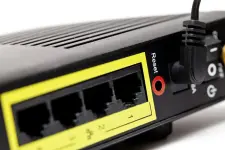
Here is exactly how to factory reset your router to regain access:
1. Locate the Reset Button:
Check the back or bottom of your router. You are looking for a tiny, recessed button usually labeled Reset. Because it is hidden inside a small pinhole (to prevent accidental resets), you will need a paperclip, a SIM ejector tool, or a toothpick.
2. Keep the Router Powered On:
Do not unplug it.
Ensure the router is plugged into the wall and fully powered on. If you press the reset button while the router is turned off, nothing will happen.
3. Press and Hold for 10-15 Seconds:
Timing is critical.
Insert the paperclip into the pinhole and press down. You should feel a slight click. Hold the button down firmly for about 10 to 15 seconds.
4. Watch the LED Lights:
Keep holding until you see all the LED lights on the front of the router flash simultaneously or turn off completely. Once that happens, release the button. The router is now erasing its memory and will take about 2 to 3 minutes to fully reboot.
5. Reconnect and Log In:
Once the router is back online, it will broadcast its original factory WiFi name. Connect your phone or computer to that default WiFi using the default password on the sticker. You can now open your browser, enter the router's IP address (like 192.168.1.1), and log in using the default admin credentials!
PS: If you are using a modem/router provided directly by your ISP , a factory reset will normally fix your login issue without breaking your internet connection. However, for a few highly specific fiber setups, it might erase ISP configuration settings. If you are worried, head over to the PhCorner networking section and search for your exact router model (e.g., "PLDT Fiber Home HG6245D factory reset safe?") before you press that button!
The only way to regain access to your router's admin panel is to perform a Factory Reset.
𝗠𝗣𝗢𝗥𝗧𝗔𝗡𝗧 𝗪𝗔𝗥𝗡𝗜𝗡𝗚: A factory reset will wipe all custom settings. Your current WiFi name (SSID) and WiFi password will be erased. Everyone in the house will be disconnected until you set up a new WiFi network, and the router will revert entirely to the default settings printed on its back sticker.
Here is exactly how to factory reset your router to regain access:
1. Locate the Reset Button:
Check the back or bottom of your router. You are looking for a tiny, recessed button usually labeled Reset. Because it is hidden inside a small pinhole (to prevent accidental resets), you will need a paperclip, a SIM ejector tool, or a toothpick.
2. Keep the Router Powered On:
Do not unplug it.
Ensure the router is plugged into the wall and fully powered on. If you press the reset button while the router is turned off, nothing will happen.
3. Press and Hold for 10-15 Seconds:
Timing is critical.
Insert the paperclip into the pinhole and press down. You should feel a slight click. Hold the button down firmly for about 10 to 15 seconds.
4. Watch the LED Lights:
Keep holding until you see all the LED lights on the front of the router flash simultaneously or turn off completely. Once that happens, release the button. The router is now erasing its memory and will take about 2 to 3 minutes to fully reboot.
5. Reconnect and Log In:
Once the router is back online, it will broadcast its original factory WiFi name. Connect your phone or computer to that default WiFi using the default password on the sticker. You can now open your browser, enter the router's IP address (like 192.168.1.1), and log in using the default admin credentials!
PS: If you are using a modem/router provided directly by your ISP , a factory reset will normally fix your login issue without breaking your internet connection. However, for a few highly specific fiber setups, it might erase ISP configuration settings. If you are worried, head over to the PhCorner networking section and search for your exact router model (e.g., "PLDT Fiber Home HG6245D factory reset safe?") before you press that button!