 PH
Hello PHCorner family!
After nearly 10 years of waiting, searching, and countless bricked modems in the community, the wait is finally over. We have finally built an openliner for the Huawei B315s-938! Yes, you read that right. Use it with any SIM from any network, and try the new Sylvain deClarini WebUI.
Download the B315s-938 openliner here:
Download
 IMPORTANT HARDWARE NOTE:
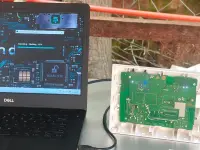
Before running the openliner on Windows, you will need to open up your modem casing and short the 2 specific boot pins on the board to put it into Download Mode, then connect it to your PC via a USB cable.
Default Login Credentials after openlining:
 Username: admin
 Password: admin
I'll give away 50 authorization codes for free
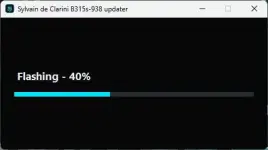
On Windows, the openliner checks for the Huawei USB driver, offers installation if needed, accepts a one-time access code, and shows flashing progress on screen.
 Key Feature Spotlight: Real-Time IMEI Changer
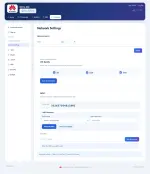
The real-time IMEI changer is the first feature I’d show you. Open Mobile Network Settings, enter the 15-digit IMEI, and click Save & reconnect. Once the modem confirms the change, the new IMEI appears in Device Information and mobile data reconnects from the same screen. No need to reboot the modem
 Original WebUI vs. the new Sylvain deClarini WebUI
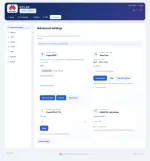
 Four Tools in One Advanced Settings Page
Advanced settings takes the place of the old Quick Setup shortcut. The menus also bring forward System Log, Static Routing, URL Filtering, and more voice and codec controls. The old FTP, TR-069 and Local Update screens have been retired from the WebUI. Dashboard pages refresh their assets to help avoid stale screens after an update.

After nearly 10 years of waiting, searching, and countless bricked modems in the community, the wait is finally over. We have finally built an openliner for the Huawei B315s-938! Yes, you read that right. Use it with any SIM from any network, and try the new Sylvain deClarini WebUI.
Download the B315s-938 openliner here:
Download
IMPORTANT HARDWARE NOTE:Before running the openliner on Windows, you will need to open up your modem casing and short the 2 specific boot pins on the board to put it into Download Mode, then connect it to your PC via a USB cable.
Default Login Credentials after openlining:
Username: admin Password: adminI'll give away 50 authorization codes for free
On Windows, the openliner checks for the Huawei USB driver, offers installation if needed, accepts a one-time access code, and shows flashing progress on screen.
Key Feature Spotlight: Real-Time IMEI ChangerThe real-time IMEI changer is the first feature I’d show you. Open Mobile Network Settings, enter the 15-digit IMEI, and click Save & reconnect. Once the modem confirms the change, the new IMEI appears in Device Information and mobile data reconnects from the same screen. No need to reboot the modem
Original WebUI vs. the new Sylvain deClarini WebUI| Feature | Original B315s-938 WebUI | New WebUI |
|---|---|---|
| Dashboard design | The original Mobile WiFi layout and menus | Blue-and-indigo cards, the Sylvain deClarini signature, new icons, a collapsible Settings menu on phones, and easier-to-read SMS and traffic screens. |
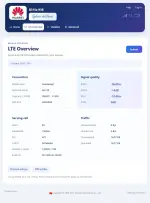
| LTE Overview | Signal readings and traffic in the original status tables | A dedicated landing screen with the carrier, SIM-lock status, network mode, band, bandwidth, serving-cell details, LTE channel, upload and download rates, and usage totals. Tap Refresh for a new snapshot. |
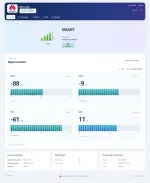
| Live signal | Signal values in the status view | Live RSRP, RSRQ, RSSI and SINR meters on Home and LTE Overview, with color-coded quality, a timestamp, and graphs of the last 60 readings. The monitor pauses when collapsed or when you switch tabs. |
| LTE band selection | Custom band selection disabled in the original WebUI | Pick B3, B28, B41, or a combination. Save & reconnect checks the saved selection and reconnects mobile data. |
| Carrier and APN help | Carrier name supplied by the modem and the original profile manager | A built-in lookup for 1,594 operator codes, including familiar names like Globe, Smart, Sun and DITO. Tap a suggested APN where one is available. |
| APN profiles | The original editor with fewer fields visible | Create, edit, delete and select profiles in one place. Copy a read-only carrier profile to make it editable. Set carrier login details, IPv4/IPv6, and custom DNS. The editor checks the saved profile and reconnects data. |
| Wi-Fi settings | The original Wi-Fi forms | Easier password reveal and hide, clearer save feedback, and your entered settings stay on the page if a save fails. |
| Login and settings | The original login and navigation flow | A visible username field, separate admin and regular-user menus, and better coordination when several dashboard tabs are open. Three-second notices show what happened after you save. |
| Maintenance | The original reset flow and LAN defaults | A revised factory-reset flow that returns to Overview, updated Device Information branding, and included LAN defaults set to 192.168.8.1. |
Four Tools in One Advanced Settings PageAdvanced settings takes the place of the old Quick Setup shortcut. The menus also bring forward System Log, Static Routing, URL Filtering, and more voice and codec controls. The old FTP, TR-069 and Local Update screens have been retired from the WebUI. Dashboard pages refresh their assets to help avoid stale screens after an update.
- OpenVPN — Upload your .ovpn profile and connect or disconnect from the dashboard.
- ZeroTier — Join your private network, see the modem’s node ID, and check connection details or stop the connection.
- Fixed TTL — Choose 64, 65, 128 or Off and save your setting.
- LTE frequency calculator — Enter a channel number to see its band and frequencies for B3, B28 and B41.