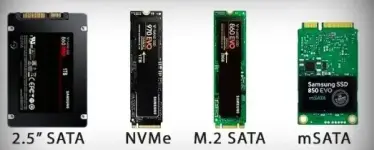
Here's a detailed guide to performing a clean installation of Windows 11 Pro on a new SSD and formatting an existing HDD:
### Step 1: Backup Important Data
1.
Identify Important Data: Determine which files on your HDD are important and need to be saved.
2.
Backup Options:
-
External Drive: Copy the important files to an external USB drive or another safe storage device.
-
Cloud Storage: Alternatively, upload your important files to a cloud storage service like Google Drive, OneDrive, or Dropbox.
### Step 2: Prepare the USB Boot Media
1.
Download the Windows 11 Media Creation Tool:
- Go to the official Microsoft website and download the Windows 11 Media Creation Tool.
2.
Create USB Boot Media:
- Insert a USB drive (at least 8GB) into your PC.
- Run the Media Creation Tool and follow the instructions to create a bootable USB drive with Windows 11.
### Step 3: Set BIOS/UEFI to Boot from USB
1.
Access BIOS/UEFI Settings:
- Restart your computer and enter the BIOS/UEFI settings. This is usually done by pressing a key like F2, F10, ESC, or DEL during startup (check your motherboard's manual for the exact key).
2.
Change Boot Order:
- Navigate to the boot menu and set the USB drive as the first boot device.
- Save the changes and exit BIOS/UEFI.
### Step 4: Install Windows 11 Pro on the SSD
1.
Boot from USB:
- With the USB drive set as the first boot device, your computer should automatically boot from it.
2.
Start the Installation:
- Follow the on-screen instructions to begin the Windows 11 installation process.
3.
Select the SSD as the Target Drive:
- When prompted to select a drive for installation, choose your new SSD.
- You can format the SSD here if needed, but since it's new, it may not require formatting.
### Step 5: Format the HDD
1.
During Installation:
- You can format the HDD during the installation process by selecting it in the drive list and choosing the format option.
2.
After Installation:
- Once Windows 11 is installed, go to "This PC" (or "File Explorer").
- Right-click on the HDD and select "Format" to erase all data. Make sure you have backed up any important information beforehand.
### Step 6: Precautions and Tips
- Backup First: Ensure all important data is backed up before formatting the HDD.
- Power Supply: Ensure your computer is connected to a stable power source throughout the installation process.
- Driver Installation: After installation, update your drivers and Windows to the latest version for optimal performance.
- Data Verification: Double-check that all important data has been backed up before formatting the HDD.
By following these steps, you should be able to perform a clean installation of Windows 11 Pro on your SSD and format your existing HDD successfully.
 PH
PH