 PH
PH-
Welcome to PHCorner Forums! Sign up for free to unlock full access and exclusive privileges, including:
- Asking questions about computer and mobile issues
- Discovering internet tips for your mobile network and computer
You are using an out of date browser. It may not display this or other websites correctly.
You should upgrade or use an alternative browser.
You should upgrade or use an alternative browser.
❓ Help Adobe Photoshop
- Thread starter Petunia08
- Start date
- Status
- Not open for further replies.
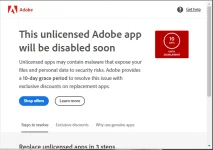
- close all adobe apps & services
- punta ka C:\Windows\System32\drivers\etc
- edit host file using notepad
- add eto sa ilalim
127.0.0.1 ic.adobe.io
127.0.0.1 You do not have permission to view the full content of this post. Log in or register now.
0.0.0.0 guzg78logz.adobe.io
127.0.0.1 guzg78logz.adobe.io
127.0.0.1 ic.adobe.io
127.0.0.1 b5kbg2ggog.adobe.io
127.0.0.1 p13n.adobe.io
127.0.0.1 7sj9n87sls.adobe.io
127.0.0.1 ic.adobe.io
127.0.0.1 1hzopx6nz7.adobe.io
- save
nag po pop-up parin po paps
- close all adobe apps & services
- punta ka C:\Windows\System32\drivers\etc
- edit host file using notepad
- add eto sa ilalim
127.0.0.1 ic.adobe.io
127.0.0.1 You do not have permission to view the full content of this post. Log in or register now.
0.0.0.0 guzg78logz.adobe.io
127.0.0.1 guzg78logz.adobe.io
127.0.0.1 ic.adobe.io
127.0.0.1 b5kbg2ggog.adobe.io
127.0.0.1 p13n.adobe.io
127.0.0.1 7sj9n87sls.adobe.io
127.0.0.1 ic.adobe.io
127.0.0.1 1hzopx6nz7.adobe.io
- save
bumili ka ng license,nag po pop-up parin po paps
Fiore daffodil
Elite
Napagana mo ba Sayo ito?
- close all adobe apps & services
- punta ka C:\Windows\System32\drivers\etc
- edit host file using notepad
- add eto sa ilalim
127.0.0.1 ic.adobe.io
127.0.0.1 You do not have permission to view the full content of this post. Log in or register now.
0.0.0.0 guzg78logz.adobe.io
127.0.0.1 guzg78logz.adobe.io
127.0.0.1 ic.adobe.io
127.0.0.1 b5kbg2ggog.adobe.io
127.0.0.1 p13n.adobe.io
127.0.0.1 7sj9n87sls.adobe.io
127.0.0.1 ic.adobe.io
127.0.0.1 1hzopx6nz7.adobe.io
- save
nope paps nag po-pop up parinNapagana mo ba Sayo ito?
paki-try din po neto:
How to Block Adobe Photoshop from Accessing the Internet using Windows Firewall
How to Block Adobe Photoshop from Accessing the Internet using Windows Firewall
- Open Windows Firewall:
- Press Windows Key + S to open the search bar.
- Type in "Windows Defender Firewall" and click on it when it appears.
- Go to Advanced Settings:
- In the left pane, click on "Advanced settings." This will open the "Windows Firewall with Advanced Security" window.
- Create a New Outbound Rule:
- In the left pane, click on "Outbound Rules." This will show you a list of all outbound rules.
- On the right pane, click on "New Rule..."
- Select Program:
- In the "Rule Type" window, select "Program" and then click "Next."
- Specify the Program Path:
- Click on "This program path:" and then "Browse."
- Navigate to the location where Adobe Photoshop is installed. Typically, it's in C:\Program Files\Adobe\Adobe Photoshop [Version]\ or a similar path.
- Select the main Photoshop executable (usually named Photoshop.exe) and click "Open."
- Then click "Next."
- Block the Connection:
- In the "Action" window, select "Block the connection" and click "Next."
- Provide a Rule Name:
- Give the rule a descriptive name, such as "Block Photoshop Outbound Access."
- Click "Finish."
gumana kasi sakin 'to eh last week lang
- close all adobe apps & services
- punta ka C:\Windows\System32\drivers\etc
- edit host file using notepad
- add eto sa ilalim
127.0.0.1 ic.adobe.io
127.0.0.1 You do not have permission to view the full content of this post. Log in or register now.
0.0.0.0 guzg78logz.adobe.io
127.0.0.1 guzg78logz.adobe.io
127.0.0.1 ic.adobe.io
127.0.0.1 b5kbg2ggog.adobe.io
127.0.0.1 p13n.adobe.io
127.0.0.1 7sj9n87sls.adobe.io
127.0.0.1 ic.adobe.io
127.0.0.1 1hzopx6nz7.adobe.io
- save
Di parin papspaki-try din po neto:
How to Block Adobe Photoshop from Accessing the Internet using Windows Firewall
- Open Windows Firewall:
- Press Windows Key + S to open the search bar.
- Type in "Windows Defender Firewall" and click on it when it appears.
- Go to Advanced Settings:
- In the left pane, click on "Advanced settings." This will open the "Windows Firewall with Advanced Security" window.
- Create a New Outbound Rule:
- In the left pane, click on "Outbound Rules." This will show you a list of all outbound rules.
- On the right pane, click on "New Rule..."
- Select Program:
- In the "Rule Type" window, select "Program" and then click "Next."
- Specify the Program Path:
- Click on "This program path:" and then "Browse."
- Navigate to the location where Adobe Photoshop is installed. Typically, it's in C:\Program Files\Adobe\Adobe Photoshop [Version]\ or a similar path.
- Select the main Photoshop executable (usually named Photoshop.exe) and click "Open."
- Then click "Next."
- Block the Connection:
- In the "Action" window, select "Block the connection" and click "Next."
- Provide a Rule Name:
- Give the rule a descriptive name, such as "Block Photoshop Outbound Access."
- Click "Finish."
gumana kasi sakin 'to eh last week lang
better bumulli ng legithahahahaha ewan ko na diyan sa photoshop mo ts
bumili ng license program..
pra iwas sa mga ganitong issues
Petunia08
- Status
- Not open for further replies.
Similar threads
-
🖥️ PC App Adobe Photoshop 2026 v27.10.0 (x64) Multi (Activado)
- Started by DLark
- Replies: 2
-
[UDEMY] Adobe Photoshop CC Crash Course Learn Photoshop In Two Hour
- Started by flex012
- Replies: 0
-
📦 Android App Adobe Photoshop Lightroom v11.5.31 Premium
- Started by 3Ds2
- Replies: 1
-
[UDEMY] Adobe Photoshop CC Fundamentals and Essentials Training
- Started by flex012
- Replies: 0
-
👨🏫 Tutorial Adobe Photoshop Free Trial for 1 year -- cancel nyunalang after 11 months
- Started by Chococakelover
- Replies: 5
About this Thread
-
12Replies
-
2KViews
-
5Participants
Last reply from:
fblaze
fblaze
New Topics
-
Door Lock Keycard SDK
- Started by Porky Chao Fan
- Replies: 0
- ❓ Computer Discussion & Support
-
Counter strike sa mac
- Started by AYuna23
- Replies: 0
- ❓ Computer Discussion & Support
-
Booting Issue - FA506NFR
- Started by Impossible
- Replies: 0
- ❓ Computer Discussion & Support
-
Acrobat Pro DC ρá†ch. Need Help
- Started by skullkrasher99
- Replies: 3
- ❓ Computer Discussion & Support
-
Enlighten me please with these two
- Started by Jeii
- Replies: 4
- ❓ Computer Discussion & Support
-
Win 10 Home keys
- Started by Ali246
- Replies: 6
- ❓ Computer Discussion & Support
-
Windows 11 26H2
- Started by tholitz
- Replies: 1
- ❓ Computer Discussion & Support
-
Help po !!!! My account got häçked Facebook and steam
- Started by bujoy20
- Replies: 8
- ❓ Computer Discussion & Support
-
Mga bossing patulong po nahäçk account ko due to carelessness
- Started by Jeii
- Replies: 4
- ❓ Computer Discussion & Support
Trending Topics
Online now
- Members online
- 651
- Guests online
- 9,207
- Total visitors
- 9,858