 PH
PH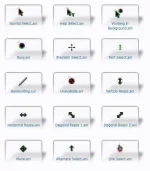

DOWNLOAD LINK:
You do not have permission to view the full content of this post. Log in or register now.
How To Change Cursor:
Step 1. Open the Settings app by pressing Windows + I keys from the keyboard.
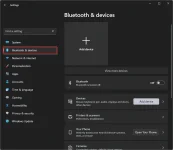
Step 2. When Windows Settings opens, select Bluetooth & devices category from the left sidebar.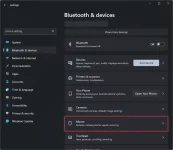
Step 3. Locate the Related settings section and then click on the Additional mouse settings option.
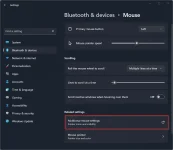
Step 4. When you’re done, the Mouse Properties dialog will open. Navigate to the Pointers tab.
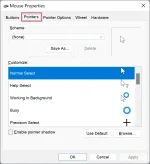
Step 5 Select a cursor situation from the Customize section, and then click the Browse button.
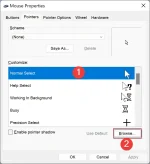
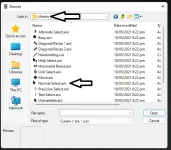
Step 6. Now, File Explorer will open to the system folder that stores all the cursors available for each scheme. From here, navigate to the folder with the cursor file. Then select a cursor file you want to use and click the Open button
Step 7. You need to repeat the process for each cursor in the list to replace all with custom cursors. When you’re done, click Save as. Give it a name, and then click “OK” to save the custom scheme.
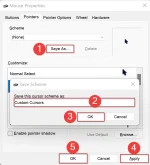
Step 8. Click Apply.
Step 9. Click OK.
Your custom theme has been applied!
