❓ Help PLDT Home R281 nag update ng Software Version (v004.1). Openline di na gumagana.

Status
Not open for further replies.
Nag update ang PLDT Home R281 and hindi na gumagana yung openline na AT+CLCK="PN",0,123456,16
Error na ang nakalagay.
Also, openline na sana ako kaso after the update RED na ang signal. Kaya nag system restore ako planning na i-openline ulit kaso error na yung AT+CLCK="PN",0,123456,16
Any solution?
 
Wow. Thank you po sir. Laking tulong po toh lalong mag sisimula na online class ko. Ito po talaga hinihintay ko at hindi openline kasi malakas smart samin pero maraming band na mahina. ❤❤
 
Make Cell Lock:

I was unable to get AT + ZNLOCKBAND to work
But I found how to execute AT * CELL command:
This AT command is used to requests to activate or to deactivate Cell / Frequency lock.

I found the best PCI, found the necessary band on it and tied the modem to it. The disadvantage of this method is that if you move the router to another location and this cell becomes inaccessible, then the router will lose the LTE network, and you will need to bind it to another PCI

So in order to bind you need to know PCI and EARFCN
To do this, you need a rooted android device with installed Network Signal Guru
Open Network Signal Guru and make lock to you band what you need. You can test and find the best variant in router or router external antenna location.

For me I found best variant speed and signal with this params:
Band 5
EARCN 2460
PCI 027
+
Band 3
EARCN 1350
PCI 027
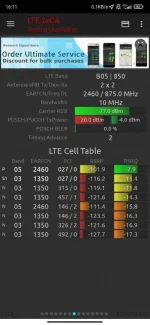
photo_2021-04-24_17-04-11.jpg

Then connect to microUSB cable to router with installed drivers and try to open admin UI on You do not have permission to view the full content of this post. Log in or register now.
If it work, you can connect to router via SSH (use Putty or terminal for this)
connect info:
server 192.168.8.1
port 22
user root
password notion


after connect you should run this command:
ubus call cm set_cell_lock '{"mode":"2","act":"3","band":"3","freq":"1350","cellid":"27"}'
where
<mode> : 0 - Cell/Frequency disabled, 1 - Frequency lock enabled, 2 - Cell lockenabled
<act> 0 - GSM, 1 - UMTS_TD, 2 - UMTS_WB, 3-LTE
<band> - unused (I used 3, but it doesn’t matter)
<freq> - selected EARCN
<cellid> - selected PCI

After run this command you should get answer: successful or error
If you get error, double check the command and try again
If it successful congratulations, unplug the router and reboot it.
After reboot connect to WiFi and open AdminUI and check connection.

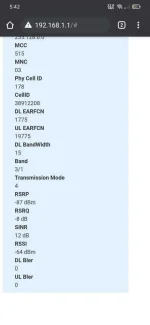
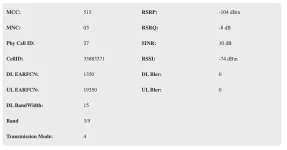
For me it work as expected:
1619255189861.png


Make OpenLine:
Download this config and unzip it
You do not have permission to view the full content of this post. Log in or register now.

Insert simcard what you whant to use, I checked on Globe
Then connect to microUSB cable to router with installed drivers and open admin UI on You do not have permission to view the full content of this post. Log in or register now.

Use
username: admin
password: admin

Go to Router - Configuration manager

click browse and choose pxa1826_cfg.tar.gz
and then click Update

Then router should be rebooted automatically
After open admin UI on You do not have permission to view the full content of this post. Log in or register now.

As you see SIM card is invalid, then click to required link
then opened page MEP Settings
Input MEP PN password: 123456
and click unlock
you should get message PN Unlock Successfully
enjoy it.
 
Sir. About po sa cell locking, is this the right format?

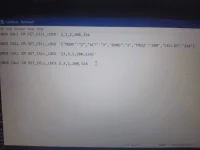
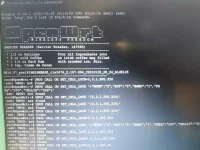
ubus call cm set_cell_lock 2,3,1,200,324

Ira'run ko lang yan pagnaka connect na sa putty via ssh after login in as root? Do i need to remove the sim inside the modem?
 
I tried all format at wala pong gumagana. Usually I use huawei terminal in locking not putty and i dont know how to use putty that well.
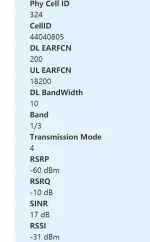
I tries this all in putty, not yet working for me. Can you tell type the command for me with a reply for LTE EARCN is 200, band is 1, pci is 324. Thank you
 

Attachments

  • 16192603583227930459643120530967.webp
    16192603583227930459643120530967.webp
    99.5 KB · Views: 75
  • 16192603873206478249926093548494.webp
    16192603873206478249926093548494.webp
    221.4 KB · Views: 74
Use this command with all symbols as is:
ubus call cm set_cell_lock '{"mode":"2","act":"3","band":"1","freq":"200","cellid":"324"}'

Don't use capital letters such as
UBUS CALL CM SET_CELL_LOCK
 
I found some side effect, twice my router lost the signal, and I needed reebot it.
I’m watching and running tests so far.
Perhaps mode 1 with frequency lock instead of cell lock will work more steadily:
ubus call cm set_cell_lock '{"mode": "1", "act": "3", "band": "1", "freq": "200"}'

Tomorrow will back with new info.
 
*Alisin ang sim sa modem at iturn on ang modem
*I-connect ang micro usb cable sa modem to pc
Note: para sa mga nakagamit ng huawei terminals noon na nag install ng drivers ay di na ulit kailangan mag install ng drivers.
*buksan ang putty at itype ang 192.168.8.1, port ay 22 at iclick ang open.
*itype ang "root" as a user, alisin ang "
*itype ang "notion" as a password, alisin ang "
*I'run ang command na inedit nyo base sa gusto niyong band at pci, gayahin mo yung format na nasa taas as example
 
Status
Not open for further replies.

About this Thread

  • 1K
    Replies
  • 93K
    Views
  • 156
    Participants
Last reply from:
Kingkong-privacy

Trending Topics

Online now

Members online
396
Guests online
2,005
Total visitors
2,401

Forum statistics

Threads
2,271,651
Posts
28,937,065
Members
1,238,757
Latest member
aqwty901
Back
Top