 PH
PHSometimes our computer got turned on, but our displays show nothing and give us a blank display or “no signal” error. In that case there are numbers of possible issue which creates that problem and preventing your computer to boot up normally. So, stick with this tutorial and do the step by step hardware verification what we show you below, in order to start or boot up your computer. If your computer doesn’t show any sign of power(electricity) or remains dead when you push the start button, then you should check our another tutorial to know You do not have permission to view the full content of this post.
Log in or register now.
So, now the question is what could be the possible reason for that fault (no display problem) and how to find and fix that problem? The answer is you’ll have to do the step by step inspection of every inside hardware in order to fix your computer.
Note: If your computer creating a beep sound again and again with no display problem, then you can directly check the solution no. 5 listed below to fix that problem.
So let’s see
Solution 1 – Monitor Checkup
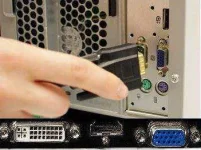
The first thing you’ll have to make sure is, does your monitor is “Power on” and then check the video cable is connected properly or not. You can check for loose connection by ‘unplugging and plug it back again’.
Solution 2 – Graphic Hardware Checkup
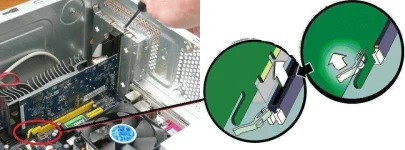
If you have a graphic card installed in your motherboard, then you should remove it and plug your monitor’s video cable directly to the motherboard and try to start your computer again. If your computer starts normally that means you have a faulty graphic card, you can try to repair it or you can replace it with new one.
If you don’t know how to remove your graphic card here we have a short demonstration in our other tutorial You do not have permission to view the full content of this post. Log in or register now. to show how to do that. If you having problem with your graphic card, we also have a another tutorial to show you You do not have permission to view the full content of this post. Log in or register now..
Solution 3 – Internal Hardware Checkup
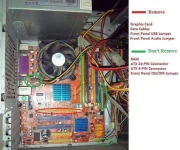
There is lots of extra hardware in your computer’s cabinet which have no relation between to your motherboard’s startup i.e. Harddrive, DVD-RW, FDD and External Card. If the problem is generating from the internal hardware, there is chance your computer won’t able to boot and shows you “no display”. A motherboard only needs Ram, Processor, Fan and SPMS to startup itself. So, remove all the unnecessary hardware like HDD, FDD, DVD-RW and External card etc. to check does this problem is coming from Internal Hardware. After that, try to turn on your computer. If your computer boots up normally, that means you have an issue with your internal hardware parts and you can check every hardware parts one by one to find which one creates that problem. If your display doesn’t show you anything yet, then move on to next solution.
Solution 4 – CMOS Battery Checkup
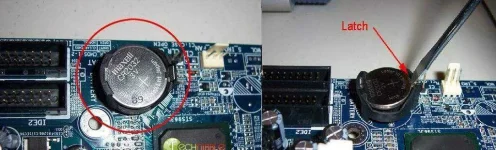
Sometimes our motherboard’s cmos battery got drained and start’s creating problem’s and maybe prevent your computer to starts up. In that case you can remove your cmos battery and try to start your computer again. If your computer starts, then change motherboard’s cmos battery and try to start your computer again. If that doesn’t help’s you, move on to next solution.
Solution 5 – Ram Checkup
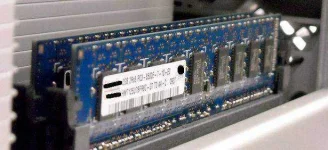
Commonly Ram must be the 90% of reason for “no display” problem. If your ram got dead, your motherboard will never be able to start itself until you’ve replace it with a new one. If you have two ram installed in your computer, then remove one of them and try to turn on your computer. If your computer still won’t turn on then remove that ram from that slot and install it into another slot. If your computer still won’t able to Turn ON, then do those previous steps with your other ram stick (vice versa). If you still facing that problem that means there is chance your ram got dead, in that case borrow a compatible “Ram stick” to your friend and install it into your computer to checks does your ram creates that problem or not. If you find your ram dead, you can try to clean it You do not have permission to view the full content of this post. Log in or register now. And then check that ram does it works after cleaning. If the cleaning doesn’t work then you should try to repair your ram by following our this tutorial You do not have permission to view the full content of this post. Log in or register now.
Solution 6 – Processor Checkup
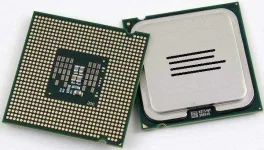
You can try to check your motherboard by installing other process into it to know, does your processor creates problem. Otherwise you have motherboard problem because there are only 2% of chances that your processor got damaged. If the above 5 checkups didn’t works for you that means you have 98% of chances you’ve have a dead motherboard. Take you motherboard to the repair shop or you can replace it with new one.
So, now the question is what could be the possible reason for that fault (no display problem) and how to find and fix that problem? The answer is you’ll have to do the step by step inspection of every inside hardware in order to fix your computer.
Note: If your computer creating a beep sound again and again with no display problem, then you can directly check the solution no. 5 listed below to fix that problem.
So let’s see
Solution 1 – Monitor Checkup
The first thing you’ll have to make sure is, does your monitor is “Power on” and then check the video cable is connected properly or not. You can check for loose connection by ‘unplugging and plug it back again’.
Solution 2 – Graphic Hardware Checkup
If you have a graphic card installed in your motherboard, then you should remove it and plug your monitor’s video cable directly to the motherboard and try to start your computer again. If your computer starts normally that means you have a faulty graphic card, you can try to repair it or you can replace it with new one.
If you don’t know how to remove your graphic card here we have a short demonstration in our other tutorial You do not have permission to view the full content of this post. Log in or register now. to show how to do that. If you having problem with your graphic card, we also have a another tutorial to show you You do not have permission to view the full content of this post. Log in or register now..
Solution 3 – Internal Hardware Checkup
There is lots of extra hardware in your computer’s cabinet which have no relation between to your motherboard’s startup i.e. Harddrive, DVD-RW, FDD and External Card. If the problem is generating from the internal hardware, there is chance your computer won’t able to boot and shows you “no display”. A motherboard only needs Ram, Processor, Fan and SPMS to startup itself. So, remove all the unnecessary hardware like HDD, FDD, DVD-RW and External card etc. to check does this problem is coming from Internal Hardware. After that, try to turn on your computer. If your computer boots up normally, that means you have an issue with your internal hardware parts and you can check every hardware parts one by one to find which one creates that problem. If your display doesn’t show you anything yet, then move on to next solution.
Solution 4 – CMOS Battery Checkup
Sometimes our motherboard’s cmos battery got drained and start’s creating problem’s and maybe prevent your computer to starts up. In that case you can remove your cmos battery and try to start your computer again. If your computer starts, then change motherboard’s cmos battery and try to start your computer again. If that doesn’t help’s you, move on to next solution.
Solution 5 – Ram Checkup
Commonly Ram must be the 90% of reason for “no display” problem. If your ram got dead, your motherboard will never be able to start itself until you’ve replace it with a new one. If you have two ram installed in your computer, then remove one of them and try to turn on your computer. If your computer still won’t turn on then remove that ram from that slot and install it into another slot. If your computer still won’t able to Turn ON, then do those previous steps with your other ram stick (vice versa). If you still facing that problem that means there is chance your ram got dead, in that case borrow a compatible “Ram stick” to your friend and install it into your computer to checks does your ram creates that problem or not. If you find your ram dead, you can try to clean it You do not have permission to view the full content of this post. Log in or register now. And then check that ram does it works after cleaning. If the cleaning doesn’t work then you should try to repair your ram by following our this tutorial You do not have permission to view the full content of this post. Log in or register now.
Solution 6 – Processor Checkup
You can try to check your motherboard by installing other process into it to know, does your processor creates problem. Otherwise you have motherboard problem because there are only 2% of chances that your processor got damaged. If the above 5 checkups didn’t works for you that means you have 98% of chances you’ve have a dead motherboard. Take you motherboard to the repair shop or you can replace it with new one.

