 PH
PHhostreplica
Forum Veteran
What is Metered Connection? What will happen if you enable Metered Connection?

This is not actually Metered Connection in Windows 10 only. This feature is available from Windows 7 and in all the later versions. Generally, Windows requires a lot of bandwidth for system update, Store apps update, synchronization across multiple devices etc. In simple words, if you have a limited data connection, you will be ruined by your Windows PC since mobile service providers generally charge based on bandwidth you have used. For limited broadband connections, your connection will be stopped immediately after finishing the imposed bandwidth.
To stop this thing partially, Windows has a great feature called Metered Connection. If you enabled Metered Connection, your PC will stop doing numerous bandwidth eating processes. For instance, Windows will not download all the system updates. It will get only priority updates. If any app is downloading from the App Store, that will be stopped or paused. If you are on Windows 8, 8.1 or 10, your live tiles will not show any update. The most important thing is any files will not be synchronized automatically.
Generally, Windows 10 consumes a lot of data by downloading the system updates automatically, synchronizing files with OneDrive etc. To stop all those things, here is a different method that works perfectly.
Restriction of Metered Connection in Windows 10
Everything has some positive sides along with some negative sides. Metered Connection also comes with some disadvantages. The problem is Metered Connection can be turned on only for WiFi and Mobile broadband connection. That means, if you have limited broadband connection, you cannot get the facilities of Metered Connection in Windows 10.
Enable Metered WiFi Connection in Windows 10
If you have limited data connection and you are using that through WiFi or Mobile Broadband, here is a simple trick that will let you enable Metered Connection in Windows 10 within seconds. You do not have to install any other third party software. Just change a setting and that will do everything.
Make sure that you have already connected to the WiFi or Mobile Broadband connection that you want to set as Metered. After that, click on the Network icon (or WiFi icon) in your Taskbar and click on Network settings.
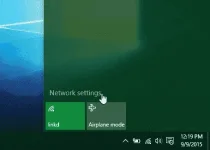
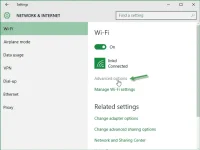
It will redirect you to the WiFi settings under Network & Internet. Then click on theAdvanced options under the connection WiFi network.
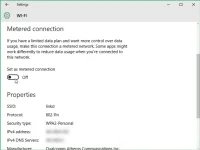
Now, scroll down, toggle the button and set it as ON.
Final Word
You are done. Now, your Metered connection has been turned on. You do not have to do anything. In this way, you can save a lot of data and extra bill.
This is not actually Metered Connection in Windows 10 only. This feature is available from Windows 7 and in all the later versions. Generally, Windows requires a lot of bandwidth for system update, Store apps update, synchronization across multiple devices etc. In simple words, if you have a limited data connection, you will be ruined by your Windows PC since mobile service providers generally charge based on bandwidth you have used. For limited broadband connections, your connection will be stopped immediately after finishing the imposed bandwidth.
To stop this thing partially, Windows has a great feature called Metered Connection. If you enabled Metered Connection, your PC will stop doing numerous bandwidth eating processes. For instance, Windows will not download all the system updates. It will get only priority updates. If any app is downloading from the App Store, that will be stopped or paused. If you are on Windows 8, 8.1 or 10, your live tiles will not show any update. The most important thing is any files will not be synchronized automatically.
Generally, Windows 10 consumes a lot of data by downloading the system updates automatically, synchronizing files with OneDrive etc. To stop all those things, here is a different method that works perfectly.
Restriction of Metered Connection in Windows 10
Everything has some positive sides along with some negative sides. Metered Connection also comes with some disadvantages. The problem is Metered Connection can be turned on only for WiFi and Mobile broadband connection. That means, if you have limited broadband connection, you cannot get the facilities of Metered Connection in Windows 10.
Enable Metered WiFi Connection in Windows 10
If you have limited data connection and you are using that through WiFi or Mobile Broadband, here is a simple trick that will let you enable Metered Connection in Windows 10 within seconds. You do not have to install any other third party software. Just change a setting and that will do everything.
Make sure that you have already connected to the WiFi or Mobile Broadband connection that you want to set as Metered. After that, click on the Network icon (or WiFi icon) in your Taskbar and click on Network settings.
It will redirect you to the WiFi settings under Network & Internet. Then click on theAdvanced options under the connection WiFi network.
Now, scroll down, toggle the button and set it as ON.
Final Word
You are done. Now, your Metered connection has been turned on. You do not have to do anything. In this way, you can save a lot of data and extra bill.
