 PH
PHhttp://www.gohäçking.com/wp-content/uploads/2010/06/Win7_Start-menu-300x171.jpgHave you ever wondered to know how to customize the start menu button in Windows 7? Are you bored of seeing the same old start menu button that is there from the time of Vista? Well, it is possible to spice up your copy of Windows 7 by giving a new look to the start menu button.
In this post, I will show you how to do that in an easy to follow step-by-step manner.
Tools that you need:
Start Menu Buttons Download
Once you have all those resources ready, you can start the customization process as follows:
Default Start Menu Button:

Customized Start Menu Button:



NOTE: If you are running 64-bit edition of Windows 7, then you need to use Resource häçker version 3.5.2 beta which is 64-bit compatible. It is available from the same link provided above.
In this post, I will show you how to do that in an easy to follow step-by-step manner.
Tools that you need:
- Resource häçker
- Custom Start Menu icons (images). It mush be of the size 54×162 with a .bmp extension. which looks something as follows:

As shown in the above image, it must be in the following order:
1st Image: When the button is not in use.
2nd Image: When the mouse pointer is over the button.
3rd Image: When the button is clicked.
Start Menu Buttons Download
Once you have all those resources ready, you can start the customization process as follows:
- Take the ownership of the file “explorer.exe” which is located in the Windows Folder (Most likely inC:\Windows).
- Open the Resource häçker Tool.
- Go to File menu and click on Open. Now load the file “explorer.exe” into the Resource häçker.
- Expand Bitmap branch in the left pane.
- Now expand 6801 option, right-click on 1033 and select Replace Resource option.
- A new window appears. Click on Open file with new bitmap button.
- Navigate to the customized (.bmp) image, open it and click on Replace button.
- Repeat steps 4 to 7 above for the options 6805 and 6809 as well.
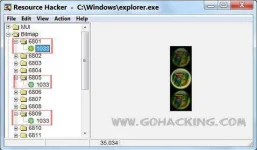
- Now click on Save option (File->Save). Resource häçker will automatically create a backup file calledexplorer_original.exe so that you can restore it in the future if needed.
- Log Off and Log On to see the changes in effect.
Default Start Menu Button:
Customized Start Menu Button:
NOTE: If you are running 64-bit edition of Windows 7, then you need to use Resource häçker version 3.5.2 beta which is 64-bit compatible. It is available from the same link provided above.
