 PH
PHHellosarms
Journeyman
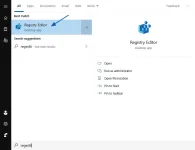
1. To open the Registry Editor, type regedit in the Start Menu search field as shown below and then select Registry Editor.
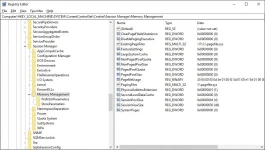
2. When the Registry Editor opens, navigate to the key that you would like to export. In our example, we are going to export the HKEY_LOCAL_MACHINE\SYSTEM\CurrentControlSet\Control\Session Manager\Memory Management key.
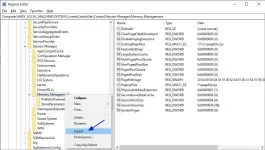
3. When at the key you wish to export, right-click on the key name and select Export as shown below.
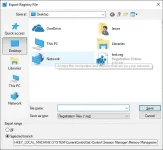
4. Windows will now prompt you for a location and file name that you wish to save the Registry information. Please select the location, enter a filename, and press the Save button.
5. After saving the Registry file, you will see a file ending with the .reg extension at the location you saved it to.

This file can be used in the future to restore your exported settings if needed.
2. When the Registry Editor opens, navigate to the key that you would like to export. In our example, we are going to export the HKEY_LOCAL_MACHINE\SYSTEM\CurrentControlSet\Control\Session Manager\Memory Management key.
3. When at the key you wish to export, right-click on the key name and select Export as shown below.
4. Windows will now prompt you for a location and file name that you wish to save the Registry information. Please select the location, enter a filename, and press the Save button.
5. After saving the Registry file, you will see a file ending with the .reg extension at the location you saved it to.
This file can be used in the future to restore your exported settings if needed.