 PH
PHThe Real One
Forum Expert
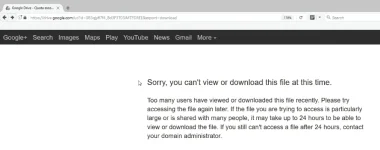
Sorry, you can't view or download this file at this time is an error message that you may get when you try to download files on Google Drive.
The explanation for the error message is simple: while users are free to share files publicly, or with a large number of users, quotas are in effect that limit availability.
If too many users view or download a file, it may be locked for a 24 hour period before the quota is reset. The period that a file is locked may be shorter according to Google.
If a file is particularly popular, it may take days or even longer before you manage to download it to your computer or place it on your Drive storage.
While you may wait until the file becomes available again, doing so may be risky. If the file is pulled in the meantime, you won't be able to download it anymore. Also, if you require the file right away, for instance for work related tasks, waiting may not be an option.
There is a workaround that allows you to bypass Google Drive's 24 hour limit. How that is done depends largely on what you see on the screen.
1.First, sign in to your Google Drive account.
2.Open the Google Drive file link you can’t download. Click its Download button so that you’re redirected to the page that states “you can’t view or download this file at this time.”
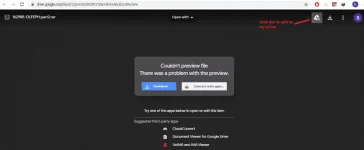
A new page opens with a few buttons at the top. Click the Add to drive button on the page.
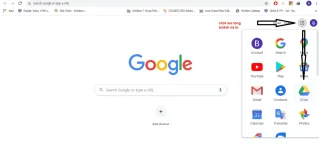
3. Go to your Google drive account
The most common error is shown on the screenshot above. It simply shows the error message but no other controls or options.
Please note that this works only if you are signed in to a Google Account. Also note that you are the owner of the copied file and will be held responsible for policy violations or other issues linked to the file.
The explanation for the error message is simple: while users are free to share files publicly, or with a large number of users, quotas are in effect that limit availability.
If too many users view or download a file, it may be locked for a 24 hour period before the quota is reset. The period that a file is locked may be shorter according to Google.
If a file is particularly popular, it may take days or even longer before you manage to download it to your computer or place it on your Drive storage.
While you may wait until the file becomes available again, doing so may be risky. If the file is pulled in the meantime, you won't be able to download it anymore. Also, if you require the file right away, for instance for work related tasks, waiting may not be an option.
There is a workaround that allows you to bypass Google Drive's 24 hour limit. How that is done depends largely on what you see on the screen.
1.First, sign in to your Google Drive account.
2.Open the Google Drive file link you can’t download. Click its Download button so that you’re redirected to the page that states “you can’t view or download this file at this time.”
A new page opens with a few buttons at the top. Click the Add to drive button on the page.
3. Go to your Google drive account
The most common error is shown on the screenshot above. It simply shows the error message but no other controls or options.
- Locate the "uc" part of the address, and replace it with "open", so that the beginning of the URL reads You do not have permission to view the full content of this post. Log in or register now..
- Load the address again once you have replaced uc with open in the address.
- This loads a new screen with controls at the top.
- Click on the "add to my drive" icon at the top right.
- Click on "add to my drive" again to open your Google Drive storage in a new tab in the browser.
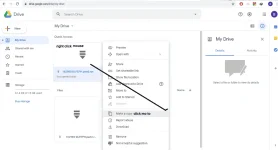
- You should see the locked file on your drive now.
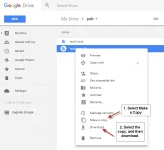
- Select it with a right-click, and then the "make a copy" option from the menu.
- Select the copy of the file with a right-click, and there download to download the file to your local system.
Please note that this works only if you are signed in to a Google Account. Also note that you are the owner of the copied file and will be held responsible for policy violations or other issues linked to the file.
