 PH
PHOnly from Dec 10th, 2019 to Jan 10th, 2020
Click Get Now at direct na ma-download ang software at license

for license and download visit: You do not have permission to view the full content of this post. Log in or register now.
for more information visit: You do not have permission to view the full content of this post. Log in or register now.
for tutorial visit: You do not have permission to view the full content of this post. Log in or register now.
Cloud storage service
Cloud storage service is more and more popular for users storing data. It does not need the extra hard drive so that you can free a lot of space of your computer. It only needs you to create a cloud account and keep online. There are many cloud storage services you can use, and here we highly recommend you the Google Drive, Dropbox, Amazon Drive, OneDrive, for you can download and install them to local drive to use it more convenient.
Backup files to cloud
Most computer users do not make a backup for their data. Thus, when some bad things happen, they lost their important files, and then, regretted about that they did not back them before. As so many cases of losing data, more and more users realized the importance of You do not have permission to view the full content of this post. Log in or register now..
For a long time, users backup data to local hard drive, or You do not have permission to view the full content of this post. Log in or register now. like a USB flash drive, or backup to NAS. It is hard to say that backup files to cloud is a wise way, but online backup does really a real alternative to local backups.
How to backup files to cloud?
In order to backup PC files to cloud, you need download and install a cloud drive to your local space, and then, input your cloud account to use. If you do not have one, you can create an account by signing up. Then, use a backup software to backup files to cloud. Speaking of backup software, the You do not have permission to view the full content of this post. Log in or register now. is a wonderful software for backing up flies to cloud free. It is free, and you can operate it easily with its easy-to-use interface.
How to backup files to cloud? Take a use of OneDrive. Download OneDrive desktop application, install it to your computer, and sign in to your account. Then, You do not have permission to view the full content of this post. Log in or register now. AOMEI Backupper Standard free, install it. Then, you can use it to backup files to cloud (Dropbox) with a simple few steps.
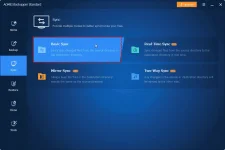
Step1. Launch the free backup software, and it will show you the main interface. To backup files to cloud drive, here you need to select File Sync under the Backup tab.
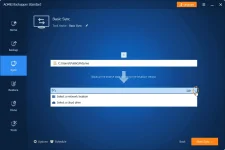
Step2. In the File Backup page, you can select the files you want to backup, and the destination place to store the files on. Click Add Folder first to add the folder you want to backup to cloud.

Step 3., Select the destination place to store the files backup. Select OneDrive. Then, click Start Sync to launch the progress.
Notes:
Click Get Now at direct na ma-download ang software at license
for license and download visit: You do not have permission to view the full content of this post. Log in or register now.
for more information visit: You do not have permission to view the full content of this post. Log in or register now.
for tutorial visit: You do not have permission to view the full content of this post. Log in or register now.
Cloud storage service
Cloud storage service is more and more popular for users storing data. It does not need the extra hard drive so that you can free a lot of space of your computer. It only needs you to create a cloud account and keep online. There are many cloud storage services you can use, and here we highly recommend you the Google Drive, Dropbox, Amazon Drive, OneDrive, for you can download and install them to local drive to use it more convenient.
Backup files to cloud
Most computer users do not make a backup for their data. Thus, when some bad things happen, they lost their important files, and then, regretted about that they did not back them before. As so many cases of losing data, more and more users realized the importance of You do not have permission to view the full content of this post. Log in or register now..
For a long time, users backup data to local hard drive, or You do not have permission to view the full content of this post. Log in or register now. like a USB flash drive, or backup to NAS. It is hard to say that backup files to cloud is a wise way, but online backup does really a real alternative to local backups.
How to backup files to cloud?
In order to backup PC files to cloud, you need download and install a cloud drive to your local space, and then, input your cloud account to use. If you do not have one, you can create an account by signing up. Then, use a backup software to backup files to cloud. Speaking of backup software, the You do not have permission to view the full content of this post. Log in or register now. is a wonderful software for backing up flies to cloud free. It is free, and you can operate it easily with its easy-to-use interface.
How to backup files to cloud? Take a use of OneDrive. Download OneDrive desktop application, install it to your computer, and sign in to your account. Then, You do not have permission to view the full content of this post. Log in or register now. AOMEI Backupper Standard free, install it. Then, you can use it to backup files to cloud (Dropbox) with a simple few steps.
Step1. Launch the free backup software, and it will show you the main interface. To backup files to cloud drive, here you need to select File Sync under the Backup tab.
Step2. In the File Backup page, you can select the files you want to backup, and the destination place to store the files on. Click Add Folder first to add the folder you want to backup to cloud.
Step 3., Select the destination place to store the files backup. Select OneDrive. Then, click Start Sync to launch the progress.
Notes:
- If you do not want to backup all files on the folder, you can upgrade to You do not have permission to view the full content of this post. Log in or register now. so that you can sync or You do not have permission to view the full content of this post. Log in or register now. for more convenience.
- You can click Schedule to setup auto backup to cloud.
- When you first backup files to cloud, it will take a long time, which depends on the amount of the files and the speed of your internet connection.