 PH
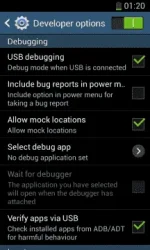
PHStep 1. Enable USB Debugging on your Android Smartphone . To enable USB Debugging ,
Open Setting > Developers Option > USB Debugging > Tick to enable
(Developers Option is hidden for Android 4.2.2 or Above , to show option Go to Setting > About Phone
Step 2. Download and Open Root Genius Application on your Window Computer .
Step 3. Once Root Genius Application is launched , connect your Android device to the computer
(with USB Debugging enabled).
Step 4. Once Your Smartphone is connected successfully to the computer , Root Genius will automatically detect your Android Device .
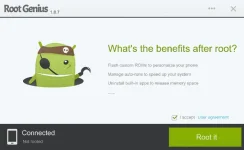
Step 5. Now, Click on the "Root Now" button to begin the rooting process .
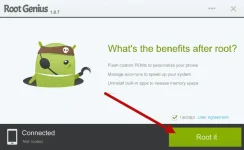
Step 6. Now, Root Genius will automatically "Root" your Android Device and install KingUser Application .
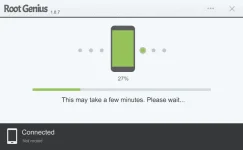
Step 7. Now your Android Device is Rooted. To check whether your phone is rooted correctly, open Application Menu, there you will be able to see a new app installed, called KingUser. If this app exist it means then it means you have successfully rooted your device.

Optional: You can also verify you have successfully rooted or not Root Checker Application .
Open Setting > Developers Option > USB Debugging > Tick to enable
(Developers Option is hidden for Android 4.2.2 or Above , to show option Go to Setting > About Phone
Built Number (Tap on it for 5-8 times).
Step 2. Download and Open Root Genius Application on your Window Computer .
Step 3. Once Root Genius Application is launched , connect your Android device to the computer
(with USB Debugging enabled).
Step 4. Once Your Smartphone is connected successfully to the computer , Root Genius will automatically detect your Android Device .
Step 5. Now, Click on the "Root Now" button to begin the rooting process .
Step 6. Now, Root Genius will automatically "Root" your Android Device and install KingUser Application .
Step 7. Now your Android Device is Rooted. To check whether your phone is rooted correctly, open Application Menu, there you will be able to see a new app installed, called KingUser. If this app exist it means then it means you have successfully rooted your device.
Optional: You can also verify you have successfully rooted or not Root Checker Application .