 PH
PHHi everyone,
We all hate un-installable system apps and bloatware that drain RAM and battery. Previously, you needed a PC (ADB cables) or a Rooted phone (Magisk) to remove them.
Now, you can do it completely on your phone in 3 minutes using Shizuku and Canta.
What are these tools?
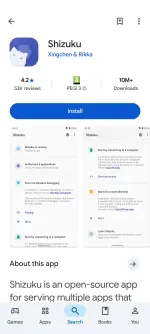
• Shizuku: An app that uses Android's built-in "Wireless Debugging" to give system-level permissions to other apps without needing root.
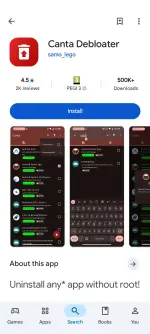
• Canta: A debloater app that connects to Shizuku and lets you uninstall any app. It even has a built-in safety guide (Universal Debloat List) to tell you which system apps are safe to delete and which will break your phone.
---
Step 1: Set up Shizuku (The Engine)
1. Download ( Shizuku ) from the Google Play Store.
2. Go to your phone's Settings > Developer Options and turn on Wireless Debugging (You must be connected to Wi-Fi for this to turn on).
3. Open Shizuku, scroll down to "Start via Wireless Debugging" and tap Pairing.
4. Tap "Developer options" in the Shizuku pop-up, go to Wireless Debugging, and select - Pair device with pairing code.
5. A 6-digit code will appear. Enter this code into the Shizuku notification that pops down from the top of your screen.
6. Once paired, go back to Shizuku and tap- Start. (It should say Shizuku is running).
Step 2: Set up Canta (The Uninstaller)
1. Since Canta deletes system files, it is not on the Play Store. Download Canta from Google playstore, F-Droid or its official GitHub page (search "Canta GitHub" on Google).
2. Open Canta. It will ask for Shizuku permission—allow it.
3. You will now see a list of every single app on your phone, including hidden system bloatware.
Step 3: Debloat Safely
Canta color-codes apps based on how safe they are to remove:
 Green: Completely safe to remove.
 Yellow: Might break a specific feature (e.g., removing the default clock means alarms won't work).
 Red: Do not touch (System critical).
Simply select the apps you want to remove and tap the Trash Can icon at the bottom.
Made a mistake?
Unlike PC ADB commands which wipe the app entirely, Canta features a "Trash" tab. If you accidentally delete something important, just go to the Trash tab and tap restore!
Enjoy your extra RAM and battery life!
Drop a reaction if this helped you out.
We all hate un-installable system apps and bloatware that drain RAM and battery. Previously, you needed a PC (ADB cables) or a Rooted phone (Magisk) to remove them.
Now, you can do it completely on your phone in 3 minutes using Shizuku and Canta.
What are these tools?
• Shizuku: An app that uses Android's built-in "Wireless Debugging" to give system-level permissions to other apps without needing root.
• Canta: A debloater app that connects to Shizuku and lets you uninstall any app. It even has a built-in safety guide (Universal Debloat List) to tell you which system apps are safe to delete and which will break your phone.
---
Step 1: Set up Shizuku (The Engine)
1. Download ( Shizuku ) from the Google Play Store.
2. Go to your phone's Settings > Developer Options and turn on Wireless Debugging (You must be connected to Wi-Fi for this to turn on).
3. Open Shizuku, scroll down to "Start via Wireless Debugging" and tap Pairing.
4. Tap "Developer options" in the Shizuku pop-up, go to Wireless Debugging, and select - Pair device with pairing code.
5. A 6-digit code will appear. Enter this code into the Shizuku notification that pops down from the top of your screen.
6. Once paired, go back to Shizuku and tap- Start. (It should say Shizuku is running).
Step 2: Set up Canta (The Uninstaller)
1. Since Canta deletes system files, it is not on the Play Store. Download Canta from Google playstore, F-Droid or its official GitHub page (search "Canta GitHub" on Google).
2. Open Canta. It will ask for Shizuku permission—allow it.
3. You will now see a list of every single app on your phone, including hidden system bloatware.
Step 3: Debloat Safely
Canta color-codes apps based on how safe they are to remove:
Green: Completely safe to remove. Yellow: Might break a specific feature (e.g., removing the default clock means alarms won't work). Red: Do not touch (System critical).Simply select the apps you want to remove and tap the Trash Can icon at the bottom.
Made a mistake?
Unlike PC ADB commands which wipe the app entirely, Canta features a "Trash" tab. If you accidentally delete something important, just go to the Trash tab and tap restore!
Enjoy your extra RAM and battery life!
Drop a reaction if this helped you out.
