 PH
PHrenegade24winzam
Eternal Poster
Part 1. Recoverit Data Recovery - The Best SD Card Data Recovery Software
We recommend the most powerful You do not have permission to view the full content of this post. Log in or register now. to help you recover files from SD card. It can easily recover deleted or lost data and files from SD card. Even the SD card is corrupted or damaged, it can help you get all data back.
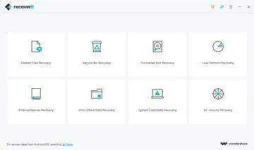
You do not have permission to view the full content of this post. Log in or register now.
Video Tutorial on How to Recover Files from SD Card
Part 2. How to Recover Deleted Files from SD Card
Just download and install Recoverit You do not have permission to view the full content of this post. Log in or register now. on your Windows computer. This tutorial we will focus on how to recover deleted files on Window computer, if you are using Mac, you can go to this guide to perform You do not have permission to view the full content of this post. Log in or register now.. Also, with the steps you can start You do not have permission to view the full content of this post. Log in or register now..
You do not have permission to view the full content of this post. Log in or register now. You do not have permission to view the full content of this post. Log in or register now.
Step 1 Select a Data Recovery Mode
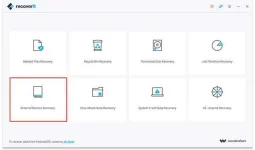
Launch Recoverit SD Card Recovery Software on your PC, to recover deleted files from SD card, you should select "External Devices Recovery" to get started.
Step 2 Select your SD Card or Memory Card Storage
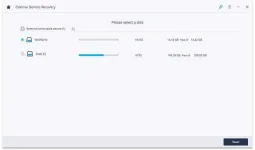
Make sure your SD card connected to the computer and next. Select your SD memory card on the disk list, click "Start" button to process.
Step 3 Scan the SD Memory Card and Search Data
Recoverit SD Card Recovery Software will start to scanning your SD card, after the first scan, you can check some recoverable files. If you cannot find your data, you can go to scan again with "All-Around Recovery" mode.
With "All-Around Recovery", it can deep scan and search more files from SD card, while it will take a longer time to completed.
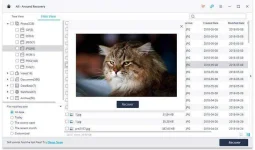
Step 4 Preview and Recover Deleted Data
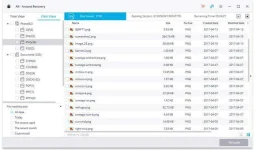
After the scanning, you can check all recovered data and files. Go to preview some recovered files like photos, select your files and click "Recover" button to get them back.
Note: Please do not save any recovered files to the SD card which your lost data before. It can be caused data lost again or overwritten the data, you need get a safe external storage to save.
With simple steps Recoverit Data Recovery can easily and effectively to help you get lost data and files back. It is the best data recovery solution to help you You do not have permission to view the full content of this post. Log in or register now.. Download it and try it now.
You do not have permission to view the full content of this post. Log in or register now. You do not have permission to view the full content of this post. Log in or register now.
Part 3. How to Fix a Damaged or Corrupted SD Memory Card
Recoverit Data Recovery also can help you recover data from corrupted or damaged SD card, the corrupted or damaged SD Card storage cannot save any new data and files, or it will cause data loss again. You can try to fix the damaged and corrupted SD memory card, the next guide we will show you three ways to You do not have permission to view the full content of this post. Log in or register now., all will help you get the SD card for normal use.
Symptoms of a corrupted SD Card
When the SD memory card got damaged or corrupted, there is a symptom for it. SD card is usually used for mobile phone (Android Phone), digital camera, camcorder and other devices. These devices also can cause SD card get corrupted and data loss. We can learn more about the the symptoms of a corrupted or damaged SD card, in case it can avoid data loss.
Solution 1. Try an SD card on a different device/computer
Sometimes, it is not the SD card which is at fault, but it is the computer or device which causes the problem. Connect an SD card to a different device or computer and check if it works. If it does work, it could very well be the case that the card is incompatible with your device.
Solution 2. Format Corrupted SD Card
One easy way to fix a corrupted SD card is by formatting it. To do this, simply connect an SD card to your computer and follow these steps to format SD card in Windows:
You can try using the Windows Chkdsk command to try and fix a corrupted SD card. To do this, connect an SD card to a PC and follow these steps:
You do not have permission to view the full content of this post. Log in or register now. You do not have permission to view the full content of this post. Log in or register now.
files : You do not have permission to view the full content of this post. Log in or register now. i t . l y / R e c o v e r M e
ctto
Ps di tko pa nasubukan ito pero sa mga naghahanap ng solution baka makatulong po eto sa inyo maraming salamat
We recommend the most powerful You do not have permission to view the full content of this post. Log in or register now. to help you recover files from SD card. It can easily recover deleted or lost data and files from SD card. Even the SD card is corrupted or damaged, it can help you get all data back.
You do not have permission to view the full content of this post. Log in or register now.
- Recover lost or deleted files, photos, audio, music, emails from SD card effectively, safely and completely.
- Supports to recover data for sudden deletion, formatting, lost partition, virus attack, system crash under different situations.
- Supports data recovery from recycle bin, hard drive, memory card, flash drive, digital camera and camcorders.
- Supported OS: Windows 10/8/7/XP/Vista, Mac OS 10.13, macOS 10.12, OS X 10.11, 10.10, 10.9, 10.8, 10.7, 10.6.
Video Tutorial on How to Recover Files from SD Card
Part 2. How to Recover Deleted Files from SD Card
Just download and install Recoverit You do not have permission to view the full content of this post. Log in or register now. on your Windows computer. This tutorial we will focus on how to recover deleted files on Window computer, if you are using Mac, you can go to this guide to perform You do not have permission to view the full content of this post. Log in or register now.. Also, with the steps you can start You do not have permission to view the full content of this post. Log in or register now..
You do not have permission to view the full content of this post. Log in or register now. You do not have permission to view the full content of this post. Log in or register now.
Step 1 Select a Data Recovery Mode
Launch Recoverit SD Card Recovery Software on your PC, to recover deleted files from SD card, you should select "External Devices Recovery" to get started.
Step 2 Select your SD Card or Memory Card Storage
Make sure your SD card connected to the computer and next. Select your SD memory card on the disk list, click "Start" button to process.
Step 3 Scan the SD Memory Card and Search Data
Recoverit SD Card Recovery Software will start to scanning your SD card, after the first scan, you can check some recoverable files. If you cannot find your data, you can go to scan again with "All-Around Recovery" mode.
With "All-Around Recovery", it can deep scan and search more files from SD card, while it will take a longer time to completed.
Step 4 Preview and Recover Deleted Data
After the scanning, you can check all recovered data and files. Go to preview some recovered files like photos, select your files and click "Recover" button to get them back.
Note: Please do not save any recovered files to the SD card which your lost data before. It can be caused data lost again or overwritten the data, you need get a safe external storage to save.
With simple steps Recoverit Data Recovery can easily and effectively to help you get lost data and files back. It is the best data recovery solution to help you You do not have permission to view the full content of this post. Log in or register now.. Download it and try it now.
You do not have permission to view the full content of this post. Log in or register now. You do not have permission to view the full content of this post. Log in or register now.
Part 3. How to Fix a Damaged or Corrupted SD Memory Card
Recoverit Data Recovery also can help you recover data from corrupted or damaged SD card, the corrupted or damaged SD Card storage cannot save any new data and files, or it will cause data loss again. You can try to fix the damaged and corrupted SD memory card, the next guide we will show you three ways to You do not have permission to view the full content of this post. Log in or register now., all will help you get the SD card for normal use.
Symptoms of a corrupted SD Card
When the SD memory card got damaged or corrupted, there is a symptom for it. SD card is usually used for mobile phone (Android Phone), digital camera, camcorder and other devices. These devices also can cause SD card get corrupted and data loss. We can learn more about the the symptoms of a corrupted or damaged SD card, in case it can avoid data loss.
- Some or all data and files are missing from SD memory card;
- SD card error message cannot access and cause data unreadable;
- Write or Read error of SD card, the system cannot read the SD card device;
- Accidentally formatted the SD card when it asking format error;
- Other Error messages like "memory card error" or "corrupt memory card";
- The error of "Disk is write-protected" and cannot edit data on SD card.
Solution 1. Try an SD card on a different device/computer
Sometimes, it is not the SD card which is at fault, but it is the computer or device which causes the problem. Connect an SD card to a different device or computer and check if it works. If it does work, it could very well be the case that the card is incompatible with your device.
Solution 2. Format Corrupted SD Card
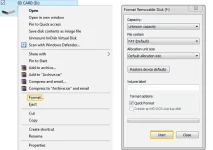
One easy way to fix a corrupted SD card is by formatting it. To do this, simply connect an SD card to your computer and follow these steps to format SD card in Windows:
- Connect your SD card to the computer with a card reader.
- Open up My Computer, select your SD card and right-click on it
- Click on Format from the drop-down menu to open a pop-up
- Select on ‘Restore device defaults’ and uncheck ‘Quick format’ for a deep scan
- Click on start and Windows will begin formatting an SD card
You can try using the Windows Chkdsk command to try and fix a corrupted SD card. To do this, connect an SD card to a PC and follow these steps:
- Press Windows + R to open the Run Window
- Type cmd and press enter to open the command prompt
- Type chkdsk followed by an SD card's location, a colon and /f (ex: If an SD card is located on drive H, type ‘chdsk h: /f)
- Press enter and Windows will begin fixing the corrupted SD card
You do not have permission to view the full content of this post. Log in or register now. You do not have permission to view the full content of this post. Log in or register now.
files : You do not have permission to view the full content of this post. Log in or register now. i t . l y / R e c o v e r M e
ctto
Ps di tko pa nasubukan ito pero sa mga naghahanap ng solution baka makatulong po eto sa inyo maraming salamat

