 PH
PHJussayFinnn
Forum Guru
Hi mga bossing!!

PHP:
These instructions only work for Wi-Fi connections because Android does not allow you to change the DNS servers when connected to cellular networks. Also, the changes are network specific, so you'll need to change the DNS servers every time you connect to a new wireless network. The good news is that Android remembers the settings, so you won't have to do anything the second time you connect to a network- From the Android Menu home screen, tap Settings.
- Tap Wi-Fi on the menu. The screen shown below appears, listing all of the networks your phone is able to discover.
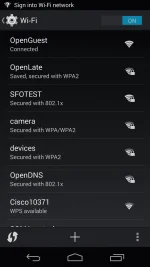
- Long press the Network you're connected to, and tap Modify Network.
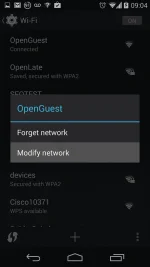
- On some devices, you may need to check the box for "Advanced" to see further settings. To adjust your Android DNS settings, you will need to switch the IP settings from DHCP to Static. Once changed, the menu will appear with the DNS settings available to edit. Don't worry about the editing the IP address as the Android device will fill in the IP address it has acquired through DHCP. Add our DNS resolvers (208.67.222.222 and 208.67.220.220) to the entries for DNS 1 and DNS 2 as shown below:
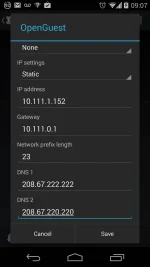
- Save your settings.
That's it! You've updated your Android device's DNS servers!