 PH
PH- Welcome to my Windows 10 Optimization Thread
- This may help you in boosting your FPS
- Make your Windows 10 Better
- And making you experience Better too
- I use all the tweaks I listed here, and I don't have problems with it.
- Feel Free to Comment your experience below.
- If you have questions, then Ask me but, at least, use google first.
LIST OF TWEAKS AND TIPS
- Keep your desktop CLEAN. As much as possible, NO ICONS. It helps to make your pc boot faster.
- You can always create toolbars and put it at your Taskbar.

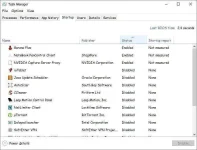
- Disable Useless startup programs. Most common tweak but yep its effective.
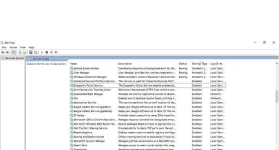
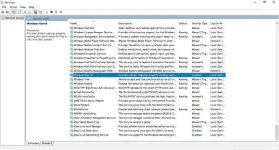
- Disable these Services specifically. It may remove stutters in game. Specially in 5400RPM HDD
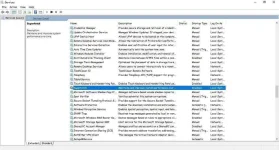
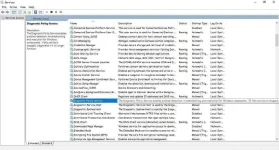
- Well this is my list of disabled services, you can copy it if you want.
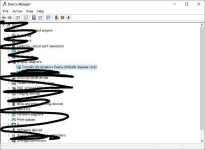
- For Intel HD Graphics Users, you can try this modded drivers, that are designed to squeeze every performance out of your Intel HD Graphics
- You can find it You do not have permission to view the full content of this post. Log in or register now. and look if it has a supported driver for your intel
- How to install can be found You do not have permission to view the full content of this post. Log in or register now.
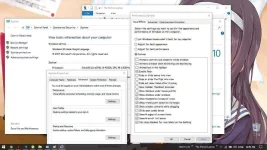
- Optimize your Visual Effects. It will give you good boost specially on Integrated One.
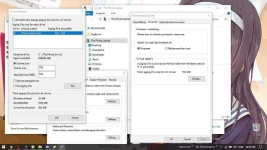
- If you have 8gig of ram and higher, I recommend the page file to be small as 512mb
- If you have less than 8gb. Then set it to 2048 minimum, then 4096 maximum.
- Keep your pc well cooled. Consider Changing the Thermal Paste Every Year, and don't forget to clean your laptop's / desktop's fan and heatsink from dust. Specially for laptops. Thats the main reason why laptops get slower overtime. Maintenance is a must.
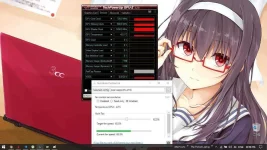
- Tweak your GPU settings (Nvidia Only, But it should be pretty same on other cards without the other settings)
- In laptops make sure you select your GPU as your preffered GPU instead of integrated one.
- Do not forget to set the power mode to prefer maximum performance if you are experiencing fps drops on some games.
- These are my settings
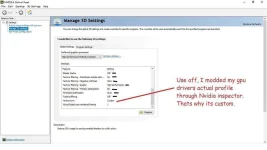
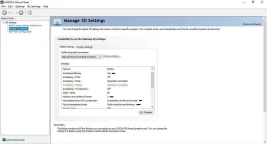
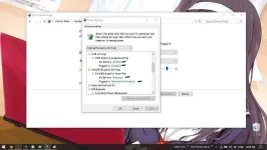
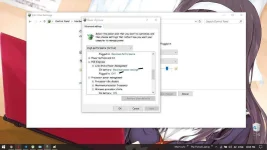
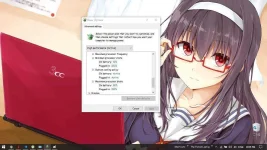
- Configure your Power Settings
- This is my Custom High Performance Profile
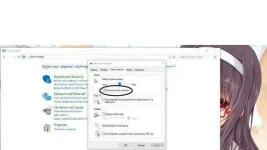
- Disable Mouse Acceleration (Reduces Input lag and makes your mouse more accurate)
- Improves your muscle memory
- Remove Win 10 Metro Apps
- Use Windows Powershell in admin mode to remove this "Uninstallable apps"
- The commands will be under the Picture
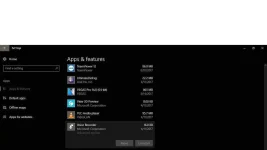
Remove Windows Store:
Get-AppxPackage *windowsstore* | Remove-AppxPackage
Remove Camera:
Get-AppxPackage *camera* | Remove-AppxPackage
Remove Mail & Calendar:
Get-AppxPackage *communi* | Remove-AppxPackage
Remove News, Sports, Weather:
Get-AppxPackage *bing* | Remove-AppxPackage
Remove Groove and TV:
Get-AppxPackage *zune* | Remove-AppxPackage
Remove People:
Get-AppxPackage *people* | Remove-AppxPackage
Remove Phone:
Get-AppxPackage *phone* | Remove-AppxPackage
Remove Voice Recorder:
Get-AppxPackage *soundrec* | Remove-AppxPackage
Remove Xbox:
Get-AppxPackage *xbox* | Remove-AppxPackage
Remove Maps:
Get-AppxPackage *map* | Remove-AppxPackage
Remove OneNote:
Get-AppxPackage *onenote* | Remove-AppxPackage
Remove Alarm:
Get-AppxPackage *alarm* | Remove-AppxPackage
- Disable Prefetch
- Ctrl + R then Regedit then navigate (use the boxed part in the pic to locate the registry key)
- Also helps to reduce those stutters in Slow Hard Drives.
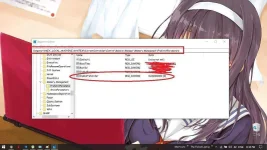
- If you are experiencing some high cpu usage or disk usage, you might want to disable this.
- I recommend to Disable it though
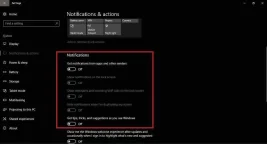
- If you use a LAPTOP or PC that is made for windows 8, or shipped with windows 8, or with a 4th gen Processor below of Intel, this tweak might help you in making your system Smooth.
- I don't know about the 5th gen and above but you can try it.
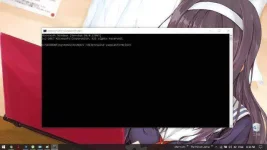
- Run this in Admin mode in CMD
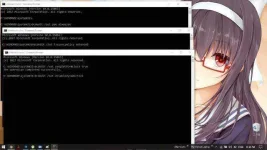
- If it sucks or made your pc slower then you can disable this by using.
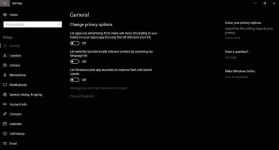
- Turn off all settings in privacy. or set it to lowest possible one.
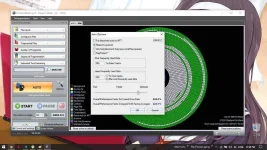
- And lastly, Defrag your Hard Drive Regularly. (DANGER: NEVER DEFRAG A SSD DRIVE)
- This is UltimateDefrag 4 and these are my settings if you are intrested on downloading it.
- Google it.
- BONUS
In order to use Dual Channel, You should pick the same speed, type, inshort identical ram sticks or else it might not run in Dual Channel.
Use Google if you don't know how to dual channel.
