 PH
PH1. Disable shadows, animations and visual effects
Windows 10 has some nice eye candy -- shadows, animations and visual effects. On fast, newer PCs, these don't usually affect system performance. But on slower and older PCs, they can exact a performance hit.
It's easy to turn them off. In the Windows 10 search box type sysdm.cpl and press Enter. That launches the System Properties dialog box. Click the Advanced tab and click "Settings" in the Performance section. That brings you to the Performance Options dialog box. You'll see a varied list of animations and special effects.
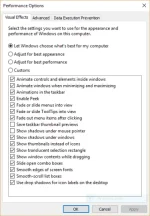
The Performance Options dialog box lets you turn off effects that might be slowing down Windows 10.
If you have time on your hands and love to tweak, you can turn individual ones on and off. These are the animations and special effects you'll probably want to turn off, because they have the greatest effect on system performance:
2. Launch the Windows troubleshooter
Windows 10 has a very useful, little-known tool that can sniff out performance problems and solve them. To launch it, type troubleshooting into the search box, and click the "Troubleshooting Control Panel" icon that appears. Then click "Run maintenance tasks" in the System and Security section of the screen that appears. A screen titled "Troubleshoot and help prevent computer problems" will appear. Click Next.
The troubleshooter will find files and shortcuts you don't use, identify any performance and other issues on your PC, report them to you and then fix them. Note that you may get a message that says, "Try troubleshooting as an administrator." If you have administrative rights to the PC, click it and the troubleshooter will launch and do its work.
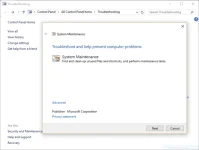
Windows 10's troubleshooter can perform maintenance and housecleaning tasks to help speed up your system.
3. Get help from the Performance Monitor
There's a great tool in Windows 10 called the Performance Monitor that can, among other things, create a detailed performance report about your PC, detail any system and performance issues, and suggest fixes.
To get the report, type perfmon /report into your search box and press Enter. (Make sure there's a space between "perfmon" and the slash mark.) The Resource and Performance Monitor launches and gathers information about your system. It will say that it will take 60 seconds, but I've found that it takes several minutes. When the Monitor finishes, it will launch an interactive report.
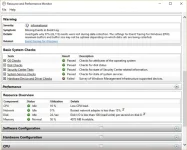
The Performance Monitor reports details on system and performance issues.
You'll find a lot of extremely detailed information in the report, and it can take a lot of time to go through. Your best bet is to first look at the Warnings section, which details the biggest issues (if any) it found on your PC, such as problems with Windows, with drivers and so on. It also tells you how to fix each problem -- for example, how to turn on a device that has been disabled.
It is also worthwhile to scroll down to the Resource Overview section, where you'll find an analysis of how well your CPU, network, disk and memory are performing. Each result is color-coded, with green meaning no problems, yellow meaning potential issues, and red showing a problem.
Beyond that, the Resource Overview also reports performance metrics and explanatory details. For example, for the CPU, it might show green and a utilization of 21%, with the details, "Normal CPU load." Or for Memory, it might show yellow, with 62% utilization and the details, "1520 MB is available." Based on what you get, you might want to do something about your hardware -- for example, add more memory.
4. Kill bloatware
Sometimes the biggest factor slowing down your PC isn't Windows 10 itself, but bloatware or adware that takes up CPU and system resources. Adware and bloatware are particularly insidious because they may have been installed by your computer's manufacturer. You'd be amazed at how much more quickly your Windows 10 PC can run if you get rid of it.
First, run a system scan to find adware and malware. If you've already installed a You do not have permission to view the full content of this post. Log in or register now. such as Norton Security or McAfee LiveSafe, you can use that. You can also use Windows 10's built in anti-malware app -- just type Windows Defender in the search box, press Enter, and then click Scan Now. Windows Defender will look for malware and remove any it finds.
Windows 10 has some nice eye candy -- shadows, animations and visual effects. On fast, newer PCs, these don't usually affect system performance. But on slower and older PCs, they can exact a performance hit.
It's easy to turn them off. In the Windows 10 search box type sysdm.cpl and press Enter. That launches the System Properties dialog box. Click the Advanced tab and click "Settings" in the Performance section. That brings you to the Performance Options dialog box. You'll see a varied list of animations and special effects.
The Performance Options dialog box lets you turn off effects that might be slowing down Windows 10.
If you have time on your hands and love to tweak, you can turn individual ones on and off. These are the animations and special effects you'll probably want to turn off, because they have the greatest effect on system performance:
- Animate controls and elements inside windows
- Animate windows when minimizing and maximizing
- Animations in the taskbar
- Fade or slide menus into view
- Fade or slide ToolTips into view
- Fade out menu items after clicking
- Show shadows under windows
2. Launch the Windows troubleshooter
Windows 10 has a very useful, little-known tool that can sniff out performance problems and solve them. To launch it, type troubleshooting into the search box, and click the "Troubleshooting Control Panel" icon that appears. Then click "Run maintenance tasks" in the System and Security section of the screen that appears. A screen titled "Troubleshoot and help prevent computer problems" will appear. Click Next.
The troubleshooter will find files and shortcuts you don't use, identify any performance and other issues on your PC, report them to you and then fix them. Note that you may get a message that says, "Try troubleshooting as an administrator." If you have administrative rights to the PC, click it and the troubleshooter will launch and do its work.
Windows 10's troubleshooter can perform maintenance and housecleaning tasks to help speed up your system.
3. Get help from the Performance Monitor
There's a great tool in Windows 10 called the Performance Monitor that can, among other things, create a detailed performance report about your PC, detail any system and performance issues, and suggest fixes.
To get the report, type perfmon /report into your search box and press Enter. (Make sure there's a space between "perfmon" and the slash mark.) The Resource and Performance Monitor launches and gathers information about your system. It will say that it will take 60 seconds, but I've found that it takes several minutes. When the Monitor finishes, it will launch an interactive report.
The Performance Monitor reports details on system and performance issues.
You'll find a lot of extremely detailed information in the report, and it can take a lot of time to go through. Your best bet is to first look at the Warnings section, which details the biggest issues (if any) it found on your PC, such as problems with Windows, with drivers and so on. It also tells you how to fix each problem -- for example, how to turn on a device that has been disabled.
It is also worthwhile to scroll down to the Resource Overview section, where you'll find an analysis of how well your CPU, network, disk and memory are performing. Each result is color-coded, with green meaning no problems, yellow meaning potential issues, and red showing a problem.
Beyond that, the Resource Overview also reports performance metrics and explanatory details. For example, for the CPU, it might show green and a utilization of 21%, with the details, "Normal CPU load." Or for Memory, it might show yellow, with 62% utilization and the details, "1520 MB is available." Based on what you get, you might want to do something about your hardware -- for example, add more memory.
4. Kill bloatware
Sometimes the biggest factor slowing down your PC isn't Windows 10 itself, but bloatware or adware that takes up CPU and system resources. Adware and bloatware are particularly insidious because they may have been installed by your computer's manufacturer. You'd be amazed at how much more quickly your Windows 10 PC can run if you get rid of it.
First, run a system scan to find adware and malware. If you've already installed a You do not have permission to view the full content of this post. Log in or register now. such as Norton Security or McAfee LiveSafe, you can use that. You can also use Windows 10's built in anti-malware app -- just type Windows Defender in the search box, press Enter, and then click Scan Now. Windows Defender will look for malware and remove any it finds.

