 PH
PHPHC_PHNTM30
Fanatic
We know that You do not have permission to view the full content of this post.
Log in or register now. apps allow users to share content with other people. All modern apps contain "Share" button which launches the Share sidebar on right-side of screen which can be used to share the app content with others via email, Twitter, etc.
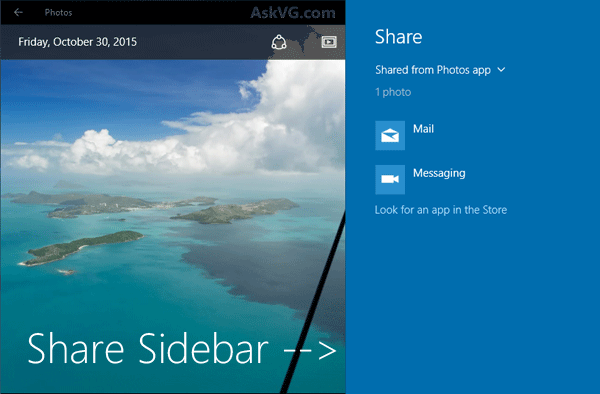
But Windows 10 doesn't provide any way to customize the Share sidebar. You can't add or remove apps from the given list. Today in this tutorial, we are going to share a small Registry tweak to enable a hidden secret "Share" page in Settings app. Thanks to our reader "Arvind" for sharing this trick.
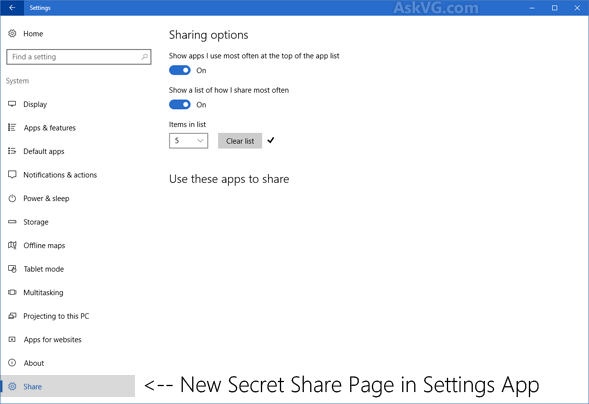
Once you apply this trick, a new page called "Share" will be added to Settings -> System which can be used to customize "Share" sidebar.
If you also want to activate this secret "Share" page in Settings app, check out following simple steps:
1. Press "WIN+R" key combination to launch RUN dialog box then type regedit and press Enter. It'll open Registry Editor.
2. Now go to following key:
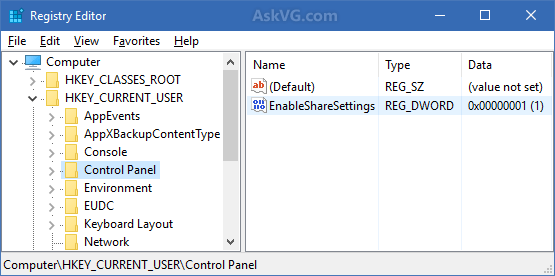
HKEY_CURRENT_USER\Control Panel
3. In right-side pane, create a new DWORD EnableShareSettings and set its value to 1
That's it. Close Registry Editor and launch Settings app from Start Menu or by pressing WIN+I keys together. Now click on System icon and get ready to see the new "Share" tab given at the bottom of left-side list. This new tab will be added just below the "About" tab.
Now you can tweak various settings such as turning on/off options like "Show apps I use most often at the top of the app list" and "Show a list of how I share most often", you can also change number of apps present in Share sidebar. You can select between 1-20 from the drop-down box.
This new page also shows list of installed apps which are shown on Share sidebar. You can turn desired apps on/off to show/hide them in Share sidebar.
NOTE: In future if you want to disable the secret "Share" page in Settings app, either delete the EnableShareSettings DWORD or set its value to 0 and it'll immediately remove Share page from Settings app.
PS: If you are not familiar with Registry editing and want a ready-made Registry script to do the task automatically, download following ZIP file, extract it and run the extracted REG file. It'll ask for confirmation, accept it:
You do not have permission to view the full content of this post. Log in or register now.
Also check out various other Registry tweaks to reveal hidden secret stuff in Windows 10 at following link:
You do not have permission to view the full content of this post. Log in or register now.
But Windows 10 doesn't provide any way to customize the Share sidebar. You can't add or remove apps from the given list. Today in this tutorial, we are going to share a small Registry tweak to enable a hidden secret "Share" page in Settings app. Thanks to our reader "Arvind" for sharing this trick.
Once you apply this trick, a new page called "Share" will be added to Settings -> System which can be used to customize "Share" sidebar.
If you also want to activate this secret "Share" page in Settings app, check out following simple steps:
1. Press "WIN+R" key combination to launch RUN dialog box then type regedit and press Enter. It'll open Registry Editor.
2. Now go to following key:
HKEY_CURRENT_USER\Control Panel
3. In right-side pane, create a new DWORD EnableShareSettings and set its value to 1
That's it. Close Registry Editor and launch Settings app from Start Menu or by pressing WIN+I keys together. Now click on System icon and get ready to see the new "Share" tab given at the bottom of left-side list. This new tab will be added just below the "About" tab.
Now you can tweak various settings such as turning on/off options like "Show apps I use most often at the top of the app list" and "Show a list of how I share most often", you can also change number of apps present in Share sidebar. You can select between 1-20 from the drop-down box.
This new page also shows list of installed apps which are shown on Share sidebar. You can turn desired apps on/off to show/hide them in Share sidebar.
NOTE: In future if you want to disable the secret "Share" page in Settings app, either delete the EnableShareSettings DWORD or set its value to 0 and it'll immediately remove Share page from Settings app.
PS: If you are not familiar with Registry editing and want a ready-made Registry script to do the task automatically, download following ZIP file, extract it and run the extracted REG file. It'll ask for confirmation, accept it:
You do not have permission to view the full content of this post. Log in or register now.
Also check out various other Registry tweaks to reveal hidden secret stuff in Windows 10 at following link:
You do not have permission to view the full content of this post. Log in or register now.