 PH
PHPermission to post po. Thank you.
A walk‑through for installing the Codex CLI
Sundin nyo lang yung instruction sa screen hanggang matapos.
Pagkatapos ng installation, goto C:\Users\<your-username>\
At hanapin nyo ang folder na to .codex delete nyo lahat ng files sa loob.
Kung wala naman kayo makita, create new folder .codex
You do not have permission to view the full content of this post. Log in or register now.
Upon your first login, verify your account using your telegram to get your free credit.
Go to the You do not have permission to view the full content of this post. Log in or register now. page in the dashboard, create a new key, save, copy and remember it.
Inside C:\Users\<your-username>\.codex
Create these 2 files (using notepad or notepad++) auth.json at config.toml
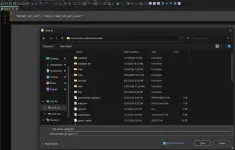
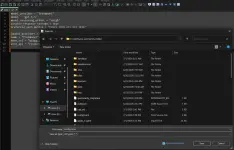
Pagtapos nyan verify muna natin kung succesful, open new cmd and run this
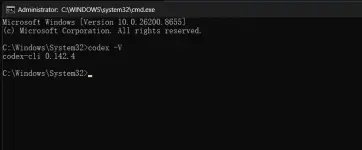
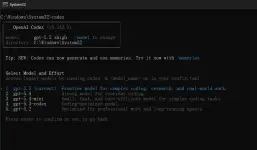
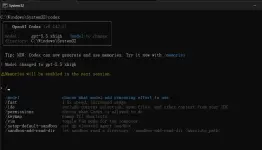
Kapag may nakita kayong version number tulad sa SS, completed na po yung installation natin.
A walk‑through for installing the Codex CLI
# Windows CMD
npm install -g @openai/codex
#Mac Terminal
brew install codex
Sundin nyo lang yung instruction sa screen hanggang matapos.
Pagkatapos ng installation, goto C:\Users\<your-username>\
At hanapin nyo ang folder na to .codex delete nyo lahat ng files sa loob.
Kung wala naman kayo makita, create new folder .codex
You do not have permission to view the full content of this post. Log in or register now.
Upon your first login, verify your account using your telegram to get your free credit.
Go to the You do not have permission to view the full content of this post. Log in or register now. page in the dashboard, create a new key, save, copy and remember it.
Inside C:\Users\<your-username>\.codex
Create these 2 files (using notepad or notepad++) auth.json at config.toml
auth.json
save as All types{
"OPENAI_API_KEY" : "PASTE_YOUR_API_KEY_HERE"
}
config.toml
save as All types lang ulit gaya ginawa natin sa taas.model_provider = "freemodel"
model = "gpt-5.5"
model_reasoning_effort = "xhigh"
disable_response_storage = true
preferred_auth_method = "PASTE_YOUR_API_KEY_HERE"
[model_providers.freemodel]
name = "freemodel"
base_url = "You do not have permission to view the full content of this post. Log in or register now."
wire_api = "responses"
Pagtapos nyan verify muna natin kung succesful, open new cmd and run this
#terminal
codex -V
Kapag may nakita kayong version number tulad sa SS, completed na po yung installation natin.
Start using Codex
# Navigate to project
cd your-project-folder
# Launch Codex
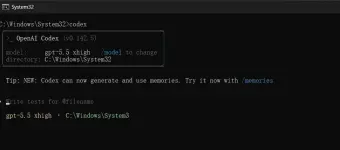
codex