PH
PHMaginoompilyo
Forum Veteran
Best Ways to Use Google Colab with ᑕᕼᗩTGᑭT — Tips, Tricks, and Workflow Guide
If you have a lot of Google Drive storage, Google Colab can be one of the most useful free tools you can use. When paired with ᑕᕼᗩTGᑭT, it becomes even better because ᑕᕼᗩTGᑭT can help write code, explain errors, improve scripts, and speed up your workflow.
This post is a simple tutorial-style guide on how to use Google Colab with ᑕᕼᗩTGᑭT to get the most out of both.
A simple way to think about it is:
Examples:
Instead of asking:
“make me a downloader”
Ask:
“Make a Google Colab script that downloads files from a link, saves them to a specific Google Drive folder, skips duplicates, and shows progress.”
That gives much better results.
A good prompt format is:
“Make a Google Colab Python script that mounts Google Drive, reads all PDF files in a folder, renames them using a pattern, and saves a log file of the changes.”
This usually gives code that is easier to paste directly into a notebook.
This lets you:
from google.colab import drive<br>drive.mount('/content/drive')<br>
After that, your files are usually inside:
/content/drive/MyDrive/<br>
It is a good habit to create dedicated folders like:
Ask for things like:
“rename files in python”
Ask:
“Make a full Google Colab script that mounts Drive, loops through all files in a folder, replaces underscores with spaces, fixes naming format, and prints before-and-after filenames.”
That is much more useful.
If Colab gives an error, do not just guess. Copy:
Common Colab issues include:
Useful templates can include:
This is one of the best long-term ways to use Colab efficiently.
It is useful when:
You can ask ᑕᕼᗩTGᑭT to add:
“Add a dry-run mode first so I can preview the changes before actually renaming the files.”
That is very useful for bulk operations.
A better workflow is:
You can even ask ᑕᕼᗩTGᑭT:
“Split this project into separate Colab cells.”
That makes the notebook cleaner and easier to understand.
“Create a Google Colab script that mounts Google Drive, reads all image files from a folder, converts PNG to JPG, keeps original files unchanged, saves results in a new folder, and prints progress.”
That is a very solid prompt.
1. Describe the task to ᑕᕼᗩTGᑭT
2. Get Colab-ready code
3. Paste into Colab
4. Run and test
5. Send errors back to ᑕᕼᗩTGᑭT
6. Improve the script
7. Save the final notebook as a template
Once you repeat this a few times, you become much faster.
If you use them properly, you can automate a lot of repetitive tasks, especially file handling, study workflows, and simple data processing, without needing an expensive computer or advanced setup.
For beginners, the biggest tip is this:
Be specific with your prompts, keep your notebook organized, and save working scripts for reuse.
That alone will already make a big difference.
Feel free to share your own Colab tips, useful notebook ideas, or favorite ᑕᕼᗩTGᑭT prompts for automation.
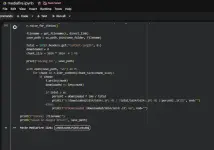
SAMPLE OF MY NOTEBOOK:
from google.colab import drive
drive.mount('/content/drive')
!pip -q install requests beautifulsoup4
import os
import re
import requests
from bs4 import BeautifulSoup
from urllib.parse import unquote
# ===== SETTINGS =====
mediafire_url = input("Paste MediaFire link: ").strip()
save_folder = "/content/drive/MyDrive/MediaFireDownloads"
os.makedirs(save_folder, exist_ok=True)
headers = {
"User-Agent": "Mozilla/5.0"
}
def get_mediafire_direct_link(url):
r = requests.get(url, headers=headers, timeout=30)
r.raise_for_status()
soup = BeautifulSoup(r.text, "html.parser")
btn = soup.find("a", {"id": "downloadButton"})
if btn and btn.get("href"):
return btn["href"]
# fallback: regex
m = re.search(r'href="(https://download[^"]+)"', r.text)
if m:
return m.group(1)
raise Exception("Direct download link not found.")
def get_filename(resp, direct_link):
cd = resp.headers.get("content-disposition", "")
if "filename=" in cd:
name = cd.split("filename=")[-1].strip().strip('"')
if name:
return name
name = unquote(direct_link.split("/")[-1].split("?")[0]).strip()
if name:
return name
return "downloaded_file"
direct_link = get_mediafire_direct_link(mediafire_url)
print("Direct link found")
with requests.get(direct_link, headers=headers, stream=True, allow_redirects=True, timeout=60) as r:
r.raise_for_status()
filename = get_filename(r, direct_link)
save_path = os.path.join(save_folder, filename)
total = int(r.headers.get("content-length", 0))
downloaded = 0
chunk_size = 1024 * 1024 # 1 MB
print("Saving to:", save_path)
with open(save_path, "wb") as f:
for chunk in r.iter_content(chunk_size=chunk_size):
if chunk:
f.write(chunk)
downloaded += len(chunk)
if total > 0:
percent = downloaded * 100 / total
print(f"\r{downloaded/1024/1024:.1f} MB / {total/1024/1024:.1f} MB ({percent:.1f}%)", end="")
else:
print(f"\rDownloaded {downloaded/1024/1024:.1f} MB", end="")
print(f"\nDone: {filename}")
print("Saved in Google Drive:", save_path)

If you have a lot of Google Drive storage, Google Colab can be one of the most useful free tools you can use. When paired with ᑕᕼᗩTGᑭT, it becomes even better because ᑕᕼᗩTGᑭT can help write code, explain errors, improve scripts, and speed up your workflow.
This post is a simple tutorial-style guide on how to use Google Colab with ᑕᕼᗩTGᑭT to get the most out of both.
What is the advantage of using Google Colab with ᑕᕼᗩTGᑭT?
Google Colab lets you run Python code in your browser without needing to install everything on your computer. ᑕᕼᗩTGᑭT helps by generating the code, fixing problems, and improving your scripts.A simple way to think about it is:
- ᑕᕼᗩTGᑭT = helps you think, write, and debug
- Google Colab = runs the code
- Google Drive = stores your files and outputs
Step 1: Start with a clear goal
Before opening Colab, decide exactly what you want to do.Examples:
- rename many files at once
- extract ZIP or RAR files
- convert PDF pages to images
- organize folders in Google Drive
- download files directly to Drive
- clean spreadsheet data
- resize or convert images
- process text files in bulk
Instead of asking:
“make me a downloader”
Ask:
“Make a Google Colab script that downloads files from a link, saves them to a specific Google Drive folder, skips duplicates, and shows progress.”
That gives much better results.
Step 2: Ask ᑕᕼᗩTGᑭT for Colab-ready code
When asking ᑕᕼᗩTGᑭT for code, mention that it should work in Google Colab.A good prompt format is:
- make it work in Google Colab
- mount Google Drive
- include installation commands if needed
- add comments
- include error handling
- show progress
- save output in Drive
“Make a Google Colab Python script that mounts Google Drive, reads all PDF files in a folder, renames them using a pattern, and saves a log file of the changes.”
This usually gives code that is easier to paste directly into a notebook.
Step 3: Mount Google Drive properly
One of the most useful things in Colab is connecting your Google Drive.This lets you:
- open files directly from Drive
- save results automatically
- avoid redownloading files
- keep everything organized in one place
from google.colab import drive<br>drive.mount('/content/drive')<br>
After that, your files are usually inside:
/content/drive/MyDrive/<br>
It is a good habit to create dedicated folders like:
- /MyDrive/Colab/Input
- /MyDrive/Colab/Output
- /MyDrive/Colab/Temp
Step 4: Let ᑕᕼᗩTGᑭT help you build complete scripts
A lot of people only ask for short code snippets, but a better method is to ask for a full working notebook section.Ask for things like:
- imports included
- package installation included
- folder paths easy to edit
- print status messages
- overwrite protection
- summary at the end
“rename files in python”
Ask:
“Make a full Google Colab script that mounts Drive, loops through all files in a folder, replaces underscores with spaces, fixes naming format, and prints before-and-after filenames.”
That is much more useful.
Step 5: Use ᑕᕼᗩTGᑭT to fix errors fast
This is one of the biggest advantages.If Colab gives an error, do not just guess. Copy:
- the error message
- the traceback
- the part of the code causing the issue
- the cause of the problem
- the fixed version
- a simpler explanation
- ways to prevent it next time
Common Colab issues include:
- missing libraries
- wrong file paths
- permission problems
- encoding errors
- package version conflicts
- runtime reset problems
Step 6: Save reusable notebook templates
Once you get one notebook working, do not throw it away. Keep it as a template.Useful templates can include:
- downloader to Google Drive
- bulk file renamer
- PDF organizer
- image converter
- archive extractor
- spreadsheet cleaner
- OCR helper
- text extractor
This is one of the best long-term ways to use Colab efficiently.
Step 7: Use Colab when your PC is weak or full
A big benefit of Colab is that you do not need a strong computer for many tasks.It is useful when:
- your laptop is low on storage
- you do not want to install Python
- your PC is slow
- you want to work from anywhere
- you want your files saved directly online
Step 8: Ask ᑕᕼᗩTGᑭT to make the script safer
When working with files, safety matters.You can ask ᑕᕼᗩTGᑭT to add:
- backup copies
- dry-run mode
- confirmation before overwrite
- logs
- skipped file reports
- duplicate checks
“Add a dry-run mode first so I can preview the changes before actually renaming the files.”
That is very useful for bulk operations.
Step 9: Break large tasks into parts
If your task is big, do not ask for everything in one messy prompt.A better workflow is:
- mount Drive
- scan files
- preview targets
- process files
- save results
- generate report
You can even ask ᑕᕼᗩTGᑭT:
“Split this project into separate Colab cells.”
That makes the notebook cleaner and easier to understand.
Step 10: Best practical uses for Google Colab + ᑕᕼᗩTGᑭT
Here are some very practical things this combo is good for:File management
- rename files in bulk
- sort by file type
- move files into folders
- detect duplicates
Document tasks
- merge PDFs
- split PDFs
- extract text
- convert pages to images
Media tasks
- resize images
- convert image formats
- compress files
- batch processing
Data tasks
- clean CSV files
- reformat Excel exports
- filter rows
- combine reports
Study and productivity
- make review sheets
- extract notes
- summarize text files
- organize academic files
Step 11: Learn basic prompting for technical tasks
To get the best results from ᑕᕼᗩTGᑭT, include:- what the script should do
- where files are located
- what the output should look like
- what to avoid
- whether it should work in Colab
- whether it should save to Google Drive
- platform
- input
- output
- rules
- safety checks
“Create a Google Colab script that mounts Google Drive, reads all image files from a folder, converts PNG to JPG, keeps original files unchanged, saves results in a new folder, and prints progress.”
That is a very solid prompt.
Step 12: Build your own workflow
A very effective workflow is:1. Describe the task to ᑕᕼᗩTGᑭT
2. Get Colab-ready code
3. Paste into Colab
4. Run and test
5. Send errors back to ᑕᕼᗩTGᑭT
6. Improve the script
7. Save the final notebook as a template
Once you repeat this a few times, you become much faster.
Final thoughts
Google Colab and ᑕᕼᗩTGᑭT work very well together. ᑕᕼᗩTGᑭT helps with planning, coding, fixing, and improving. Google Colab gives you an easy place to run everything in the cloud. Google Drive keeps your files organized and accessible.If you use them properly, you can automate a lot of repetitive tasks, especially file handling, study workflows, and simple data processing, without needing an expensive computer or advanced setup.
For beginners, the biggest tip is this:
Be specific with your prompts, keep your notebook organized, and save working scripts for reuse.
That alone will already make a big difference.
Feel free to share your own Colab tips, useful notebook ideas, or favorite ᑕᕼᗩTGᑭT prompts for automation.
SAMPLE OF MY NOTEBOOK:
from google.colab import drive
drive.mount('/content/drive')
!pip -q install requests beautifulsoup4
import os
import re
import requests
from bs4 import BeautifulSoup
from urllib.parse import unquote
# ===== SETTINGS =====
mediafire_url = input("Paste MediaFire link: ").strip()
save_folder = "/content/drive/MyDrive/MediaFireDownloads"
os.makedirs(save_folder, exist_ok=True)
headers = {
"User-Agent": "Mozilla/5.0"
}
def get_mediafire_direct_link(url):
r = requests.get(url, headers=headers, timeout=30)
r.raise_for_status()
soup = BeautifulSoup(r.text, "html.parser")
btn = soup.find("a", {"id": "downloadButton"})
if btn and btn.get("href"):
return btn["href"]
# fallback: regex
m = re.search(r'href="(https://download[^"]+)"', r.text)
if m:
return m.group(1)
raise Exception("Direct download link not found.")
def get_filename(resp, direct_link):
cd = resp.headers.get("content-disposition", "")
if "filename=" in cd:
name = cd.split("filename=")[-1].strip().strip('"')
if name:
return name
name = unquote(direct_link.split("/")[-1].split("?")[0]).strip()
if name:
return name
return "downloaded_file"
direct_link = get_mediafire_direct_link(mediafire_url)
print("Direct link found")
with requests.get(direct_link, headers=headers, stream=True, allow_redirects=True, timeout=60) as r:
r.raise_for_status()
filename = get_filename(r, direct_link)
save_path = os.path.join(save_folder, filename)
total = int(r.headers.get("content-length", 0))
downloaded = 0
chunk_size = 1024 * 1024 # 1 MB
print("Saving to:", save_path)
with open(save_path, "wb") as f:
for chunk in r.iter_content(chunk_size=chunk_size):
if chunk:
f.write(chunk)
downloaded += len(chunk)
if total > 0:
percent = downloaded * 100 / total
print(f"\r{downloaded/1024/1024:.1f} MB / {total/1024/1024:.1f} MB ({percent:.1f}%)", end="")
else:
print(f"\rDownloaded {downloaded/1024/1024:.1f} MB", end="")
print(f"\nDone: {filename}")
print("Saved in Google Drive:", save_path)