 PH
PHBoss Namek
Elite
Marami sa atin ang nag-iisip na kailangan ng bagong GPU o RAM para maging mabilis ang PC. Mali yan. Ginawa ko ito sa aking mini PC at grabe ang difference. Works sa kahit anong PC o laptop. Sundan niyo lang.
STEP 1 — I-unlock ang hidden Power Plan ng WindowsI-open ang PowerShell as Admin,
i-paste ito: powercfg -duplicatescheme e9a42b02-d5df-448d-aa00-03f14749eb61
Tapos i-activate ang GUID na lalabas: powercfg -setactive [GUID]Ang default na "Balanced" plan ng Windows ay nagthrottle ng CPU mo nang hindi mo alam.
Yung "Ultimate Performance" — hindi. Malaking difference lalo sa gaming at heavy tasks.
STEP 2 — I-debloat ang WindowsI-open ang PowerShell as Admin,
i-paste: irm christitus.com/win | iex
Ito ang Chris Titus Tech WinUtil — libre, open source.
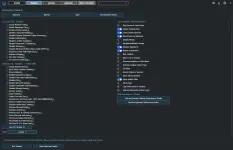
Pumunta sa "Tweaks" tab tapos i-check ang:
Delete Temporary Files, Disable Telemetry, Disable Activity History, Disable Background Apps, Disable Microsoft Copilot, Run Disk Cleanup, at Set Display for Performance. I-click din ang "Add and Activate Ultimate Performance Profile" sa kanang bahagi. Tapos "Run Tweaks." ONE TIME LANG — permanent na lahat pagkatapos. Hindi mawawala ang personal files mo (documents, photos, videos) — settings lang ang binabago.
STEP 3 — I-setup ang Auto CleanupSettings → System → Storage → I-ON ang Storage Sense → set to Every Week. Automatic na maglilinis ang PC mo. Set and forget.
STEP 4 — Para sa AMD Ryzen/Radeon users (LIBRE) [OPTIONAL]Kung ang PC mo ay may AMD Ryzen/Radeon — i-download ang AMD Adrenalin Software → Gaming → I-enable ang "AMD Fluid Motion Frames." Driver-level frame generation. Libre. Hindi ito available sa lahat ng AMD device kaya i-check muna kung supported ang GPU/iGPU mo.
I-restart lang ang PC after lahat ng ito — feel mo agad ang difference. Kung natulungan ka — i-share para matulungan din ang iba.
Tested on Windows 10 & 11 — PC, Laptop, Mini PC (GMKtec,etc.)
STEP 1 — I-unlock ang hidden Power Plan ng WindowsI-open ang PowerShell as Admin,
i-paste ito: powercfg -duplicatescheme e9a42b02-d5df-448d-aa00-03f14749eb61
Tapos i-activate ang GUID na lalabas: powercfg -setactive [GUID]Ang default na "Balanced" plan ng Windows ay nagthrottle ng CPU mo nang hindi mo alam.
Yung "Ultimate Performance" — hindi. Malaking difference lalo sa gaming at heavy tasks.
STEP 2 — I-debloat ang WindowsI-open ang PowerShell as Admin,
i-paste: irm christitus.com/win | iex
Ito ang Chris Titus Tech WinUtil — libre, open source.
Pumunta sa "Tweaks" tab tapos i-check ang:
Delete Temporary Files, Disable Telemetry, Disable Activity History, Disable Background Apps, Disable Microsoft Copilot, Run Disk Cleanup, at Set Display for Performance. I-click din ang "Add and Activate Ultimate Performance Profile" sa kanang bahagi. Tapos "Run Tweaks." ONE TIME LANG — permanent na lahat pagkatapos. Hindi mawawala ang personal files mo (documents, photos, videos) — settings lang ang binabago.
STEP 3 — I-setup ang Auto CleanupSettings → System → Storage → I-ON ang Storage Sense → set to Every Week. Automatic na maglilinis ang PC mo. Set and forget.
STEP 4 — Para sa AMD Ryzen/Radeon users (LIBRE) [OPTIONAL]Kung ang PC mo ay may AMD Ryzen/Radeon — i-download ang AMD Adrenalin Software → Gaming → I-enable ang "AMD Fluid Motion Frames." Driver-level frame generation. Libre. Hindi ito available sa lahat ng AMD device kaya i-check muna kung supported ang GPU/iGPU mo.
I-restart lang ang PC after lahat ng ito — feel mo agad ang difference. Kung natulungan ka — i-share para matulungan din ang iba.
Tested on Windows 10 & 11 — PC, Laptop, Mini PC (GMKtec,etc.)


 )
)