PLDT Wifi password change

Status
Not open for further replies.

. Open Network settings​

  1. Make sure you’re currently connected to the Wi-Fi whose password you want.
  2. On the taskbar, right-click the Wi-Fi icon (the little signal bars).
  3. Click “Network & Internet settings” (or “Open Network & Internet settings”).

2. Go to your Wi-Fi adapter properties​

  1. In the Settings window, scroll down and click “Advanced network settings”.
    • On some versions, click “Change adapter options” directly.
  2. Under Related settings, click “More network adapter options” (or “Change adapter options”).
    ➜ This opens the classic Network Connections window.

3. Open Wireless Properties​

  1. In Network Connections, find your Wi-Fi adapter (usually named something like Wi-Fi or Wireless Network Connection).
  2. Right-click it and choose “Status”.
  3. In the small window that opens, click “Wireless Properties”.
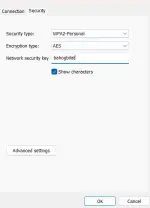
  4. Go to the “Security” tab.

4. Reveal the password​

  1. In the Security tab, look for “Network security key”.
  2. Tick the checkbox “Show characters”.
    ➜ The Wi-Fi password will now be shown as normal text.
Screenshot 2026-01-20 160429.webp
 
sainyo ba yung wifi? o hindi? kung hindi tanong mo sa may ari. kung gusto mo malaman na di nila alam häçking na tawag doon at di yun madaling gawin. Pero kung sainyo reset mo lang router para bumalik sa default password. Respect lang Boss mali din kasi yung ko-connect ka tapos di nila alam may balik yan.
 
Status
Not open for further replies.

Similar threads

About this Thread

  • 4
    Replies
  • 404
    Views
  • 5
    Participants
Last reply from:
PHC_LaCe12

Online now

Members online
1,259
Guests online
1,872
Total visitors
3,131

Forum statistics

Threads
2,268,363
Posts
28,921,756
Members
1,242,925
Latest member
lemonade76
Back
Top