PH
PHWindows 11 comes with some specific hardware requirements, theoretically requires your machine to support secure boot, TPM 2.0 module and your CPU to be on the list of compatible models. in this tutorial i will show you how you can upgrade your current windows on unsupported hardware to the newest version. your processor must have built in SSE 4.2 or else this might not work. atleast all Intel Core i3, i5, i7, and i9 processors, as well as many AMD Ryzen and some older FX series processors
step 1:
download the file here You do not have permission to view the full content of this post.
Log in or register now. and select the "Create Windows 11 Installation Media" to download.(see picture below)
You do not have permission to view the full content of this post.
Log in or register now. and select the "Create Windows 11 Installation Media" to download.(see picture below)
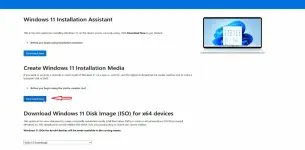
step 2:
then open the "mediacreationtool.exe" you download and proceed to next step until you see which media to use and select the "ISO file" (see picture below)
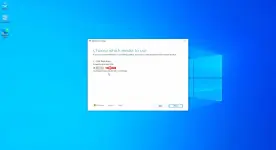
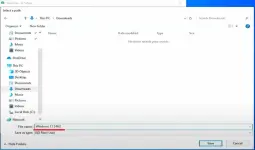
click next and choose where the tool should put the file like in desktop or download folder and name it what ever you want or name it "windows 11 24h2" to make it easy to identify the file(see picture below)
step 3:
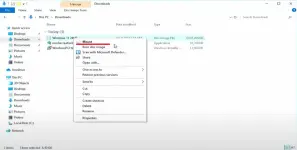
locate the ISO file and select mount to insert it into the "virtual DVD mount"(see image below)
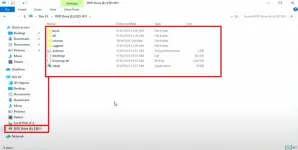
you can see the necessary installation files in "DVD Drive"(see image below)
step 4:
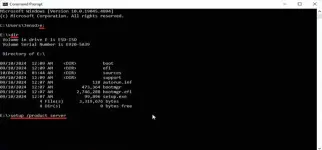
in my case, the directory of my file is in the drive "E". open CMD and locate the ISO file and type
step 5:
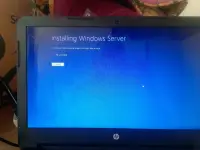
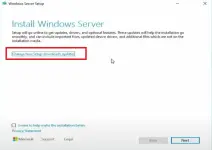
the windows server setup window wil appear then click the "Change how setup downloads updates"(see image below)
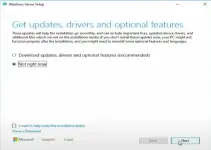
select "not right now" then click next
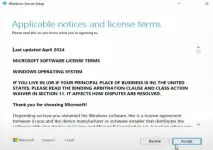
click accept license terms
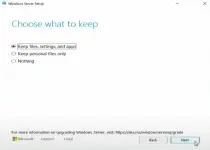
then select the "keep file, settings and apps" because we only what to update the operating system, then click next
finaly in here we get the confermation that we will just upgrade the updated version of windows 11. then click install to begin the process.
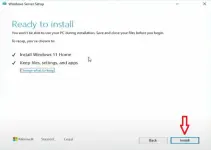
at this point. your operating system is getting upgraded to latest vertion of windows 11 you download and you will need to be patient.

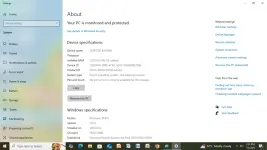
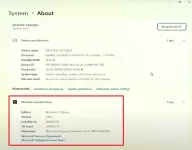
after the installation of windows server you should eventually end up to your desktop. then check the system info
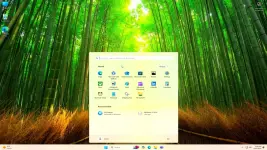
and Ta-da! your system is updated now to the latest version of windows 11
pa react nalang at simpleng salamat oks na, thanks!
step 1:
download the file here
You do not have permission to view the full content of this post.
Log in or register now. and select the "Create Windows 11 Installation Media" to download.(see picture below)step 2:
then open the "mediacreationtool.exe" you download and proceed to next step until you see which media to use and select the "ISO file" (see picture below)
click next and choose where the tool should put the file like in desktop or download folder and name it what ever you want or name it "windows 11 24h2" to make it easy to identify the file(see picture below)
step 3:
locate the ISO file and select mount to insert it into the "virtual DVD mount"(see image below)
you can see the necessary installation files in "DVD Drive"(see image below)
step 4:
in my case, the directory of my file is in the drive "E". open CMD and locate the ISO file and type
then enter. you can also use the"e:"
to check all the files are there. now we have to run sa "setup.exe" using the command"dir"
then hit enter. (see image below)"setup /product server"
step 5:
the windows server setup window wil appear then click the "Change how setup downloads updates"(see image below)
select "not right now" then click next
click accept license terms
then select the "keep file, settings and apps" because we only what to update the operating system, then click next
finaly in here we get the confermation that we will just upgrade the updated version of windows 11. then click install to begin the process.
at this point. your operating system is getting upgraded to latest vertion of windows 11 you download and you will need to be patient.
after the installation of windows server you should eventually end up to your desktop. then check the system info
and Ta-da! your system is updated now to the latest version of windows 11
pa react nalang at simpleng salamat oks na, thanks!