 PH
PH-
Welcome to PHCorner Forums! Sign up for free to unlock full access and exclusive privileges, including:
- Asking questions about computer and mobile issues
- Discovering internet tips for your mobile network and computer
You are using an out of date browser. It may not display this or other websites correctly.
You should upgrade or use an alternative browser.
You should upgrade or use an alternative browser.
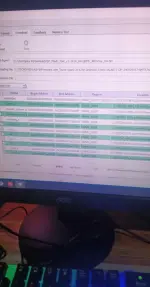
❓ Help PAHELP PO MAG FFLASH LANG PO SANA AKO STOCK ROM PERO GANTO PO LAGI ERROR
- Status
- Not open for further replies.
🤖
🤖
The error message "error status brom cmd send da fail (0xc0060003)" typically occurs when there is a communication issue between the flashing tool and the device you are trying to flash. Here are some steps you can try to troubleshoot this issue:
1. Ensure that you are using the correct USB cable: Use a high-quality USB cable and try different USB ports on your computer to rule out any issues related to the cable or port.
2. Check the USB drivers: Make sure that the appropriate USB drivers are installed for your device on your computer. You may need to install specific drivers provided by the manufacturer of your device.
3. Reboot your computer and device: Sometimes, a simple reboot of both your computer and device can resolve communication issues.
4. Try a different flashing tool: If you are using SP Flash Tool, you can try using a different flashing tool such as Odin, Mi Flash Tool, or others to see if the issue persists.
5. Check for compatibility issues: Ensure that the ROM you are trying to flash is compatible with your device model. Using an incompatible ROM can result in errors during the flashing process.
6. Disable driver signature enforcement: If you are using Windows, you can try disabling driver signature enforcement to see if that resolves the issue. To do this, restart your computer and press F8 during boot to access the Advanced Boot Options menu.
7. Seek help from the manufacturer or a professional: If you have tried the above steps and are still encountering the error, it may be best to contact the manufacturer of your device or seek help from a professional technician who has experience in flashing ROMs.
By following these steps, you may be able to troubleshoot and resolve the "error status brom cmd send da fail (0xc0060003)" issue you are experiencing during the flashing process.
1. Ensure that you are using the correct USB cable: Use a high-quality USB cable and try different USB ports on your computer to rule out any issues related to the cable or port.
2. Check the USB drivers: Make sure that the appropriate USB drivers are installed for your device on your computer. You may need to install specific drivers provided by the manufacturer of your device.
3. Reboot your computer and device: Sometimes, a simple reboot of both your computer and device can resolve communication issues.
4. Try a different flashing tool: If you are using SP Flash Tool, you can try using a different flashing tool such as Odin, Mi Flash Tool, or others to see if the issue persists.
5. Check for compatibility issues: Ensure that the ROM you are trying to flash is compatible with your device model. Using an incompatible ROM can result in errors during the flashing process.
6. Disable driver signature enforcement: If you are using Windows, you can try disabling driver signature enforcement to see if that resolves the issue. To do this, restart your computer and press F8 during boot to access the Advanced Boot Options menu.
7. Seek help from the manufacturer or a professional: If you have tried the above steps and are still encountering the error, it may be best to contact the manufacturer of your device or seek help from a professional technician who has experience in flashing ROMs.
By following these steps, you may be able to troubleshoot and resolve the "error status brom cmd send da fail (0xc0060003)" issue you are experiencing during the flashing process.
Sorry po newbie lang po .Wrong forum.
Pero baka di ka lang naka-pag press ng correct button keys.
Okay lang din dito pero baka di makita ng mga masters sa mobile phone customization.Sorry po newbie lang po .
Ano nga pala udate sa phone mo naayos mo na ba?
Wala pa po irereflash ko po sana kaso nag error po lagi broom po eh ifdlash ko po sana buo zip ng stock kasi nakalagay lang po kasi doon boot img saka super img lang poOkay lang din dito pero baka di makita ng mga masters sa mobile phone customization.
Ano nga pala udate sa phone mo naayos mo na ba?
- Status
- Not open for further replies.
About this Thread
-
5Replies
-
554Views
-
2Participants
Last reply from:
Ichi2
Ichi2
New Topics
-
Win 10 Home keys
- Started by Ali246
- Replies: 6
- ❓ Computer Discussion & Support
-
Windows 11 26H2
- Started by tholitz
- Replies: 1
- ❓ Computer Discussion & Support
-
Help po !!!! My account got häçked Facebook and steam
- Started by bujoy20
- Replies: 8
- ❓ Computer Discussion & Support
-
Mga bossing patulong po nahäçk account ko due to carelessness
- Started by Jeii
- Replies: 4
- ❓ Computer Discussion & Support
-
Computer parts na cheap
- Started by bjenjay1
- Replies: 4
- ❓ Computer Discussion & Support
-
PC APPS - remote or auto saved type and auto audio
- Started by babyzero
- Replies: 1
- ❓ Computer Discussion & Support
-
Data Recovery May Chance pa bato
- Started by tambay28
- Replies: 3
- ❓ Computer Discussion & Support
-
Capcut PC pasabit po
- Started by L A Z A
- Replies: 0
- ❓ Computer Discussion & Support
-
Download Youtube Video using CMD
- Started by BeerGin69
- Replies: 2
- ❓ Computer Discussion & Support
Trending Topics
Online now
- Members online
- 894
- Guests online
- 6,496
- Total visitors
- 7,390