PH
PHYouMustDie
Grasshopper
This guide will walk you through the process, step-by-step, ensuring you get access quickly and easily. Just follow these instructions:
- Access Figma: Open Google Search and search for "Figma." Click on the link to figma.com. Connect using your Google account. Important: Use your college student email. Figma has become strict about this requirement, and using a non-student email may result in your educational perks being revoked. If you don't have a student email, ask a classmate or someone who does if you can use theirs for this process.
- Create Account
- Continue With Google
- Use school Gmail or email or google
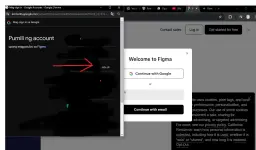
Choose High Education:
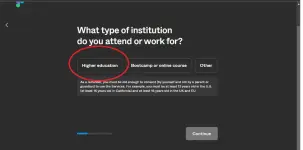
Just answer the question.
- Apply for Educational Plan(CRUCIAL):
After you answer question, in selection plan click the VERFIED first!
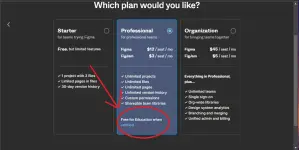
- Select the "Student" radio button.
- Choose "Higher Education" from the options.
- Provide a reason for applying for the free Figma education plan (any reason will do).
- Select the school associated with the student email you're using.
-if not listed, just click not listed its works
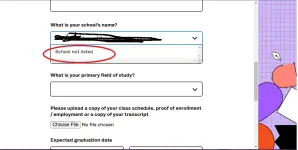
- Choose a field of study (e.g., Computer Science).
- Provide Proof of Enrollment:
- Visit your college's website.
- Take a screenshot of any semester's schedule.
- Upload the screenshot to the Figma application.
- Complete Application:
- Select a random expected graduation date.
- Check "Yes, I agree."
- Click "Submit."
- Create Figma Account:
- Click "Go to Figma."
- Fill in all the required details to create your Figma account.
- Verify Student Status:
- In the third box (presumably the verification section), click "Verify your status."
- Choose a Team (or Default):
- Click "Go to Figma" again.
- Select the team you want to upgrade. If you don't have a team, select the default team.
- Click the "Next" button (located on the right of the team selection).
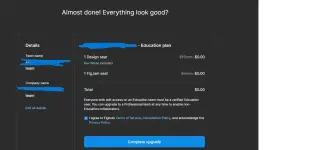
- Complete Upgrade:
- Click the "Complete Upgrade" button.
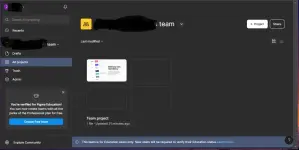
- Start Designing! You now have access to Figma's free educational plan. Enjoy creating your interactive designs!
- Share the Knowledge: Like, share, and comment on this guide to help others who might need it!