 PH
PH Pafeedback and Ss po mga papz salamat po
 Sharing is Good
 Godbless po KaPhc Fam
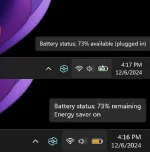
 Windows 11 Battery Icon Update!
 Windows 11 is rolling out some visual updates to the battery icon across the system tray,
 ️ Energy Saver Mode: The battery icon turns orange when Energy Saver is enabled.
 Charging Mode: It will show green when charging.
Also, battery usage graph labels (bottom right) have been backported from the Canary build.
🛠 Want to enable these updates NOW? 🛠
1. Download and Set Up ViVeTool:
- Download the ViVeTool utility from the official link
 You do not have permission to view the full content of this post.
Log in or register now.
You do not have permission to view the full content of this post.
Log in or register now.- Unzip the archive and place it in the c:\ViVeTool folder (create this folder in the root of drive C: for easy access).
2. Open Terminal (Admin):
- Press Win + X and select Terminal (Admin) from the menu.
- In the Command Prompt or PowerShell tab of the Terminal, enter the following commands:
Enable Colorful Battery Indicator:
c:\vivetool\vivetool /enable /id:48433719,48822452
Enable Updated Battery Graph:
c:\vivetool\vivetool /enable /id:48433719,53092139
3. Apply the Changes:
- Press Enter after each command. Ensure that the command prompt displays the message "Successfully set feature configuration" for both commands.
- Restart your computer to apply the changes.
 Disable the Colorful Battery Indicator & Updated Battery Graph
Disable Colorful Battery Indicator:
c:\vivetool\vivetool /disable /id:48822452
Disable Updated Battery Graph:
c:\vivetool\vivetool /disable /id:53092139
Apply the Changes:
- Press Enter after each command. You should see the message "Successfully set feature configuration" for both commands.
- Restart your computer to undo the changes.