 PH
PHFuji Garcia
Forum Veteran
Unbricking
Galaxy Ace 3 S7272
Full Tutorial + Download Links
INTRO
The Samsung Galaxy Ace 3, known as the GT-S7270, GT-S7275, and GT-7272 (dual-SIM), is a 4.0" phone with a 800x480 display. It was released in 2013. It is powered by either a Broadcom BCM21664 chipset or the Qualcomm Snapdragon 400 CPU, with 1GB of RAM and either 4GB or 8GB of ROM. You can add a microSD card up to 64GB to expand storage. The camera on back takes 5MP photos and 720p videos at 30fps.
WARNING
Flashing firmware will erase all data saved in your phone.
DOWNLOADS
FIRMWARE PACKAGE
You do not have permission to view the full content of this post.
Log in or register now.
ODIN PACKAGE
You do not have permission to view the full content of this post.
Log in or register now.
SAMSUNG USB Driver
You do not have permission to view the full content of this post.
Log in or register now.
PROCEDURE
STEP 1: Download Samsung USB Drivers , Download Firmware , Download Odin to your computer. Install drivers so as to have all necessary drivers for your device. Install Odin onto your PC, it is needed for flashing the firmware.
STEP 2: Extract the respective firmware file you’ve downloaded into a folder onto your desktop.
STEP 3: Open Odin.exe and reboot your device to Download Mode. To do so, when your device is OFF, press and hold the Volume Down + Power buttons together until the screen turns ON.
STEP 4: Now, connect your device to the PC using the original USB cable. You can use any USB Cable but it might create errors on your microUSB hub
STEP 5: If the ID: COM section in Odin turns Yellow, it means the necessary drivers for your device has been installed into the PC.
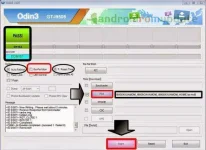
STEP 6: Now, click on “PDA” button and choose the “.tar.md5” file from the folder where you’ve extracted the downloaded firmware file.
STEP 7: Ensure that only “Auto Reboot” and “F. Reset” are checked in Odin, do not make any other changes.
STEP 8: Now, click on “Start” button to begin the flashing process. As soon as the flashing process has completed, you will see a “PASS” message in Odin and your device will reboot automatically.
STEP 8
CONGRATULATIONS!
You have SUCCESSFULLY unbricked your SAMSUNG Galaxy Ace 3 S7272
Any suggestions, feedbacks, errors?
Simply reply to this thread 
DON'T FORGET TO HIT LIKE!


