PH
PH
Claim your 5 TB Onedrive FREE AND LIFETIME Cloud Storage
STEP 1: Go to thisYou do not have permission to view the full content of this post. Log in or register now., tap "Join Now"
STEP 2: Tap "Create one!" to create a new account.
STEP 3: Tap on "Get a New Email Address" and create a new email address and a password of your choice
STEP 4: The website may ask to change/update your first name or last name, if a pop-up show, just press "Close" and it will redirect you to a new website where you can change/update your First Name and Las Name.
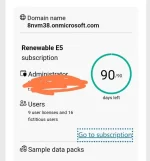
STEP 5: If you follow all the steps and instructions above, you will see "Join the Microsoft 365 Developer Program", if not then don't worry as this may take an hour to process.
STEP 6: Fill up the form*, it will ask your:
- Country
- Company Name (You can just name it anything you want)
- Language Preference
STEP 7: It will ask you What is your primary focus as a developer, make sure that your answer is "Personal Projects", tap on Next then you choose which one you like and hit Save.
STEP 8: After that, make sure you select "Instant Sandbox" (IT IS IMPORTANT) then you will fill up a form* again, DO NOT CHANGE THE COUNTRY/REGION, Create an Admin Username/Password.
STEP 9: Verify your Mobile Number.
STEP 10: COPY your new email address (this email is different from the email that you've create earlier. COPY AND SAVE IT so that you wouldn't forget about it)
STEP 11: Click this You do not have permission to view the full content of this post. Log in or register now., log in your account using the EMAIL that you COPY. And set it all up. You will be redirected to admin homepage.
STEP 12: Tap "Users" then "Active Users", locate and tap your name, after you tap your name a sidebar will pop-up, tap "Onedrive" option from the right.
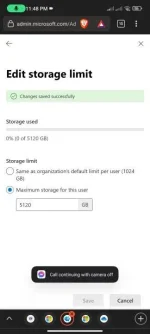
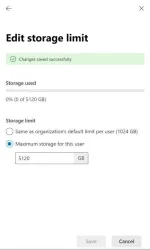
STEP 13: On "Storage Used" tap "Edit" and change it to "Maximum storage for this user" (5120 GB = 5TB). and you're DONE!!!