 PH
PH
Y
Yours
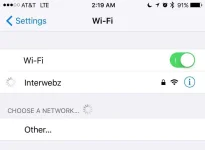
Wi-Fi is great, when it works, but sometimes those wireless networks we use to connect to the web can experience trouble. In these moments, your You do not have permission to view the full content of this post. Log in or register now. devices may be unable to establish a connection to the internet, and it can be frustrating.
In this troubleshooting tutorial, we’ll walk you through some steps to get your You do not have permission to view the full content of this post. Log in or register now. network up and running again.
What to do when your iPhone or iPad won’t connect to Wi-Fi
Most of the time, Wi-Fi problems are small and easy to fix, other times, they can be caused by a bigger problem. Nevertheless, the steps we’re about to walk you through are typically all you’ll need to do to get yourself up and running again.
To troubleshoot a Wi-Fi connectivity problem on your iOS device, move through this checklist:
1. Are you in range?
A lot of the time, your router’s signal may be poor. If your home or office has a lot of metal, walls, or other objects that could interfere with wireless signals, then you might have a shorter range bubble than you think.
You can check your signal by looking in the You do not have permission to view the full content of this post. Log in or register now. – three Wi-Fi bars is optimal, two is okay, and one is poor. Sometimes, you might have none at all and it’ll show LTE, 4G, 3G or E instead; this indicates you’re on a cellular network instead of a Wi-Fi network.
When your signal is too poor, your device will have trouble transmitting data back and forth with the router, and so you want to make sure you’re close enough to the wireless router to do so.
If you’re not in range, try getting closer to the wireless router and see if your Wi-Fi connectivity problems disappear. If not, move on to the next step.
2. Is Wi-Fi turned on?
If you have Wi-Fi disabled on your iOS device, then that could be the main reason you’re unable to connect.
To make sure Wi-Fi is turned on, you can open You do not have permission to view the full content of this post. Log in or register now. by swiping up from the bottom of the screen. Just make sure that Airplane Mode is disabled and that Wi-Fi is turned on.
In Control Center, an item that is toggled on will appear to glow lighter than toggle buttons that are toggled off, which are dimmed out.
You may also want to ensure that your wireless router is turned on. Although not very often the case, there is always a possibility that a reset switch or a power surge may have knocked it off and that it may have been shut off and needs to be restarted.
If everything appears to be turned on, then you can move on to the next step.
3. Does your network show in your Wi-Fi settings?
If you know everything’s turned on and that you’re close enough to the wireless router, but still don’t see an active internet connection, then make sure you’re actually able to see the Wi-Fi network under the Wi-Fi settings on your iOS device via Settings > Wi-Fi.
It’s possible that a network administrator has turned off SSID broadcasting setting from the wireless router, and this could be why you’re unable to connect to your Wi-Fi network as usual.
If they’ve done this, you will not see the Wi-Fi network under the list of available networks, and you will have to enter the SSID manually, along with the password if one applies.
If this doesn’t apply to you, keep moving down the list to the next step.
4. Have you logged on to the network?
You may have accessed the Wi-Fi network, but you will need to enter a password if your Wi-Fi network is protected with a security key. In most cases, you’re asked to enter the security key the moment you join a secured network.
In other cases, you might be accessing a Wi-Fi network where you need to open You do not have permission to view the full content of this post. Log in or register now. on your device and try to load a website. When you do, you’ll be redirected to a login portal. These kinds of networks are common in schools, colleges, and institutions.
Once you’re all logged on to the Wi-Fi network, try to use it again and see if you have complete internet access.
If password entry wasn’t the root of your problems, continue on to the next step.
5. Is everything plugged in properly?
Okay so you might have looked to make sure that the router is turned on, but did you check your modem, power cables, coaxial cables, and ethernet cables to make sure that everything is connected?
Sometimes pets, movement of furniture, and kids can break or undo important wiring that is required to have internet access. In cases where wires are disconnected, the wireless router may still broadcast a signal, but it’ll be a dead signal because the router may not have access to your internet.
This is common when the modem becomes unplugged, and not the router, but many modern routers, such as those given out by Verizon, have a modem built into them. For those, the only thing you really need to check is that the coaxial connection is there, because if the power cable wasn’t, the router wouldn’t even be on and you wouldn’t have gotten past step 2!
If everything is plugged in, try the next step.
6. Try restarting everything
In some cases, the iOS device or router or modem may be acting up. Try restarting everything.
You can restart your iPhone or iPad by pressing and holding the power button, and then sliding the “Slide to power off” slider. For your modem or router, all you typically have to do is remove the power cable and wait a minute for all the juice to drain from the capacitors.
After a minute, plug everything back in and turn your iOS device back on. When everything boots up, try to reconnect to your network again.
In many cases, this solves the problem. If it doesn’t, don’t fret, there are more things you can try!
7. Reset your iOS device’s network settings
It’s rare, but your iOS device’s network settings can become corrupted. iOS comes with an option under Settings > General > Reset dubbed Reset Network Settings.
If all else fails, tap on this button and let iOS forget all of your network settings. You will have to reconfigure any VPNs, Wi-Fi networks, and other network-related information, but it gives you a clean slate to start from in case you may have been suffering from some kind of corruption.
Other options to try
In many cases, the above steps should have fixed your problem. However there are some very limited scenarios that could impact a niche amount of people. Here are some additional steps of advice we can provide:
- Ask for assistance – If you didn’t set up the network, and someone else did, try asking them for assistance. The Wi-Fi network may be set up a specific way to only allow certain devices on the network, and you may need to ask the administrator to join.
- Contact your ISP – In some scenarios, your Wi-Fi and devices are working just fine. Your internet service provider may just be experiencing a temporary hiccup that they could fix on their end. Try contacting them to see if they can assist you further.
- Try another Wi-fi network – If you want to narrow down whether it’s a problem with a specific network, or your device, then try connecting to another Wi-Fi network. If another Wi-Fi network works, then you know it’s a problem with that specific network. If none work, try contacting Apple for more help.
- Update your wireless router – Make sure your wireless router is up to date and is using the latest firmware. Outdated hardware or firmware can cause incompatibility issues, especially with some of the latest high-speed devices available today. You can usually check for updates after logging in to your router from the web browser utility.
- Disable any VPNs or Proxys – Sometimes a bad VPN or proxy could be inhibiting your web access. In this case, it’s not really your Wi-Fi network at all, but rather something is keeping your device from accessing what you want to access.
Most Wi-Fi problems, like explained before, are small and are easily fixed, but sometimes it’s a much larger problem that you’ll need to ask for help to fix. Most of the time, rebooting your router or getting in range will solve your problem.
idownloadblog