 PH
PHPignaPayat
Established
Windows Subsystem for Android enables your Windows 11 device to run Android applications that are available in the Amazon Appstore or APK apps.
PC Requirements:
OS: Windows 11
Ram: 8GB up
Steps:
1. open Turn on windows features on and off (just search on start button)
Check the Virtual Machine Platform
Check the Windows Hypervisor Platform
then click "ok" and restart your pc
2. Set your device region in US
3. Installing Windows Subsystem for Android
The current preview version of WSA is only officially available for Windows Insiders, if you are one of them, all you have to do now is to search for Amazon Appstore on the Microsoft Store and that’s it! Now you can install and run android apps available at the appstore, but if you aren’t a Windows Insider, you will need to install it manually, but remember: this is a preview version of WSA, bugs and issues are expected, I haven’t found any myself, but keep that in mind.
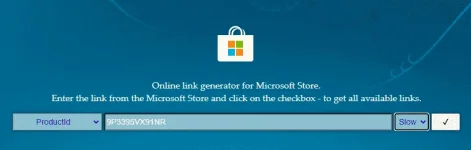
First, let’s download the WSA package, to do that, You do not have permission to view the full content of this post. Log in or register now. to open an online tool that generates a direct link to the Microsoft Store package. On the first dropdown menu on the left, select “productId”, type “9P3395VX91NR”, which is the product ID for WSA and select “slow” for the dropdown menu on the right.
The link generator will come up with a list of all available links for this product ID, what we are looking for is a .msixbundle file with a little over 1 GB, for me it was the last item in the list.
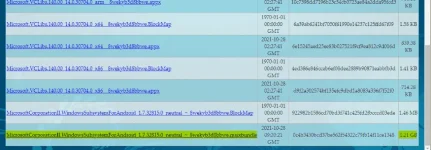
Right-click the file name and select “save as…”, then save it somewhere in your computer.
4. open PowerShell with admin rights and execute the following command:
Add-AppxPackage -Path <path_to_msixbundle_file>
I saved the file to C:/, so the command for me was "Add-AppxPackage -Path C:/MicrosoftCorporationII.WindowsSubsystemForAndroid_1.7.32812.0_neural__8wekyb3d8bbwe.Msixbundle" .
This will install WSA, now restart your computer, and it should appear in your start menu.
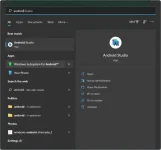
5. After installation. First, let’s open the “Windows Subsystem for Android™” app and check the settings available here.
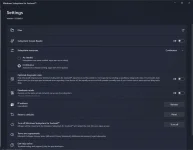
In the settings, you can set the subsystem resources to “continuous” to keep WSA opened all the time or “as needed” to start it every time you open an app and close it afterwards, I recommend using “as needed” since this feature is still in preview, and it will consume both CPU and memory resources (~1Gb of RAM) even if there is no app opened. In the settings you can also open the “Files” app to access the internal file system of WSA, reset to defaults, turn it off and even enable developer mode!
6. To install apps, you can open the Amazon Appstore, it has been installed with WSA by default, so you can search for it in the start menu, then just log in with your Amazon account and download the apps you want. but you need an US Amazon account to use it. instead download an APK file and follow this steps to install the app.
-Download SDK Platform here: You do not have permission to view the full content of this post. Log in or register now.
-when download is complete you need to extract it and go to your C:/ drive and make a folder named "adb" inside copy and paste the platform-tools
-open the platform-tools folder and inside the platform folder edit the address bar type cmd and enter it. this will open an command prompt for your installation of APK.
-type: adb connect YOUR IP ADRESS (for IP Address open your windows subsystem for android and copy the ip and paste it)
-once successful you may proceed for the installation of apk type: adb install PATH OF YOUR APK (copy the path of your apk and paste it the hit enter)
and Done!
Hope it Helps!!
enables your Windows 11 device to run Android applications that are available in the Amazon Appstore or APK apps.PC Requirements:
OS: Windows 11
Ram: 8GB up
Steps:
1. open Turn on windows features on and off (just search on start button)
Check the Virtual Machine Platform
Check the Windows Hypervisor Platform
then click "ok" and restart your pc
2. Set your device region in US
3. Installing Windows Subsystem for Android
The current preview version of WSA is only officially available for Windows Insiders, if you are one of them, all you have to do now is to search for Amazon Appstore on the Microsoft Store and that’s it! Now you can install and run android apps available at the appstore, but if you aren’t a Windows Insider, you will need to install it manually, but remember: this is a preview version of WSA, bugs and issues are expected, I haven’t found any myself, but keep that in mind.
First, let’s download the WSA package, to do that, You do not have permission to view the full content of this post. Log in or register now. to open an online tool that generates a direct link to the Microsoft Store package. On the first dropdown menu on the left, select “productId”, type “9P3395VX91NR”, which is the product ID for WSA and select “slow” for the dropdown menu on the right.
The link generator will come up with a list of all available links for this product ID, what we are looking for is a .msixbundle file with a little over 1 GB, for me it was the last item in the list.
Right-click the file name and select “save as…”, then save it somewhere in your computer.
4. open PowerShell with admin rights and execute the following command:
Add-AppxPackage -Path <path_to_msixbundle_file>
I saved the file to C:/, so the command for me was "Add-AppxPackage -Path C:/MicrosoftCorporationII.WindowsSubsystemForAndroid_1.7.32812.0_neural__8wekyb3d8bbwe.Msixbundle" .
This will install WSA, now restart your computer, and it should appear in your start menu.
5. After installation. First, let’s open the “Windows Subsystem for Android™” app and check the settings available here.
In the settings, you can set the subsystem resources to “continuous” to keep WSA opened all the time or “as needed” to start it every time you open an app and close it afterwards, I recommend using “as needed” since this feature is still in preview, and it will consume both CPU and memory resources (~1Gb of RAM) even if there is no app opened. In the settings you can also open the “Files” app to access the internal file system of WSA, reset to defaults, turn it off and even enable developer mode!
6. To install apps, you can open the Amazon Appstore, it has been installed with WSA by default, so you can search for it in the start menu, then just log in with your Amazon account and download the apps you want. but you need an US Amazon account to use it. instead download an APK file and follow this steps to install the app.
-Download SDK Platform here: You do not have permission to view the full content of this post. Log in or register now.
-when download is complete you need to extract it and go to your C:/ drive and make a folder named "adb" inside copy and paste the platform-tools
-open the platform-tools folder and inside the platform folder edit the address bar type cmd and enter it. this will open an command prompt for your installation of APK.
-type: adb connect YOUR IP ADRESS (for IP Address open your windows subsystem for android and copy the ip and paste it)
-once successful you may proceed for the installation of apk type: adb install PATH OF YOUR APK (copy the path of your apk and paste it the hit enter)
and Done!
Hope it Helps!!