 PH
PHarsenal1205
Rarely opens PHC
Windows 10’s default system font, Segoe UI, looks pretty nice. However, if you have You do not have permission to view the full content of this post. Log in or register now. to replace it with, you can change the default system font on your Windows 10 PC. We’ll show you how to do this.
How to Change the Default System Font Using Registry Editor
At the time of writing in March 2021, neither Settings nor Control Panel has an option to change the default system font. This means that you need to rely on a registry häçk to change your computer’s default font.Luckily, this is easy to do. You need to You do not have permission to view the full content of this post. Log in or register now., add your new font’s name in it, and execute the file to change the default Windows 10 font.
RELATED: You do not have permission to view the full content of this post. Log in or register now.
To begin, you need to know the official name of the font that you want to set as the default system font. You can find this name using the Settings app.
Open the “Start” menu, search for “Settings,” then click the first result. You can also press Windows+i to quickly open the Settings window.
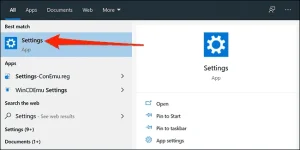
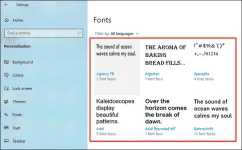
In Settings, click “Personalization,” then select “Fonts” in the left sidebar. On the right pane, find the font that you want to set as the default and click the font name.
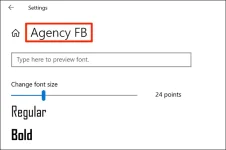
At the top of your screen, you can see the official name of your font. Note this name.
Now, you need to create a registry häçk that adds this font to the Windows Registry. You can use a text editor like Notepad to make registry häçks.
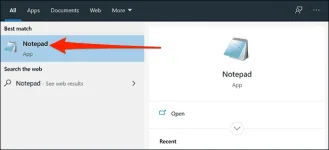
To start, open the “Start” menu, search for “Notepad,” then click the first result.
Copy the following code and paste it into a new Notepad document. Then, replace “NEW-FONT” in the code with the name of the font you noted earlier. Make sure that you keep double quotes around the font name as already shown in the code.
Code:
Windows Registry Editor Version 5.00

[HKEY_LOCAL_MACHINE\SOFTWARE\Microsoft\Windows NT\CurrentVersion\Fonts]
"Segoe UI (TrueType)"=""
"Segoe UI Bold (TrueType)"=""
"Segoe UI Bold Italic (TrueType)"=""
"Segoe UI Italic (TrueType)"=""
"Segoe UI Light (TrueType)"=""
"Segoe UI Semibold (TrueType)"=""
"Segoe UI Symbol (TrueType)"=""

[HKEY_LOCAL_MACHINE\SOFTWARE\Microsoft\Windows NT\CurrentVersion\FontSubstitutes]

"Segoe UI"="NEW-FONT"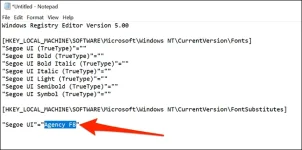
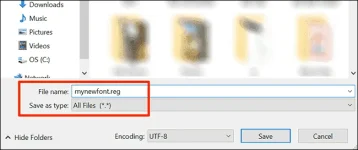
In Notepad, click File > Save As. Then enter a name followed by “.reg” in the “File name” field. For example, to save the file as “mynewfont”, you’d type “mynewfont.reg”. Choose “All Files” from the “Save as type” dropdown menu, select a location to save your file in, and click “Save.”
Open the folder where you saved your newly created Registry häçk. Right-click this file and select “Merge.” This adds the values in your file to the Windows Registry.
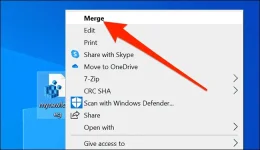
Click “Yes” in the prompt, then click “Yes” again to add your new values to the Windows Registry.

Lastly, click the “Start” menu, select the power icon, and choose “Restart” to restart your computer. This brings your changes into effect.
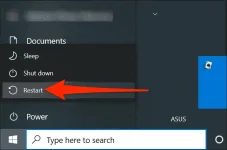
When your computer boots back up, you’ll find your selected font is now the default font for nearly all Windows panels and tools.
To use another font as the default font, right-click your Registry häçk and select “Edit.” Replace your current font’s name with your new font name, and click File > Save to save the file.
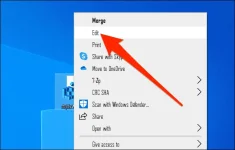
Then, right-click your file and select “Merge,” followed by “Yes” (twice) to change your default font.
How to Go Back to the Original Default Font on Windows 10
To reset your changes and use the original default font on your PC, you just need to create another Registry häçk and enter some code in it (The code is given below.). Then, just make a few clicks, and you’re back to the default Windows font.To do this, open the “Start” menu, search for “Notepad,” then click the app in the results.
Copy the following text and paste it into your new Notepad document. You don’t need to make any changes to this text.
Code:
Windows Registry Editor Version 5.00


[HKEY_LOCAL_MACHINE\SOFTWARE\Microsoft\Windows NT\CurrentVersion\Fonts]

"Segoe UI (TrueType)"="segoeui.ttf"

"Segoe UI Black (TrueType)"="seguibl.ttf"

"Segoe UI Black Italic (TrueType)"="seguibli.ttf"

"Segoe UI Bold (TrueType)"="segoeuib.ttf"

"Segoe UI Bold Italic (TrueType)"="segoeuiz.ttf"

"Segoe UI Emoji (TrueType)"="seguiemj.ttf"

"Segoe UI Historic (TrueType)"="seguihis.ttf"

"Segoe UI Italic (TrueType)"="segoeuii.ttf"

"Segoe UI Light (TrueType)"="segoeuil.ttf"

"Segoe UI Light Italic (TrueType)"="seguili.ttf"

"Segoe UI Semibold (TrueType)"="seguisb.ttf"

"Segoe UI Semibold Italic (TrueType)"="seguisbi.ttf"

"Segoe UI Semilight (TrueType)"="segoeuisl.ttf"

"Segoe UI Semilight Italic (TrueType)"="seguisli.ttf"

"Segoe UI Symbol (TrueType)"="seguisym.ttf"

"Segoe MDL2 Assets (TrueType)"="segmdl2.ttf"

"Segoe Print (TrueType)"="segoepr.ttf"

"Segoe Print Bold (TrueType)"="segoeprb.ttf"

"Segoe Script (TrueType)"="segoesc.ttf"

"Segoe Script Bold (TrueType)"="segoescb.ttf"


[HKEY_LOCAL_MACHINE\SOFTWARE\Microsoft\Windows NT\CurrentVersion\FontSubstitutes]


"Segoe UI"=-
Click File > Save As in Notepad to save your new häçk. Then enter a name, followed by “.reg” in the “File name” field. Choose “All Files” from the “Save as type” dropdown, then click “Save.”
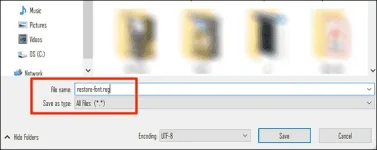
Use File Explorer to find your newly created Registry häçk. Right-click this file and select “Merge.”
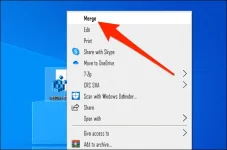
Click “Yes” in both prompts on your screen to add the default font to the Registry.
Finally, reboot your computer, and you now have the original font as the default on your PC.
FROM: HOWTOGEEK


