 PH
PHHello mga ka PHC! Were back at it again for another helpful tutorial! For this easy steps you'll be able to browse the blocked sites by your ISP.
Disclaimer: This tutorial is valid for PC/Desktop users only.
FOR MOBILE (Android & IPhone) USERS


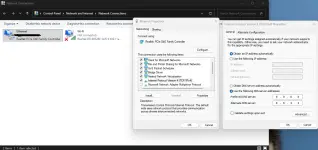
1. Go to control panel > Network and Internet > Network and Sharing Center > Change Adapter Settings > Right Click on your ethernet driver >
or simply on your taskbar (lower left) > right click on the lan symbol > Network and Internet Settings > Ethernet
2. Change the IPv4 DNS servers
3. Simply put on
preferred dns server: 8.8.8.8 or 1.1.1.1
alternate dns server: 8.8.4.4 or 1.0.0.1
4. How to decide what dns is best for you?
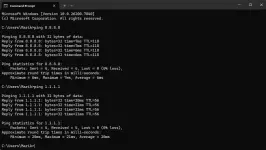
5. Run CMD, type ping 8.8.8.8 or 1.1.1.1, from here kung ano mas mababang ping yun dapat ilagay niyo sa dns server. Please refer to my picture that's why I've used the google dns server kase mas mababa yung ping hehe
6. Boom! Enjoy smooth browsing!
Disclaimer: This tutorial is valid for PC/Desktop users only.
FOR MOBILE (Android & IPhone) USERS
1. Go to control panel > Network and Internet > Network and Sharing Center > Change Adapter Settings > Right Click on your ethernet driver >
or simply on your taskbar (lower left) > right click on the lan symbol > Network and Internet Settings > Ethernet
2. Change the IPv4 DNS servers
3. Simply put on
preferred dns server: 8.8.8.8 or 1.1.1.1
alternate dns server: 8.8.4.4 or 1.0.0.1
4. How to decide what dns is best for you?
5. Run CMD, type ping 8.8.8.8 or 1.1.1.1, from here kung ano mas mababang ping yun dapat ilagay niyo sa dns server. Please refer to my picture that's why I've used the google dns server kase mas mababa yung ping hehe
6. Boom! Enjoy smooth browsing!
