PH
PHTransfer Files From Mega to Google Drive using Google Colab
Heywazup, gonna share you the way to transfer files from MEGA to Google Drive using Google Colab.Detailed Tutorial:
1. Download this zip file from mediafire > You do not have permission to view the full content of this post. Log in or register now.
After downloading the file, extract it.
2. Go to Google Colab > You do not have permission to view the full content of this post. Log in or register now.
Sign in to your Google Account.
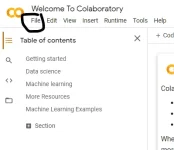
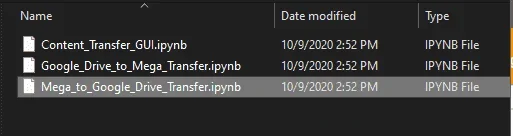
In the upper left of the site, click File and click Upload notebook
Locate the downloaded File
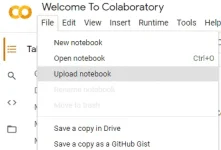
Choose Mega to Google Drive Transfer
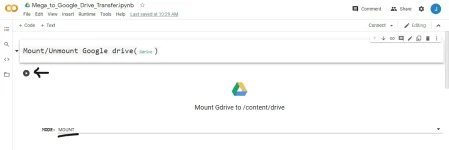
3. It should be Mount and click the Play Button
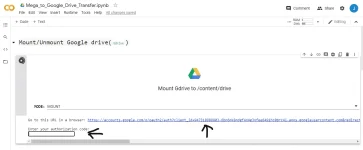
4. After clicking the Play button, You will be able to see a link that redirects you to your google account and it needs you to allow it and get the code
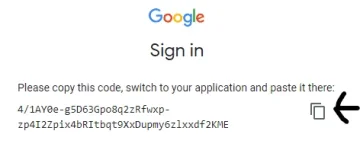
Click the link > Allow > Copy Authorization Code > Paste it and Enter
5. Scroll down and you can see this. Enter your username and password and click Play Button
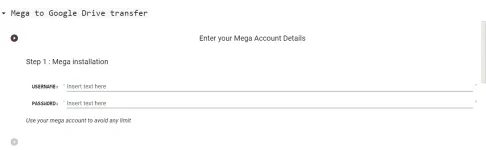
Wait for a few seconds because Mega is installing and it will be installed
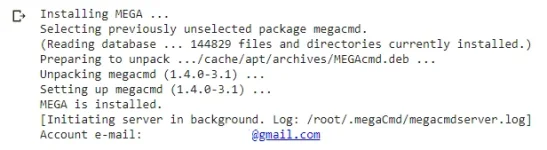
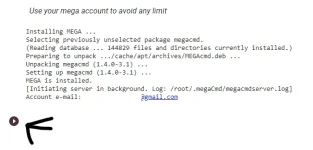
6. Click the play button
7. And now you will be able to see this
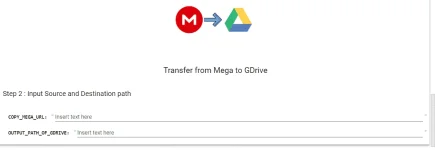
Go to your Mega Account > Right Click > Copy Link/Manage Link > COPY
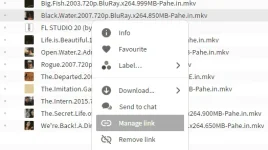
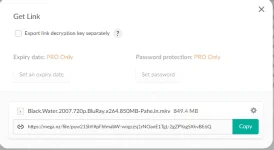
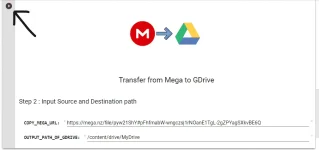
8. Go back and Paste it. And for the OutPut Path of GDRIVE. Click the Files Icon
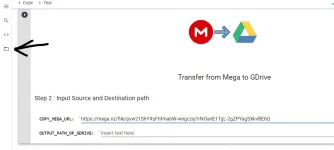
And you will see this
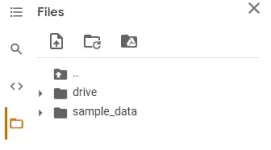
Expand drive
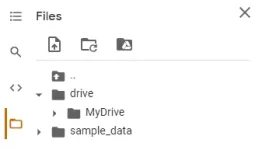
Right click MyDrive and Click Copy Path
Paste it in the Output Path of GDrive

9. The Last thing to do is to click the Play Button
Proof:
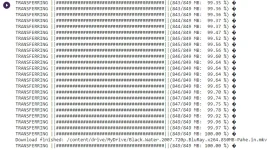
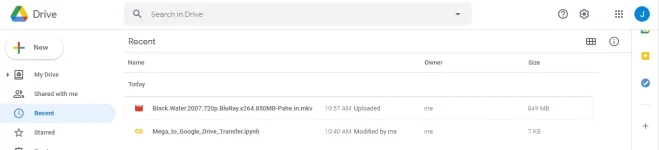
Yung multcloud talaga yung ginagamit ko pero kapag nag ta-transfer ako ng files from mega to google drive, may error si mega dahil naka restrict yung transfer bandwidth nya.
By the way, since hindi pa pwede ma access Google Drive sa Pahe.ph, pwede ito gamitin mong trick
Wala itong bandwith sa pag transfer which means hindi mababawasan ang data mo kapag nagtransfer ka
For instance, 1GB yung tinransfer mo, hindi ka mababawasan ng 1GB sa data mo.